5-21
Basic Usage of the Printer
5
Canceling a Print Job
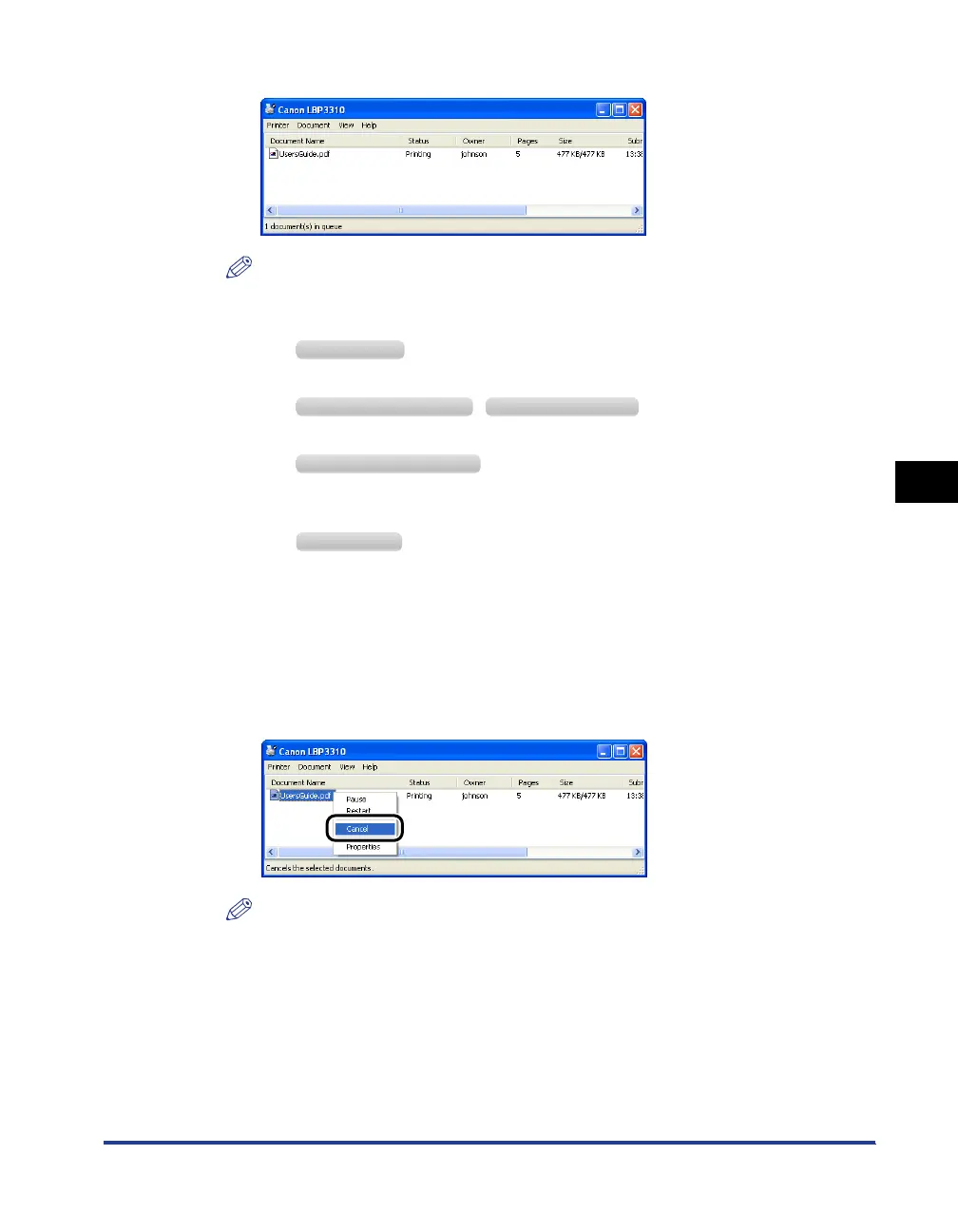
The print queue is displayed.
NOTE
•
You can also display the print queue using the following procedure.
1. Display the [Printers and Faxes] folder or the [Printers] folder.
From the [Start] menu, select [Settings] ➞ [Printers].
From the [Start] menu, select [Printers and Faxes].
From the [Start] menu, select [Control Panel], and then click [Printers and Other
Hardware] ➞ [Printers and Faxes].
From the [Start] menu, select [Control Panel], and then click [Printer].
2. Double-click the icon for this printer.
•
For details on the print queue, see Windows Help.
3
Right-click the job that you want to cancel, then select
[Cancel] from the pop-up menu.
NOTE
•
Another user's job is not displayed.
However, all the jobs are displayed on the print server if the printer is shared on a
network.
•
This printer allows you to operate jobs in the print queue until they are completed.
Windows 2000
Windows XP Professional Windows Server 2003
Windows XP Home Edition
Windows Vista



 To Next Page