8-45
Tr oubleshooting
8
Installation Problems
IMPORTANT
If the icon for this printer is displayed, be sure to delete it. Unless you delete the
icon, you cannot install the printer driver again.
To delete the icon for this printer, right-click it, and then select [Delete] from the
pop-up menu.
8
Restart Windows.
Uninstalling the USB Class Driver
Uninstall the USB class driver under the following circumstances.
•
If you cannot install the printer driver properly even after reinstalling it
•
If you cannot uninstall the printer driver
1
Make sure that the computer is connected to the printer with
the USB cable and that the printer is ON.
2
Perform the following procedure.
From the [Start] menu, select [Settings]
➞
[Control Panel], and then double-click [Add/
Remove Programs].
From the [Start] menu, select [Control Panel], and then click [Add or Remove Programs].
From the [Start] menu, select [Control Panel]
➞
[Add or Remove Programs].
From the [Start] menu, select [Control Panel], and then click [Uninstall a program].
3
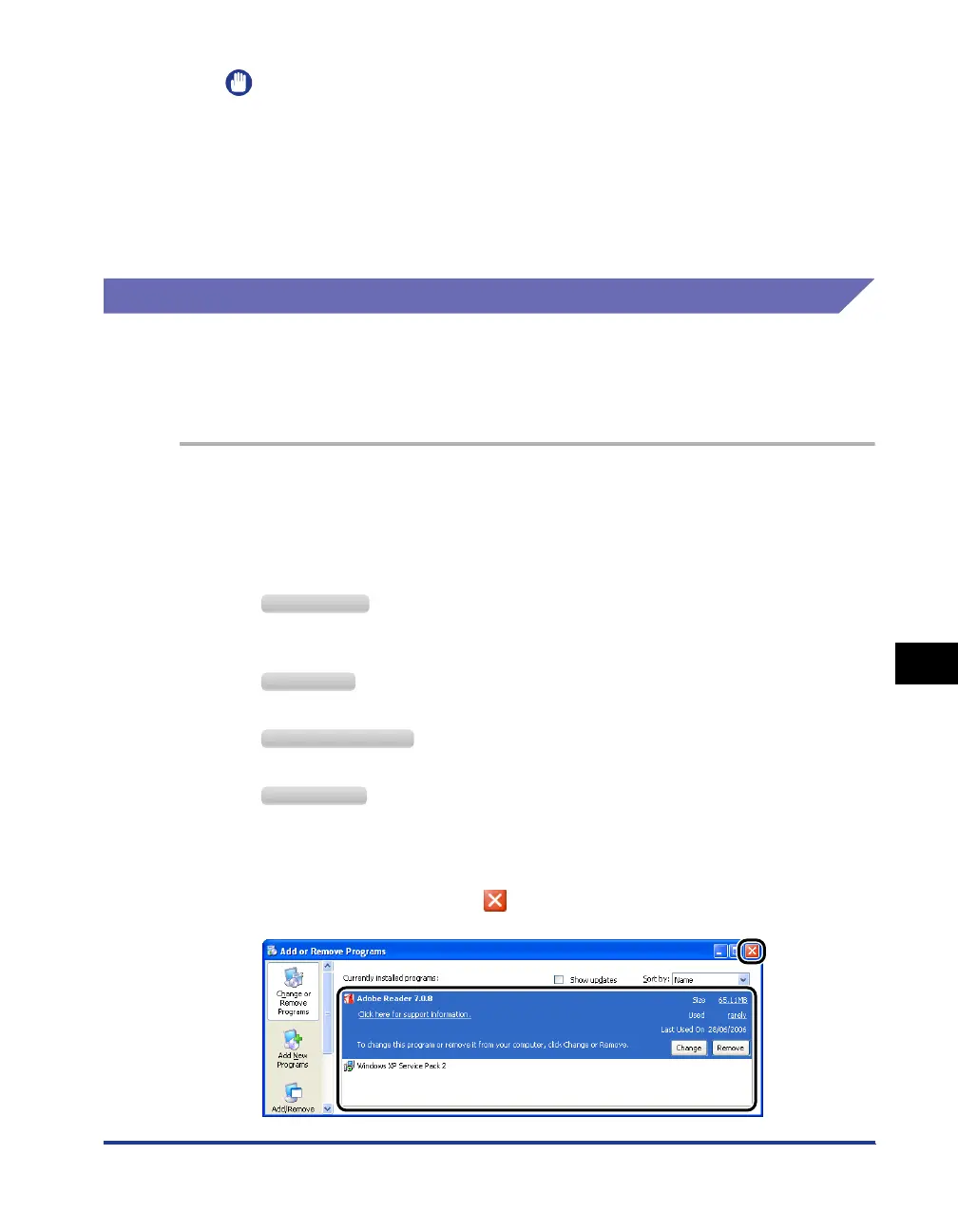
Make sure that [Canon LBP3310] is not displayed in the dialog
box
aa
aa
, and then click [ ]
bb
bb
.
Windows 2000
Windows XP
Windows Server 2003
Windows Vista
b
a



 To Next Page