5-35
Basic Usage of the Printer
5
Printer Status Window
■ Other Functions
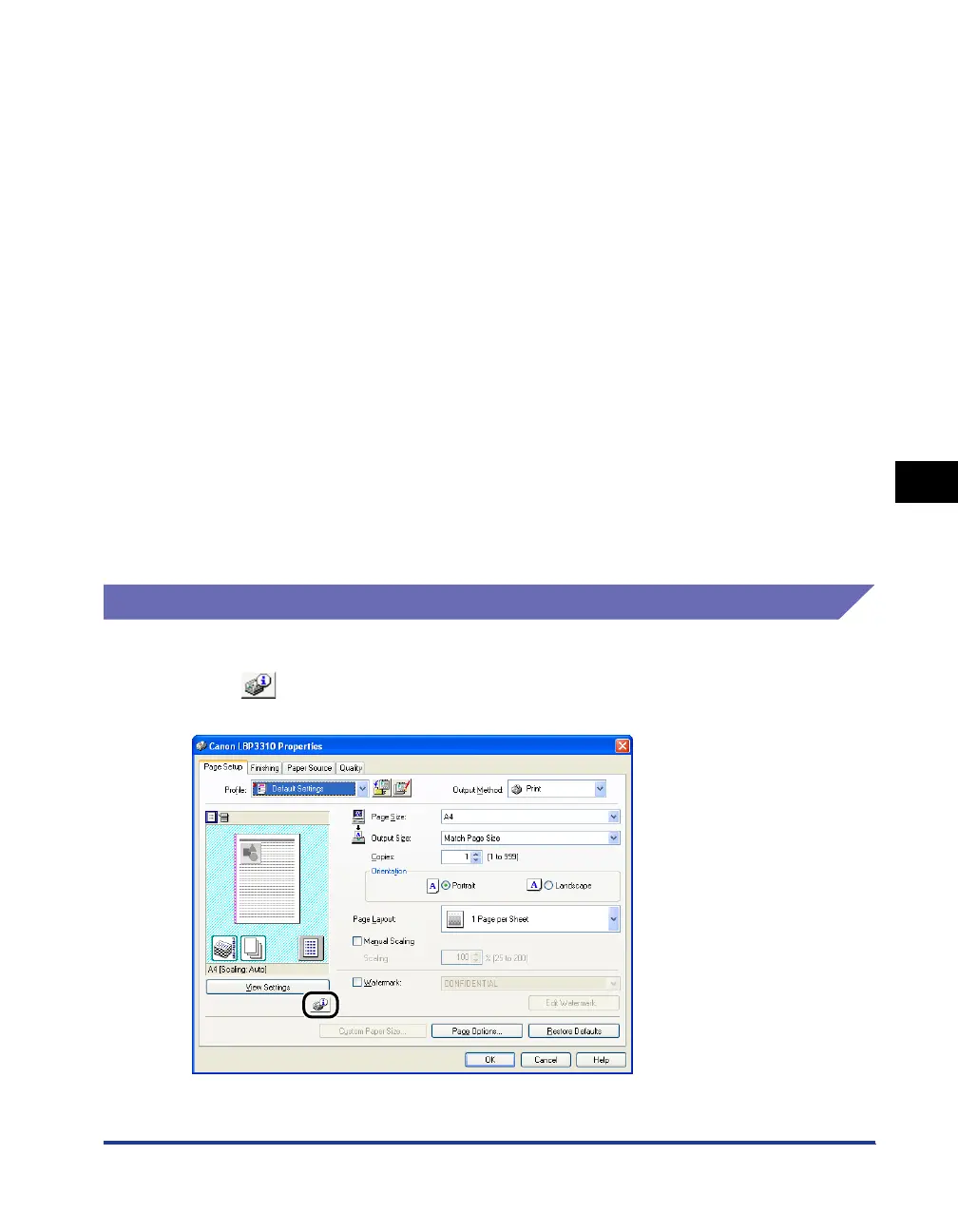
Displaying the Printer Status Window
There are the following two ways to display the Printer Status Window.
• Click [ ] (Display Printer Status Window) in locations such as in the [Page
Setup] sheet in the printer driver.
[Icon] Displays the printer status.
[Message Area] Displays the current printer status with a short message.
[Message Area] (Auxiliary) Displays additional information if an error or other such event
occurs.
[Animation Area] Displays the printer status using an animated graphic. The
background color changes from blue (normal) to orange when user
action is required, or to red when a warning is issued.
[Print Queue] Button Displays the print queue, a function of Windows. For details on the
print queue, see Windows Help.
[Refresh] Button Obtains the printer status and refreshes the Printer Status Window
display.
[Resolve Error] Button You can resume a job when it is paused during printing for some
reason.
[Job Information Area] Displays information about the job.
[Progress Bar] Indicates the progress of the current job by showing the number of
printed pages and the bar growth.
[Cancel Job] Button Cancels the current job. While another user's job is being printed,
the [Cancel Job] button is displayed in gray.
[Status Bar] Displays the device to which the printer is connected.



 To Next Page