8-50
Tr oubleshooting
8
When Data Is Not Sent to the Printer
3.
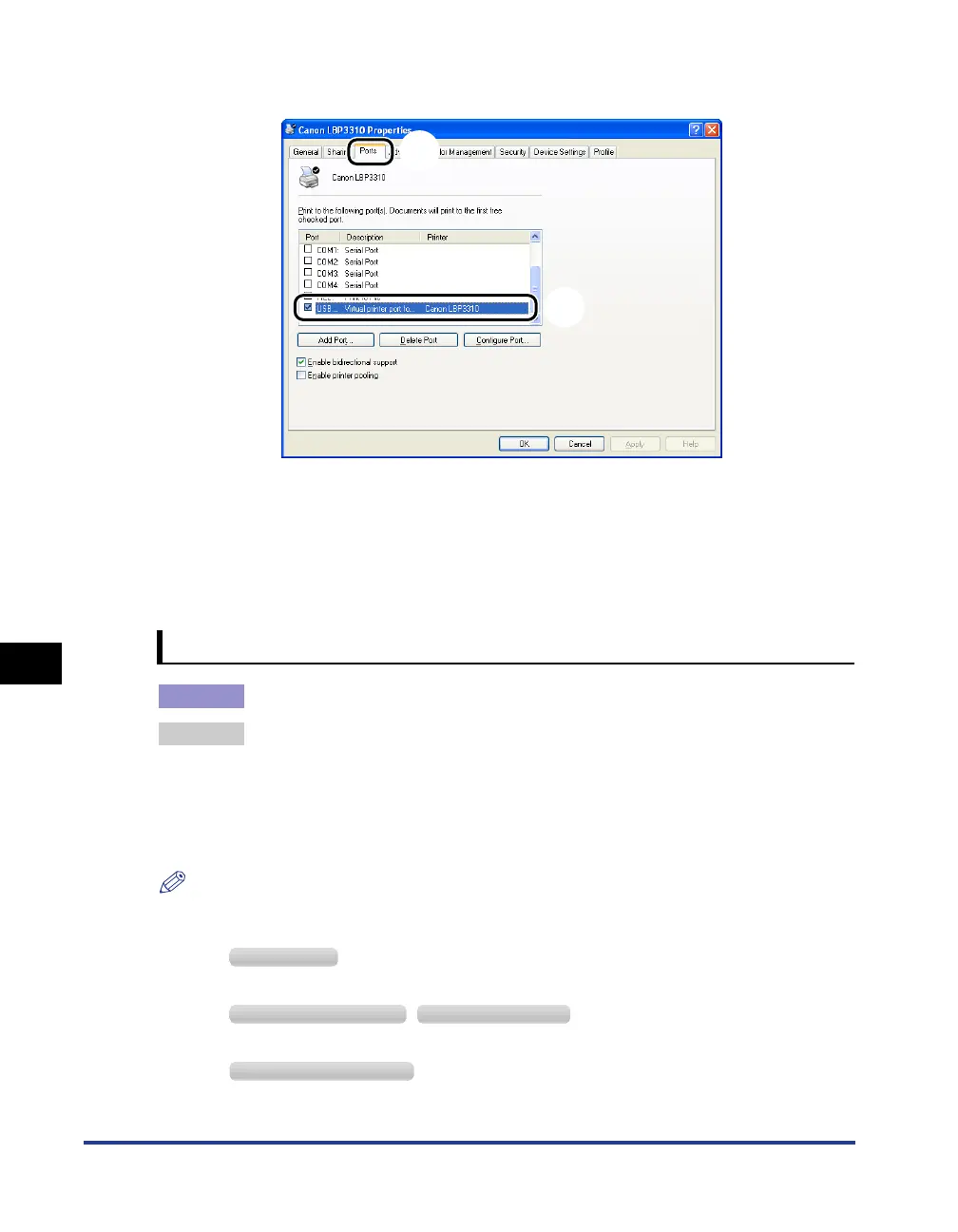
Display the [Ports] sheet
a
, then make sure that the port to be used is selected
properly
b
.
•
If the appropriate port is not selected
Select the appropriate one, then click [OK].
•
If you cannot find the port to be used
Uninstall the printer driver and install it again. (See "Uninstalling the Printer Driver," on p.
4-67, "Installing the Printer Driver," on p. 4-4)
Bi-directional communication has a problem.
Cause
Bi-directional communication is not enabled.
Remedy Perform the following procedure.
1.
Enable bi-directional communication.
2.
Restart the computer.
3.
Restart the printer (Turn OFF the printer once, wait for 10 seconds or longer, and then
turn it ON.).
NOTE
Specify the setting for bi-directional communication using the following procedure.
1.
Display the [Printers and Faxes] folder or the [Printers] folder.
From the [Start] menu, select [Settings]
➞
[Printers].
From the [Start] menu, select [Printers and Faxes].
From the [Start] menu, select [Control Panel], and then click [Printers and Other Hardware]
➞
[Printers and Faxes].
a
b
Windows 2000
Windows XP Professional Windows Server 2003
Windows XP Home Edition



 To Next Page