C
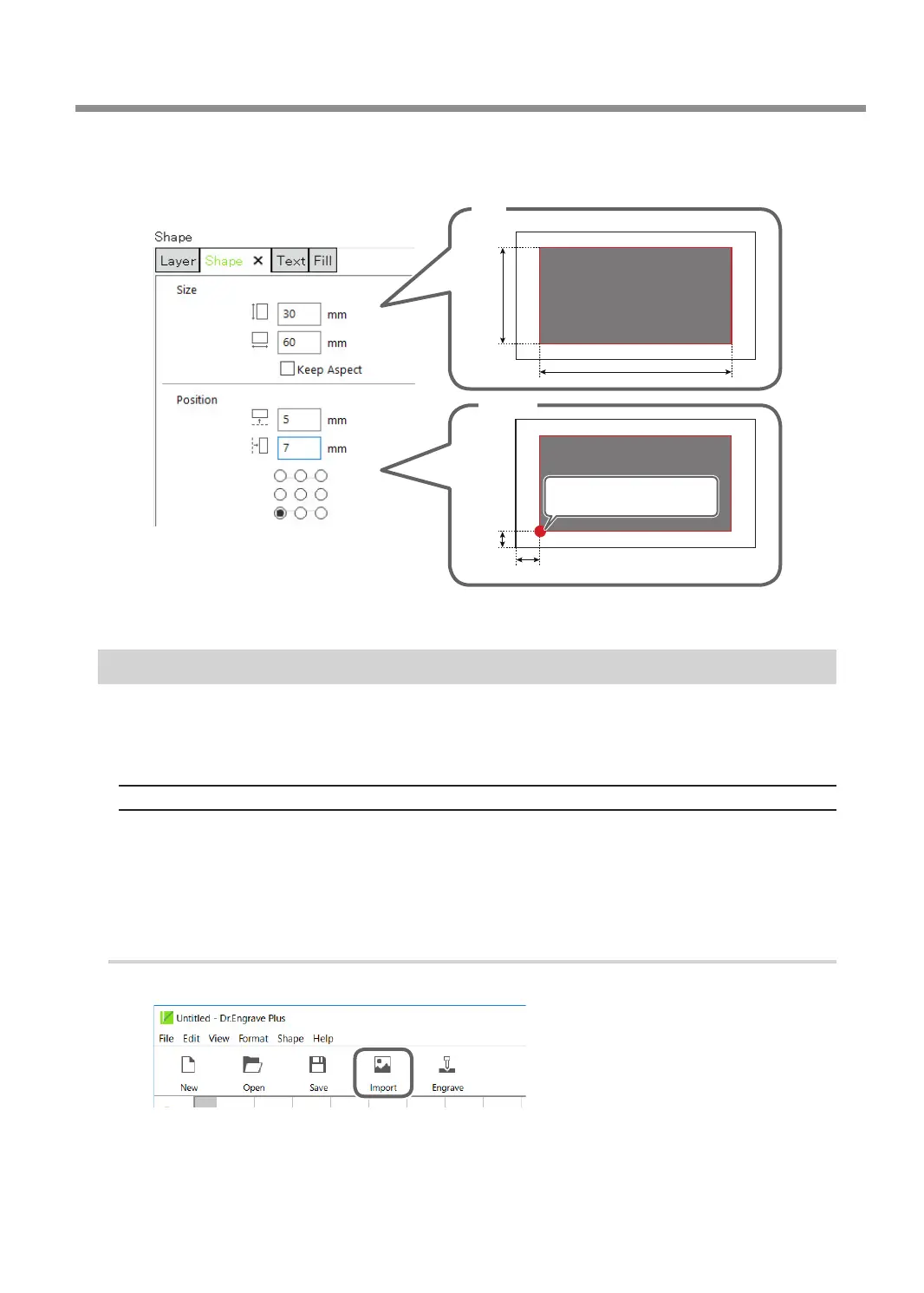
Enter the [Size] and [Position] in the [Shape] panel.
Enter the following values.
7 mm (0.3 in.)
5 mm
(0.2 in.)
Reference point
(lower-left corner of the shape)
Position
30 mm
(1.2 in.)
60 mm (2.4 in.)
Size
You can change or move the shape you drew to any size and position.
Step 3: Loading an Image
You can load the image you have prepared in advance, extract its contour and convert it into a line segment. For
example, you can import logo data of a company or an organization, or illustration data for engraving. As an
example, the procedure for loading an Adobe Illustrator le is explained in this section.
Data Formats That Can Be Imported (Extension)
• Adobe Illustrator version 7/8 les (ai/eps format)
* There are multiple limitations on Adobe Illustrator les. For details, see the Dr. Engrave Plus help.
" Dr. Engrave Plus help ("Creating Objects" - "Importing an Existing Image File")
• Other image les (bmp/jpg/png format)
1.
Select the image le.
A
Click [Import].
The [Import] window is displayed.
Creating Engraving Data
31
Chapter 3 Basic Engraving Methods


 To Next Page