4-34 DynaVox Technologies
Chapter 4: Working with Pages About the Page Browser
ABOUT THE PAGE BROWSER
Communication pages are maintained in the Page Browser menu.
The tools in this menu provide several ways to manage, edit and
share these page files.
To open the Page Browser menu, follow these steps:
1. Select the blue Setup button in the title bar. The Mo Setup menu
will open.
2. Select the Page Browser button. The Page Browser menu will
open.
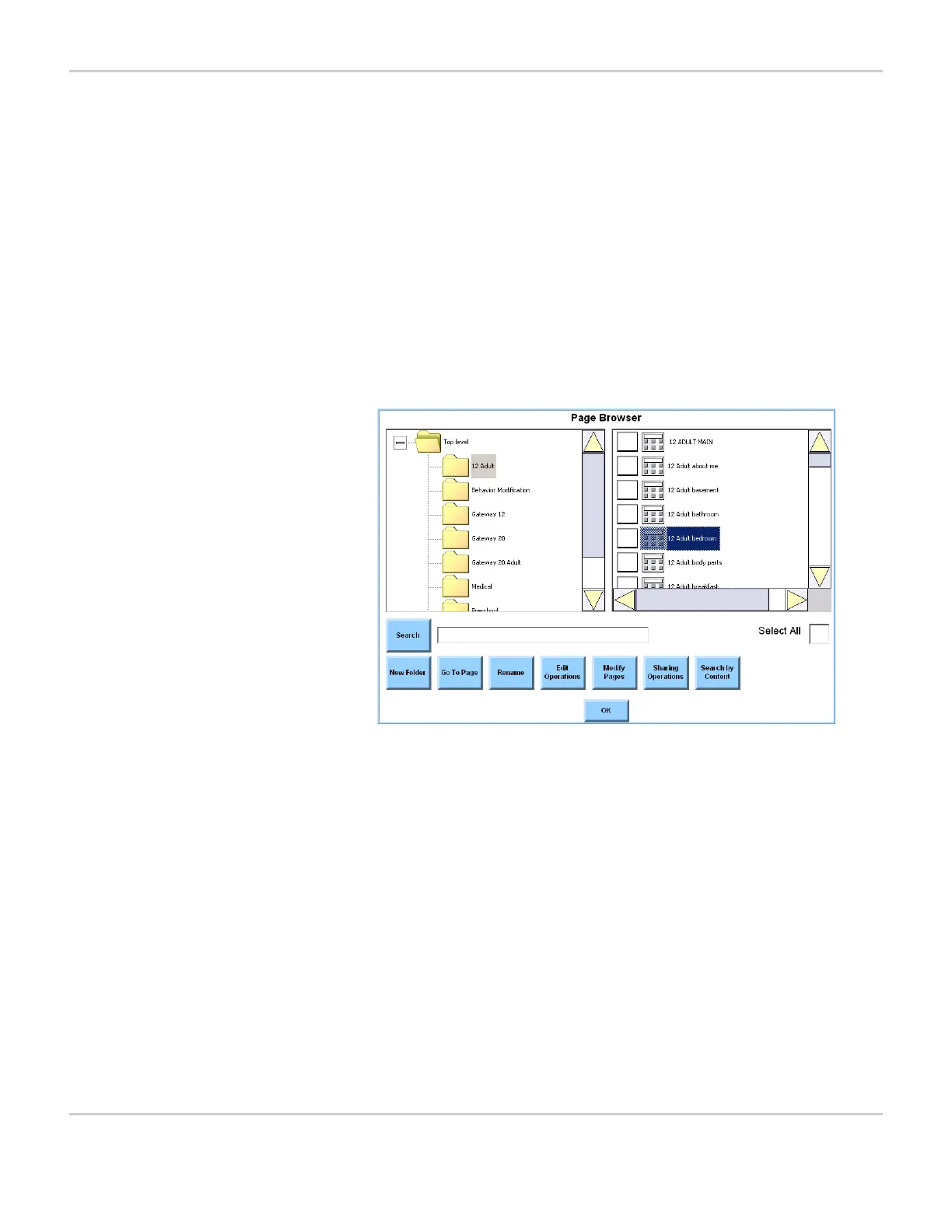
PAGE BROWSER MENU
The Page Browser menu contains these items:
• The left viewport shows a directory tree of folders where the
MightyMo/MiniMo communication pages are stored.
• The right viewport displays all the pages (and other folders, if
any) that are contained in the folder currently selected in the left
viewport.
This viewport also includes a check box to the left of each folder
and page. Selecting a check box includes an item in the
activities performed using the menu buttons along the bottom of
the Page Browser menu.
For more information on using the viewports, see Browsing on
page 4-35.



 To Next Page