MightyMo/MiniMo User’s Guide 2-27
Part # 400030-C
Resetting the Device Chapter 2: Hardware
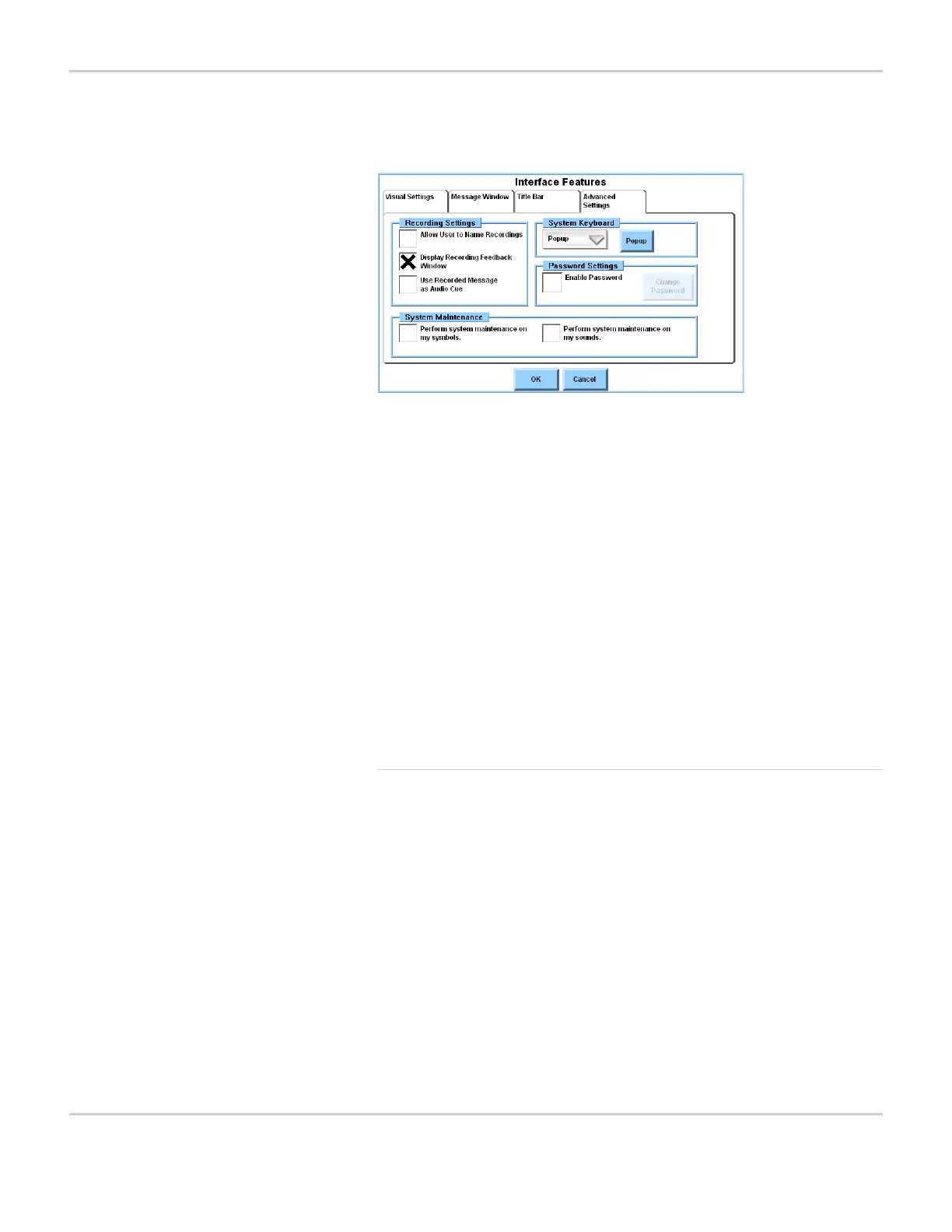
3. Select the Advanced Settings tab.
INTERFACE FEATURES MENU - ADVANCED SETTINGS TAB PANE
4. If you want system maintenance to generate a list of symbols that
are not currently being used, select the Perform System
Maintenance on my Symbols check box.
5. If you want system maintenance to generate a list of sounds that
are not currently being used, select the Perform System
Maintenance on my Sounds check box.
6. Select the OK button to close the Interface Features menu.
7. Select the OK button to close the Mo Setup menu.
The next time that you run system maintenance, the lists that you
selected will be displayed.
Perform System Maintenance
DynaVox Technologies recommends that you perform system
maintenance after deleting or renaming numerous pages. This will
optimize the efficiency of your MightyMo/MiniMo page sets.
Depending on the optional settings you have enabled (see Set
System Maintenance Options on page 2-26), you may also have
the opportunity to delete any symbols or custom sounds that are not
currently assigned to buttons.
To perform system maintenance, follow these steps:
1. Select the blue Setup button in the title bar at the top of the screen.
The Mo Setup menu will open.
2. Select the System Maintenance button.



 To Next Page