5-34 DynaVox Technologies
Chapter 5: System Setup Creating and Using Customized Colors
CREATING AND USING CUSTOMIZED COLORS
The DynaVox MightyMo/MiniMo software enables you to use different
colors to create a unique look for your communication pages and
system menus. Colors can be used creatively to make pages and
menus more attractive to an individual’s personal tastes, and can
also be used practically to make objects easier to see and identify.
New colors can be applied to any item on the MightyMo/MiniMo touch
screen, including symbols, buttons, text, tab controls, boxes, dividers,
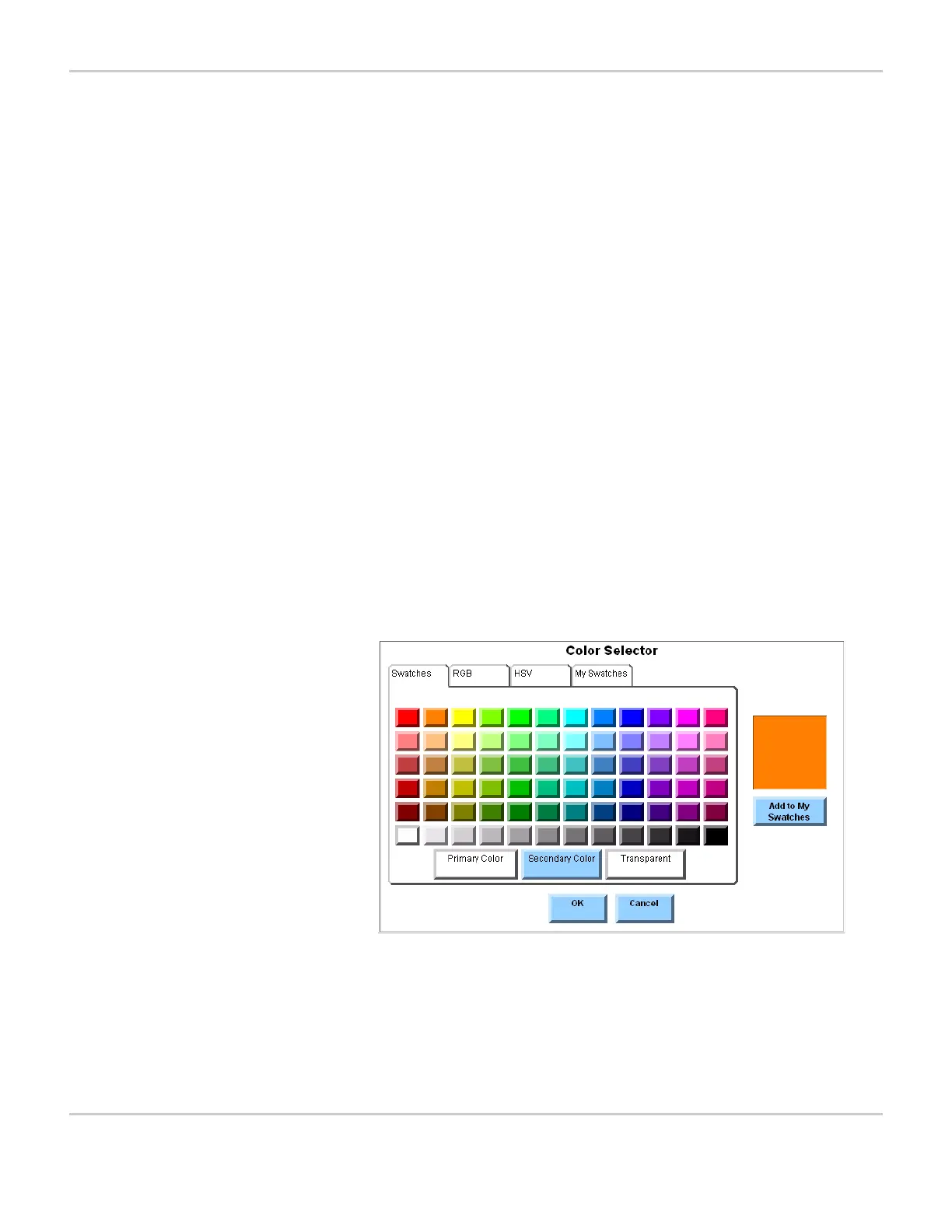
page backgrounds and the system menus. The primary tool for
working with color in the DynaVox MightyMo/MiniMo software is the
Color Selector menu. This menu provides a large palette of stock
colors that can be applied to objects on the touch screen. It also
provides tools for creating and saving custom colors.
This menu can be accessed from several different places. It is
typically opened through the Modify menu for whatever page element
is being customized. If a symbol is being customized in Page Edit
mode, the Color Selector menu can be accessed through the Symbol
Editor menu. When new colors are being chosen for the menus, the
Visual Settings tab pane of the Interface Features menu provides
access to the Color Selector menu.
COLOR SELECTOR MENU



 To Next Page