5-46 DynaVox Technologies
Chapter 5: System Setup Customizing System Settings
5. To view the existing time setting, select the Set Time button. The
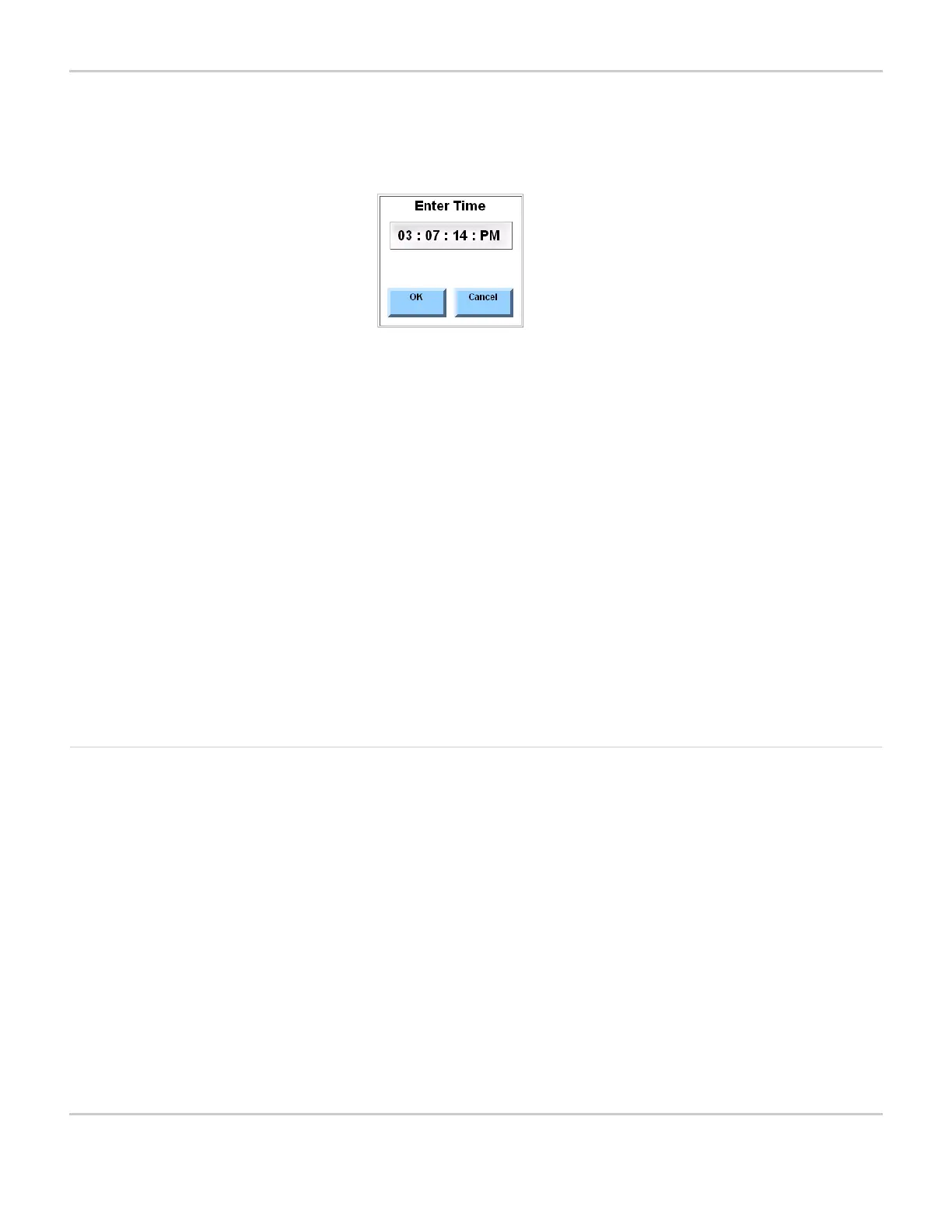
Enter Time menu will open, showing the time, as it is currently set.
ENTER TIME MENU
6. To change the time setting, follow these steps:
a. Select a part of the time display to be changed (hours, minutes
or seconds). The Enter {Hours, Minutes or Seconds} menu will
open with a numeric entry keypad.
b. Select the appropriate numbers for the hours, minutes or
seconds. Select the OK button to accept the numbers.
c. To change the time from AM to PM or vice versa, select that part
of the time display to toggle between the two settings.
d. Repeat these steps until all parts of the time are set correctly.
e. Select the OK button to accept the new settings and close the
Enter Time menu.
7. Select the OK button to close the System Settings menu.
8. Select the OK button to close the Mo Setup menu.
Setting Up Data Logging The MightyMo/MiniMo can be set up to keep a log that shows when it
was used, which pages or buttons were selected, what behaviors
were executed as a result of selecting a button and what text was
entered using the system keyboard. If desired, the actual text entered
can be hidden by selecting the Encrypt Text option to maintain the
user’s privacy. Data logging can provide information that is helpful in
tailoring the device to an individual’s needs. Be aware that the
logging file must be saved to a removable USB storage device, so
that it can be moved to a computer for reading or printing.
The MightyMo/MiniMo provides options for selecting the level of
detail that is logged and the file used to store the data.



 To Next Page