2-10 DynaVox Technologies
Chapter 2: Hardware Battery Information and Care
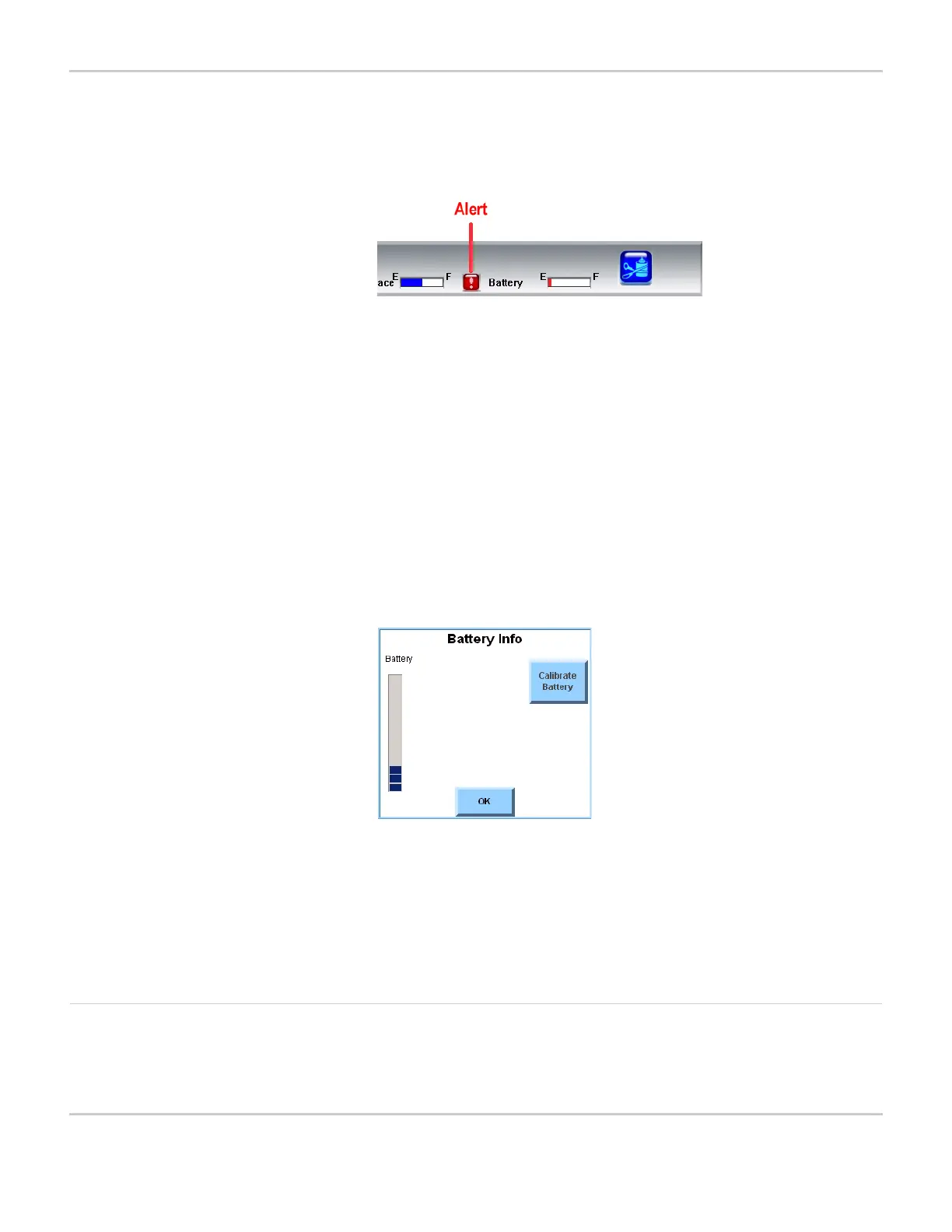
icon appears, the device should be plugged in and recharged as soon
as possible.
LOW BATTERY ALERT IN TITLE BAR
Checking the battery power gauge periodically will make it easier to
anticipate when the device will need to be recharged.
To check the level of available battery power, follow these steps:
1. Select the blue Setup button in the title bar. The Mo Setup menu
will open.
2. Select the System Settings button. The System Settings menu
will open.
3. Select the Battery Info button. The Battery Info menu will open,
with the Battery gauge shown on the left side. This gauge indicates
the amount of power left in the battery.
BATTERY INFO MENU
4. Select the OK button to close the Battery Info menu.
5. Select the OK button to close the System Settings menu.
6. Select the OK button to close the Mo Setup menu.
Charge the Battery When your device’s battery begins to run out of power, a red alert
icon will appear in the title bar. This alert indicates that you should
plug in your device to conserve the remaining power. You should



 To Next Page