5-22 DynaVox Technologies
Chapter 5: System Setup Customizing Interface Features
Select the Active Symbol Sets
You may have several symbol sets loaded on your MightyMo/MiniMo
device. The Interface Features menu enables you to define which
symbol sets are available for your pages.
To select the active symbol sets, follow these steps:
1. Select the blue Setup button in the title bar. The Mo Setup menu
will open.
2. Select the Interface Features button. The Interface Features
menu will open, displaying the Visual Settings tab pane.
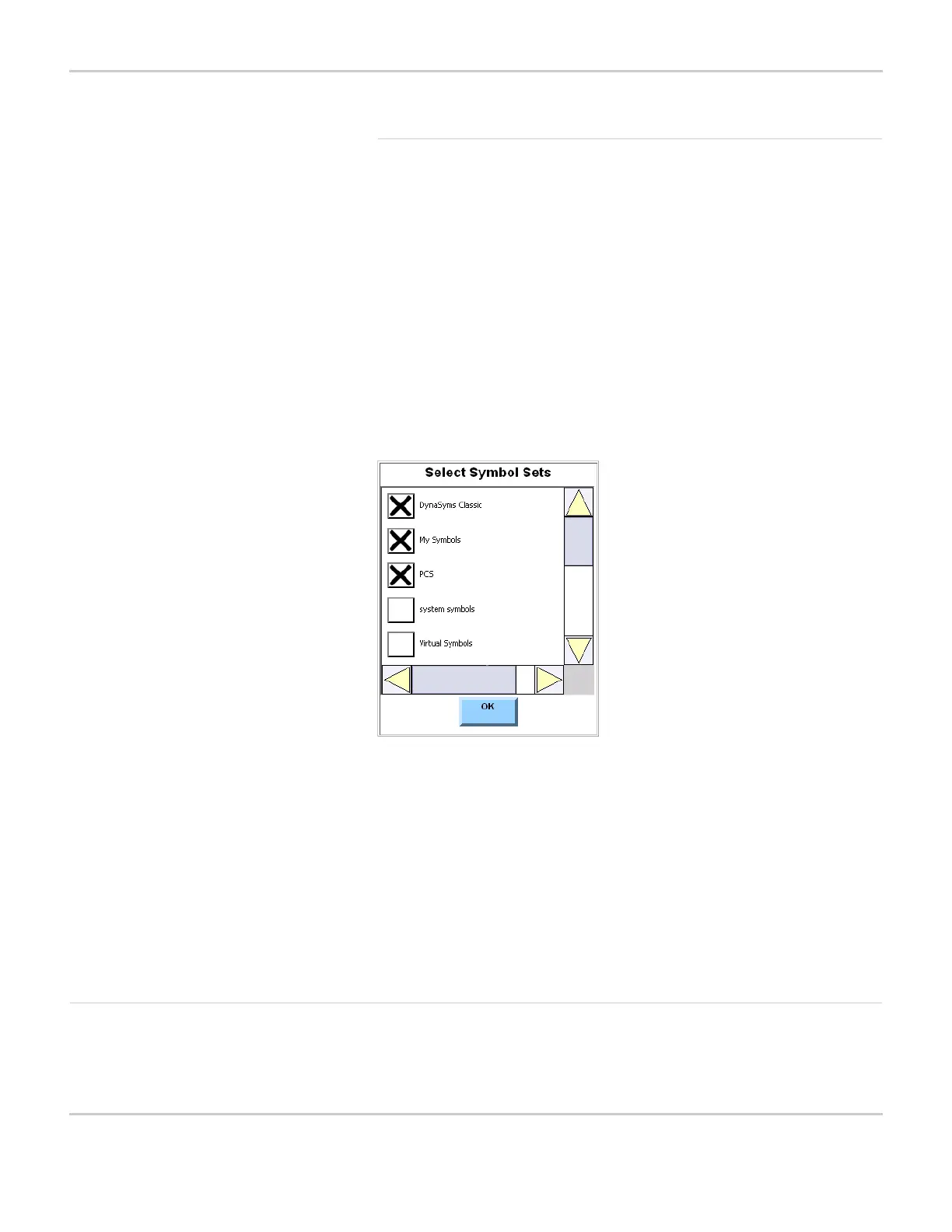
3. Select the Select Symbol Sets button. The Select Symbol Sets
menu will open.
SELECT SYMBOL SETS MENU
4. Select the check box next to each symbol set that you want to be
active. If you want to deactivate a symbol set, select the check box
beside it to remove the check mark
5. Select the OK button to close the Select Symbol Sets menu.
6. Select the OK button to close the Interface Features menu.
7. Select the OK button to close the Mo Setup menu.
Message Window Tab The Message Window tab pane of the Interface Features menu
provides options that help you define how the Message Window will



 To Next Page