MightyMo/MiniMo User’s Guide 5-21
Part # 400030-C
Customizing Interface Features Chapter 5: System Setup
To select the default menu colors, follow these steps.
1. Select the blue Setup button in the title bar. The Mo Setup menu
will open.
2. Select the Interface Features button. The Interface Features
menu will open, displaying the Visual Settings tab pane.
3. In the Menu Color group box, select the Primary Color or
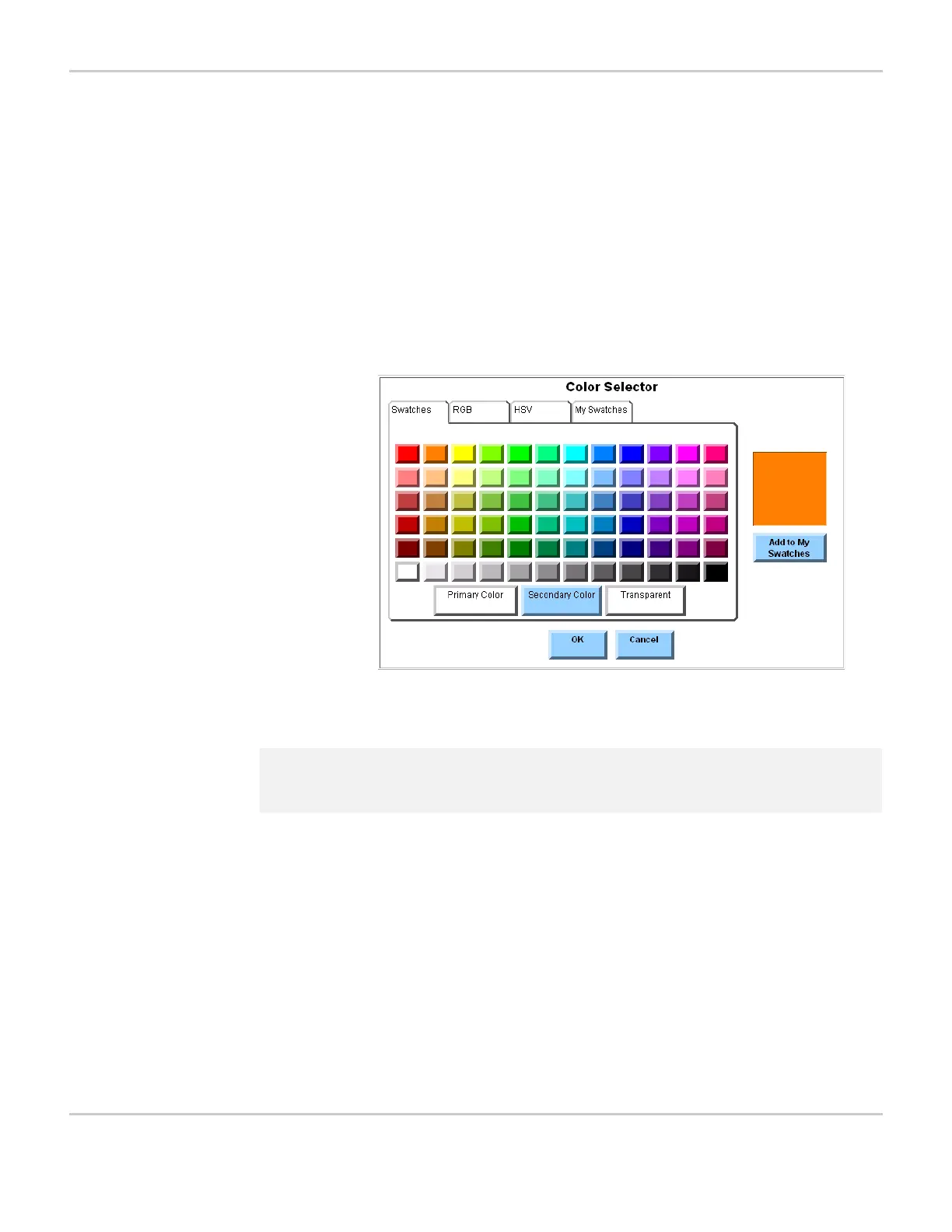
Secondary Color button. The Color Selector menu will open,
showing a chart of available color swatches on the Swatches tab
pane.
COLOR SELECTOR MENU
4. Select a colored swatch. The square at the right of the menu will
display the selected color.
5. Select the OK button to close the Color Selector menu. The
Interface Features menu will show the newly selected primary or
secondary color in the button next to its label.
6. Select the OK button to close the Interface Features menu.
7. Select the OK button to close the Mo Setup menu.
The new color(s) will be used the next time the Mo Setup menu is
opened.
2 Note: For information on using custom colors, see Creating and Using
Customized Colors on page 5-34.


 To Next Page