MightyMo/MiniMo User’s Guide 5-23
Part # 400030-C
Customizing Interface Features Chapter 5: System Setup
operate. You can use these controls to customize the Message
Window to suit your needs.
To open the Message Window tab pane of the Interface Features
menu, follow these steps:
1. Select the blue Setup button in the title bar. The Mo Setup menu
will open.
2. Select the Interface Features button. The Interface Features
menu will open.
3. Select the Message Window tab.
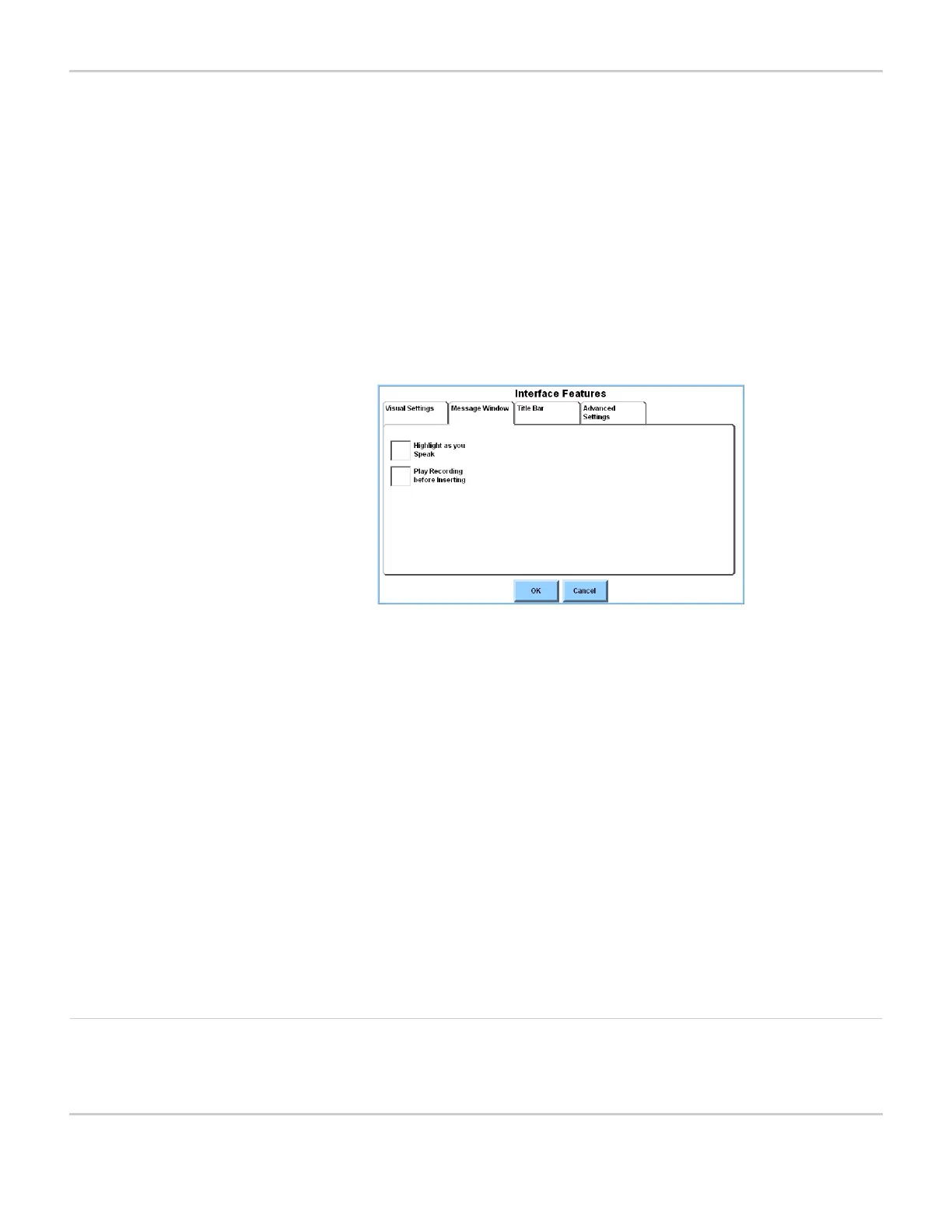
INTERFACE FEATURES MENU - MESSAGE WINDOW TAB PANE
4. Customize the behavior of the Message Window by selecting or
clearing the available check boxes in the Message Window group
box:
5. Select the OK button to close the Interface Features menu.
6. Select the OK button to close the Mo Setup menu.
Title Bar Tab The Title Bar tab pane of the Interface Features menu offers a
variety of options that help you define the tools that will be available
Highlight as You
Speak
When this check box is selected, each word
in the Message Window will be highlighted
as it is spoken.
Play Recording
Before Inserting
When this check box is selected, any
recording or sounds associated with a
button will be played before they are
inserted into the Message Window.



 To Next Page