1-12 DynaVox Technologies
Chapter 1: Introduction Terms You Should Know
tab is selected. There can be up to six panes in a set of tab
controls.
• Button - A button is a graphic object on a page that can be
selected with a touch, a mouse click or other input device. It may
represent a behavior, a word or even several sentences. A button
may feature a text label and/or a symbol, and can be programmed
to enact specific behaviors when it is selected.
• Label - A label is text that can be placed on a button, tab control
or page. Labels can be used as the title of a page or as an
indication of the vocabulary in a button.
• Symbol - Symbols are pictures that can be used to represent
vocabulary. They can be placed on buttons, tab controls or pages.
DynaVox symbols are called DynaSyms.
• Behavior - A behavior is an action or command that can be
programmed into a button. Many behaviors can be assigned to a
single button, including speaking, sending text to the Message
Window or performing an infrared command. Selecting the button
will launch the behavior(s) assigned to it.
Menus and the Title Bar The DynaVox MightyMo/MiniMo software provides special tools to
help you maintain and customize your device.
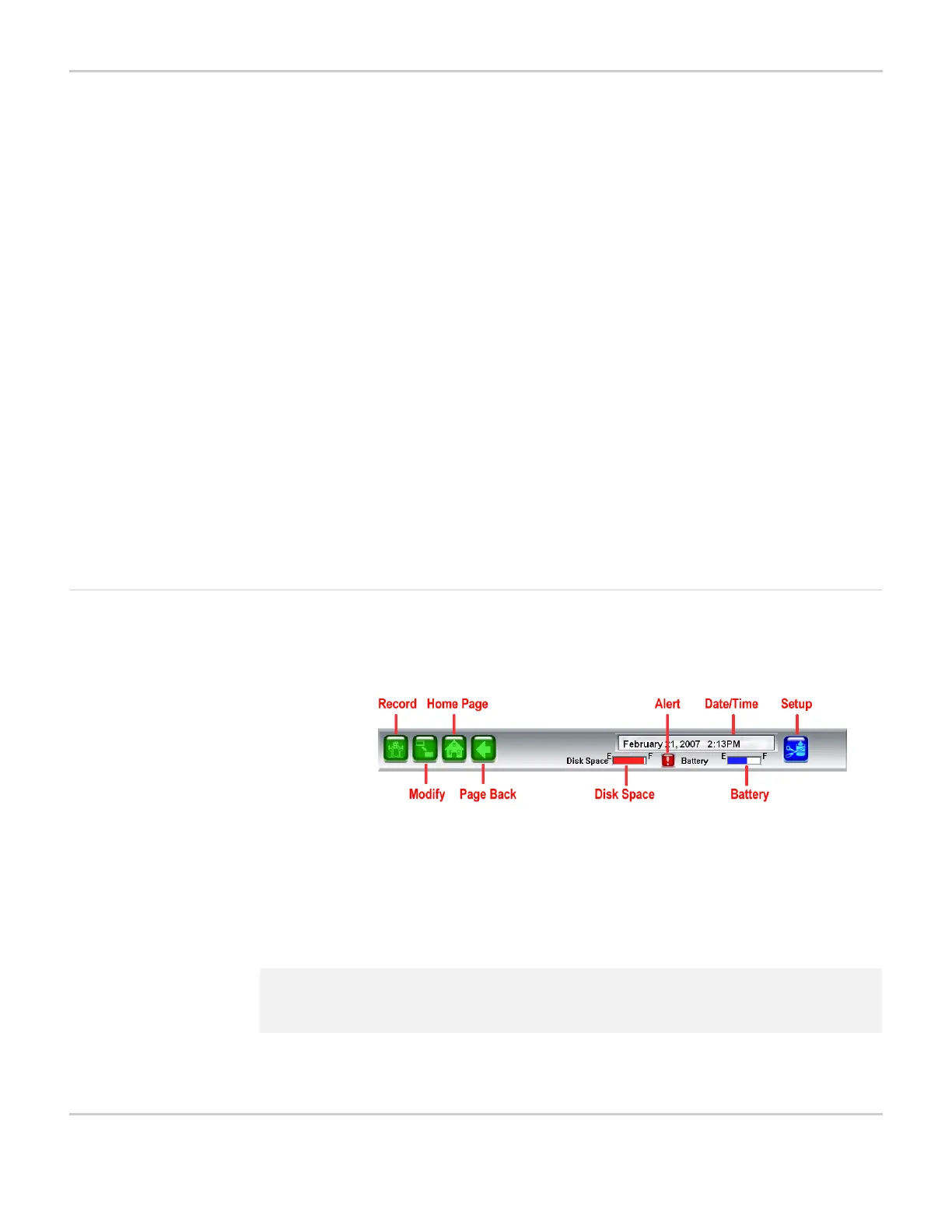
TITLE BAR
• Title Bar - The title bar is always displayed at the top of the touch
screen. The title bar features a group of green buttons in the left
corner (Record, Modify, Page Back and Home), bars that show the
remaining disk space and battery power, a window that displays
the date and time, and the blue Setup button.
2 Note: For more information on the controls that are available in the title
bar, see Define the Title Bar Contents on page 5-24.



 To Next Page