4-14 DynaVox Technologies
Chapter 4: Working with Pages About Pages
19. When all needed tab symbols and/or labels have been chosen,
select the OK button to close the Tab Labels menu. The new page
will open with all the characteristics specified on the Make a New
Page With: menu.
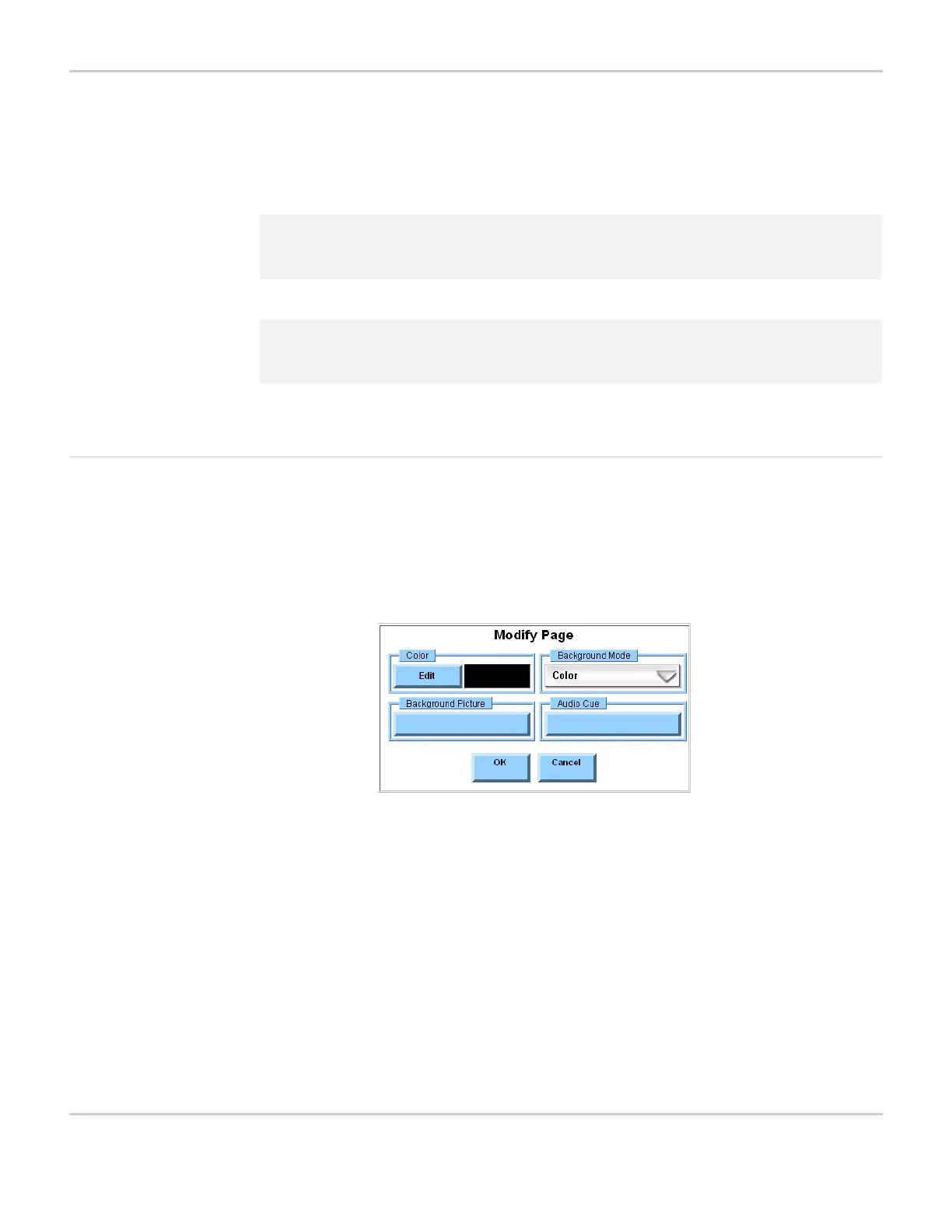
Modifying a Page When you select the Modify button and then select a vacant section
of a page (the space that surrounds other page elements, like buttons
or tab panes), the Modify Page menu will appear. You can use the
controls in this menu to customize the characteristics of the
communication page to suit your needs and preferences.
MODIFY PAGE MENU
2 Note: The options that are selected on the Make a New Page With: menu
remain in effect when the menu is selected again.
2 Note: After a new page is created, individual buttons may be modified
using the instructions in Chapter 6: Working with Buttons.
Color Select the Edit button in the Color group box
to define the background color of the page.
The display square shows the current color
selection.
Background
Mode
Select the Background Mode pull-down
menu to specify the characteristics of the
page’s background. The options are: Color,
Unscaled Picture, Scaled Picture or Tiled
Picture. The pull-down menu displays the
current selection.



 To Next Page