MightyMo/MiniMo User’s Guide 4-13
Part # 400030-C
About Pages Chapter 4: Working with Pages
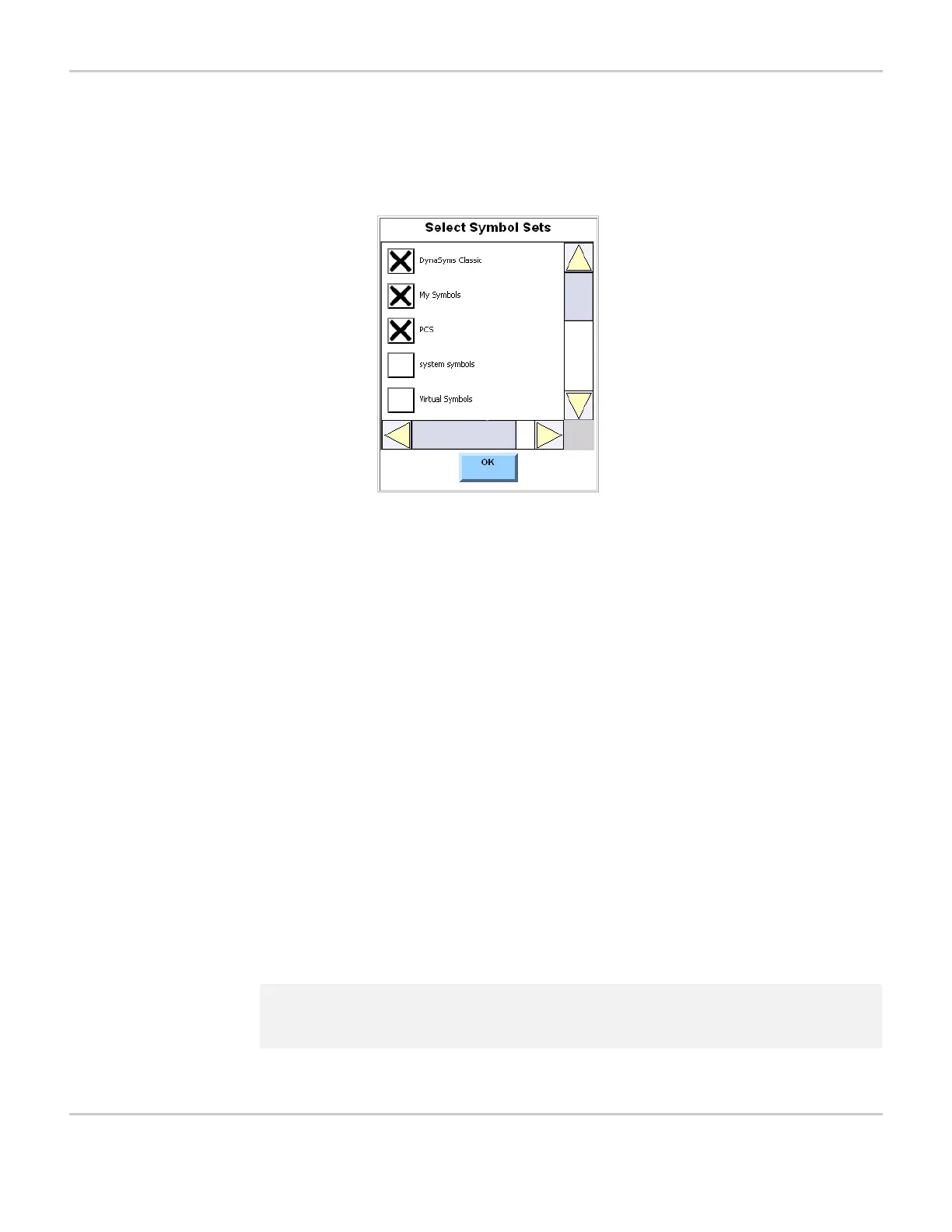
b. To choose the symbol set(s) from which the symbol will be
chosen, select the Select Symbol Sets button. The Select
Symbol Sets menu will open.
SELECT SYMBOL SETS MENU
c. Choose one or more of the listed symbol sets by selecting the
appropriate check box(es). An “X” will appear in each selected
check box.
d. Select the OK button. The Select Symbol Sets menu will close.
e. To find a symbol by name, select the Search text box. The
system keyboard will open.
f. Use the system keyboard to enter a name for the symbol you
want to locate.
g. Select the Search button. One or more symbols, if found, will be
displayed in the right viewport.
h. Select the desired symbol in the right viewport. The symbol will
be highlighted. Or, if no symbol is desired, select the Blank
Symbol button.
i. Select the OK button. If a symbol was selected in the right
viewport, it will be displayed next to the Symbol button. If no
symbol was selected or if the Blank Symbol button was
selected, the space next to the symbol button will be blank.
Repeat steps a–i as desired to add or change symbols for Tabs
2, 3 and 4.
2 Note: For step-by-step instructions importing a digital picture as a
symbol, refer to Use a Digital Picture as a Symbol on page 7-11.



 To Next Page