MightyMo/MiniMo User’s Guide 4-19
Part # 400030-C
About Pages Chapter 4: Working with Pages
10. If you have not yet done so, follow the steps under Define the
Page’s Background Mode on page 4-16 to define how the
background image will be displayed.
11. Select the OK button to close the Modify Page menu and accept
the changes.
Edit the Page’s Audio Cue
An audio cue is a short message that is spoken by the device
(through the main speaker or a private headphone attached to the
device’s speaker jack) to identify each item on the touch screen.
To edit an existing audio cue for a page (or add an audio cue to a
page), follow these steps:
1. Select the green Modify button in the title bar. The button will turn
red after it is selected.
2. Select a vacant spot on the page. The Modify Page menu will
open.
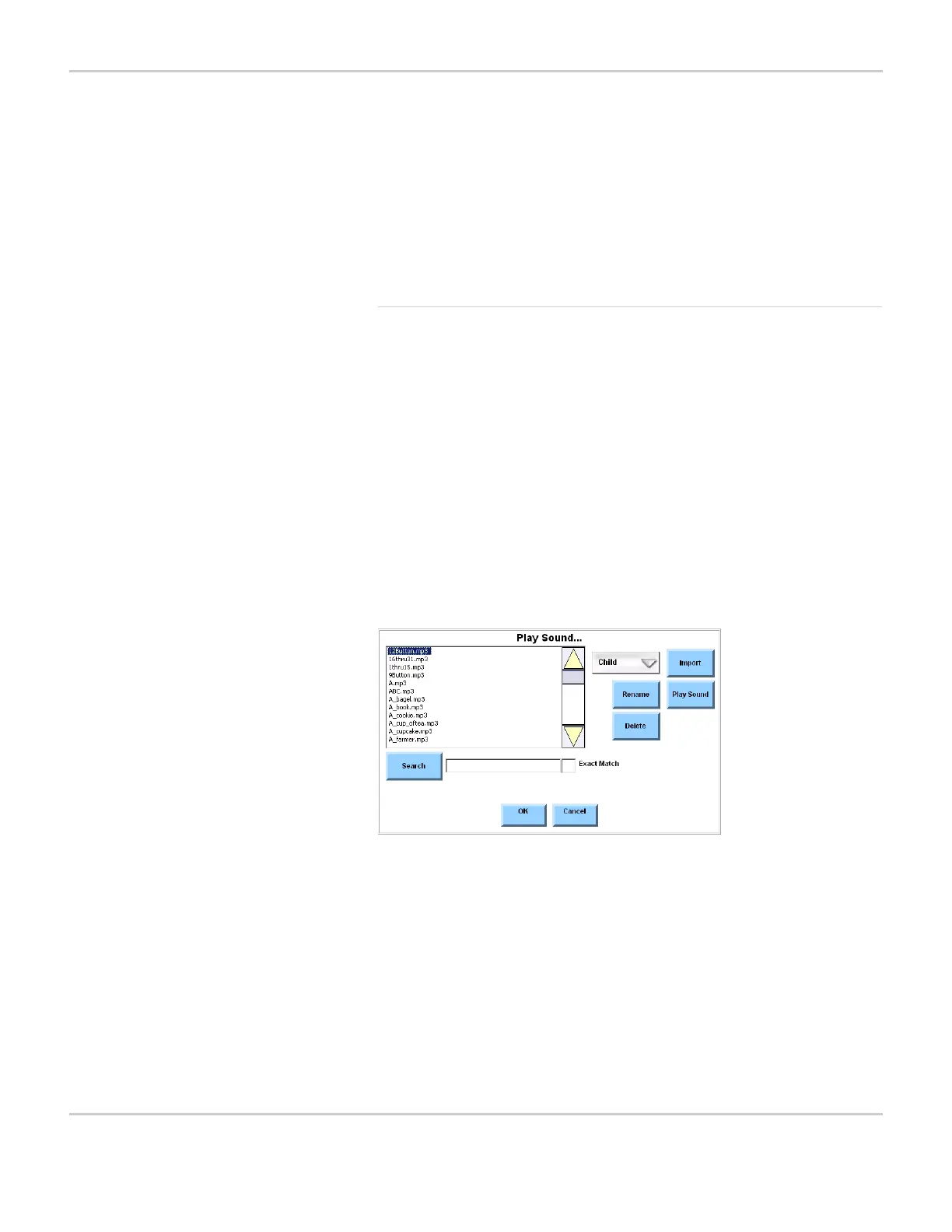
3. Select the Audio Cue button. The Play Sound... menu will appear.
PLAY SOUND... MENU
4. Use the pull-down menu next to the viewport to select the set of
recordings you would like to browse. To view your custom
recordings, select Mine.
5. Locate the new sound by searching or by browsing. To search for
a sound, complete this step:
a. If you want to search for an exact match to the name you
entered (including capitalization, spaces and file extensions),
select the Exact Match check box. Otherwise, make sure the
check box is not selected.



 To Next Page