4-18 DynaVox Technologies
Chapter 4: Working with Pages About Pages
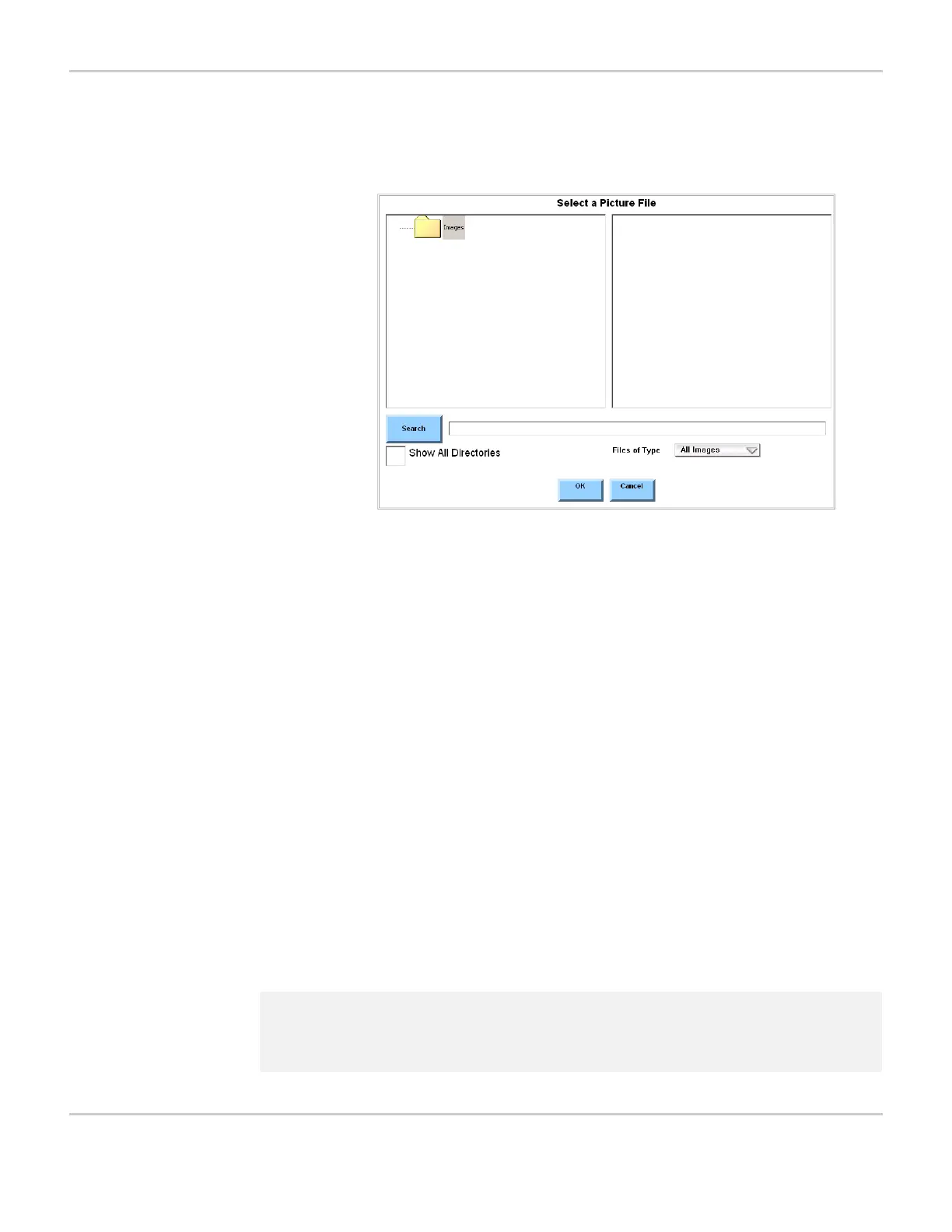
3. Select the Background Picture button. The Select a Picture File
menu will open.
SELECT A PICTURE FILE MENU
4. Select the Files of Type pull-down menu. The menu will expand
to display the available graphic file types: JPG, GIF, BMP and All
FIles.
5. Select the type of picture file you will be using. If you are unsure
what format to select, choose the All Files option. The pull-down
menu will close and display the type of graphic file you selected.
6. Select Show All Directories check box.
7. Select the appropriate folder (or expansion box next to the
appropriate folder) in the left viewport:
• If the picture is on a USB storage device, select UMS_FOLDER.
• If the picture is on a secondary storage card, select Storage
Card2.
8. Select the check box next to the picture you want to use in the right
viewport.
9. Select the OK button to close the Select a Picture File menu. The
name of the picture file that you selected will be displayed on the
Background Picture button.
2 Note: The software will ask if you want to save the background image
onto your primary data storage card. It is recommended that you
select Yes to continue.


 To Next Page