2-28 DynaVox Technologies
Chapter 2: Hardware Resetting the Device
3. Select the Yes button to confirm that you would like to continue
with the system maintenance. This will take a few minutes.
4. If you chose to search for unused symbols and/or sounds during
system maintenance (see Set System Maintenance Options on
page 2-26), then a system message will appear, reminding you
that system maintenance will delete unused recordings from your
data storage card. Select Yes to continue. Otherwise, proceed to
step 7.
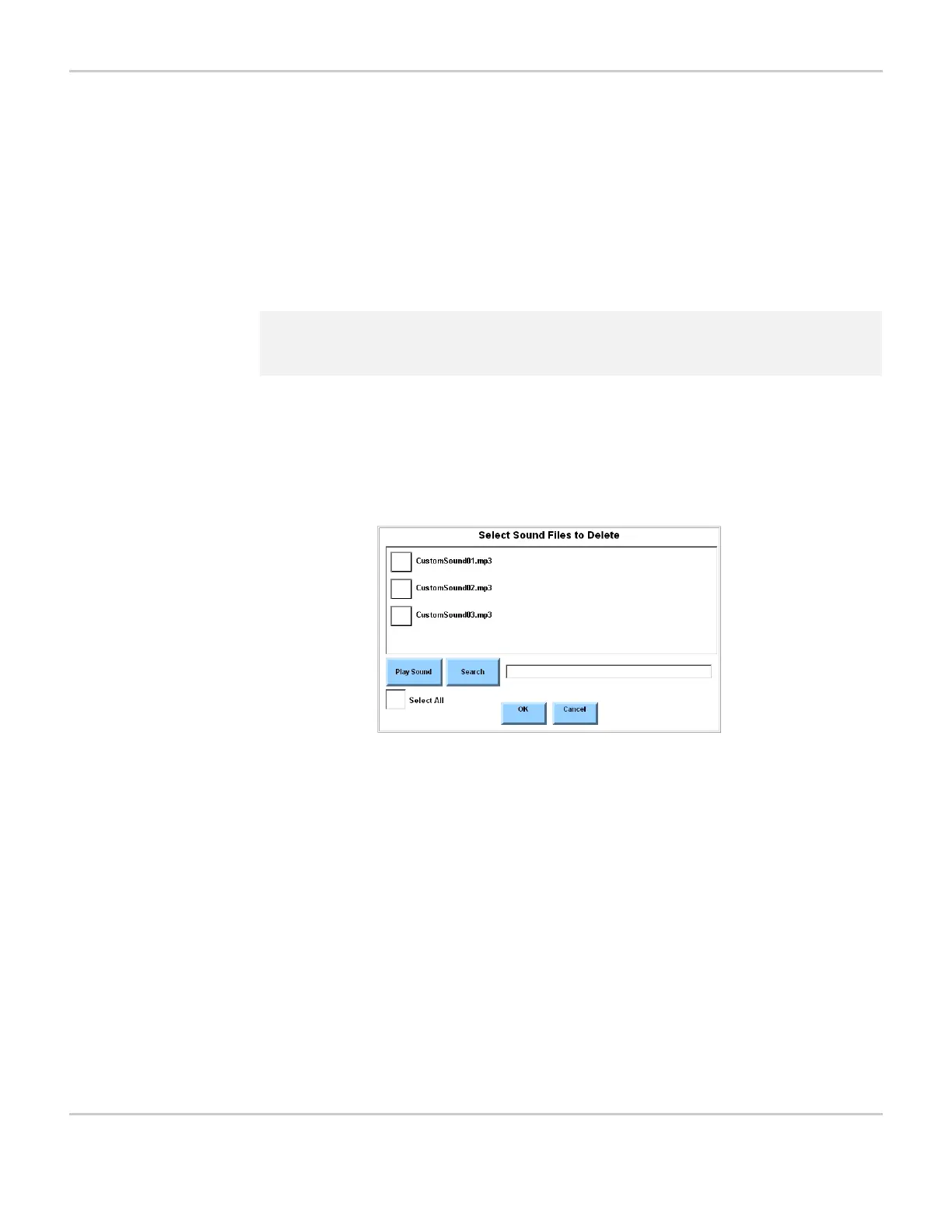
5. If the software finds sound files that are not currently in use, the
Select Sound Files to Delete menu will appear. The unused
sounds will be displayed in the viewport and you should complete
the rest of this step. Otherwise, continue with step 6.
SELECT SOUND FILES TO DELETE MENU
a. To listen to a file before deleting it, select the check box next to
the sound file in the viewport and then select the Play Sound
button.
b. Select the check box next to each sound file that you want to
delete. To select all of the sound files in the viewport, select the
Select All check box.
c. When you have selected all of the sound files that you want to
delete, select the OK button. If you select the Cancel button,
system maintenance will continue, but no sound files will be
deleted.
d. You will be asked to confirm that you want to delete the selected
sounds. Select Yes to continue.
6. If there are unused symbols on your data storage card, the Select
Custom Symbols to Delete menu will appear. The unused symbols
2 Note: Please be patient. The system maintenance process will take
several minutes.



 To Next Page