8-18 DynaVox Technologies
Chapter 8: Sound Management Creating Custom Recordings
• Touch Exit - Select the Start button and speak your message.
When you are finished, select the Stop button.
• Scanning - Activate the Record button and speak your
message. When you are finished, activate the Record button
again to stop recording.
• Mouse Pause - Move the mouse pointer onto the Record
button and speak your message. When you are finished, move
the mouse pointer off of the Record button.
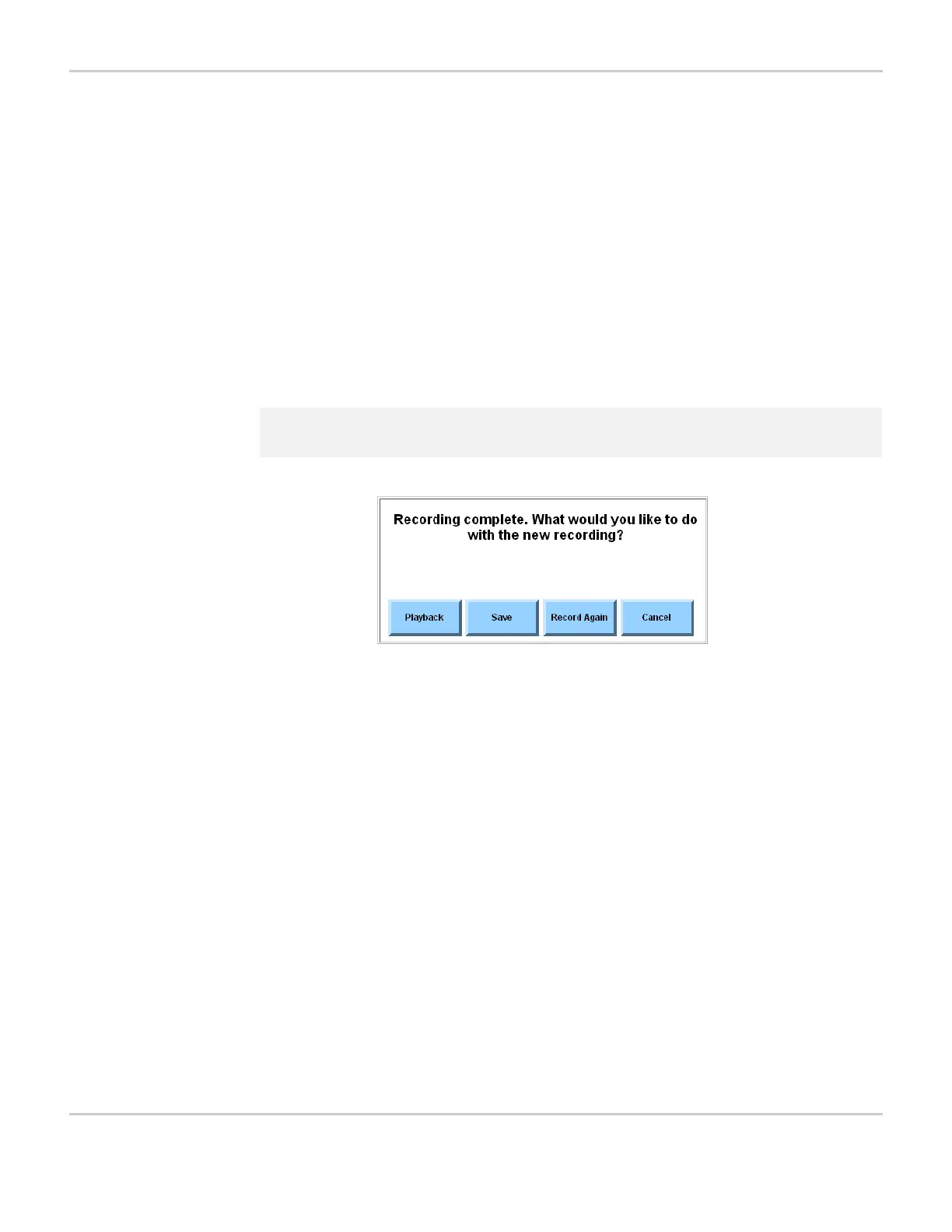
6. If the Display Recording Feedback Window check box in the
Advanced Settings tab of the Interface Features menu is checked,
you will be asked what you want to do with the new recording.
Complete the rest of this step:
RECORDING FEEDBACK WINDOW
• Select the Playback button to review the recording.
• Select the Save button to save the recording and proceed to
step 7.
• Select the Record Again button to return to step 5 and record
the message again.
• Select the Cancel button to close the window and end the
process without saving the recording.
7. When you have finished the recording process, the recording you
just made be highlighted in the viewport of the Play Sound... menu.
8. Select the OK button. The Play Sound... menu will close. In the
Modify Button menu, next to the Record Audio Cue button, you will
see text similar to this: “[Recorded: xxx]” (xxx is the name of the
custom recording).
9. Select the OK button to accept the audio cue and close the Modify
Button menu.
2 Note: If the recording feedback menu does not appear, proceed to step 7.



 To Next Page