MightyMo/MiniMo User’s Guide 11-5
Part # 400030-C
Sharing Pages Chapter 11: Sharing Pages & Packages
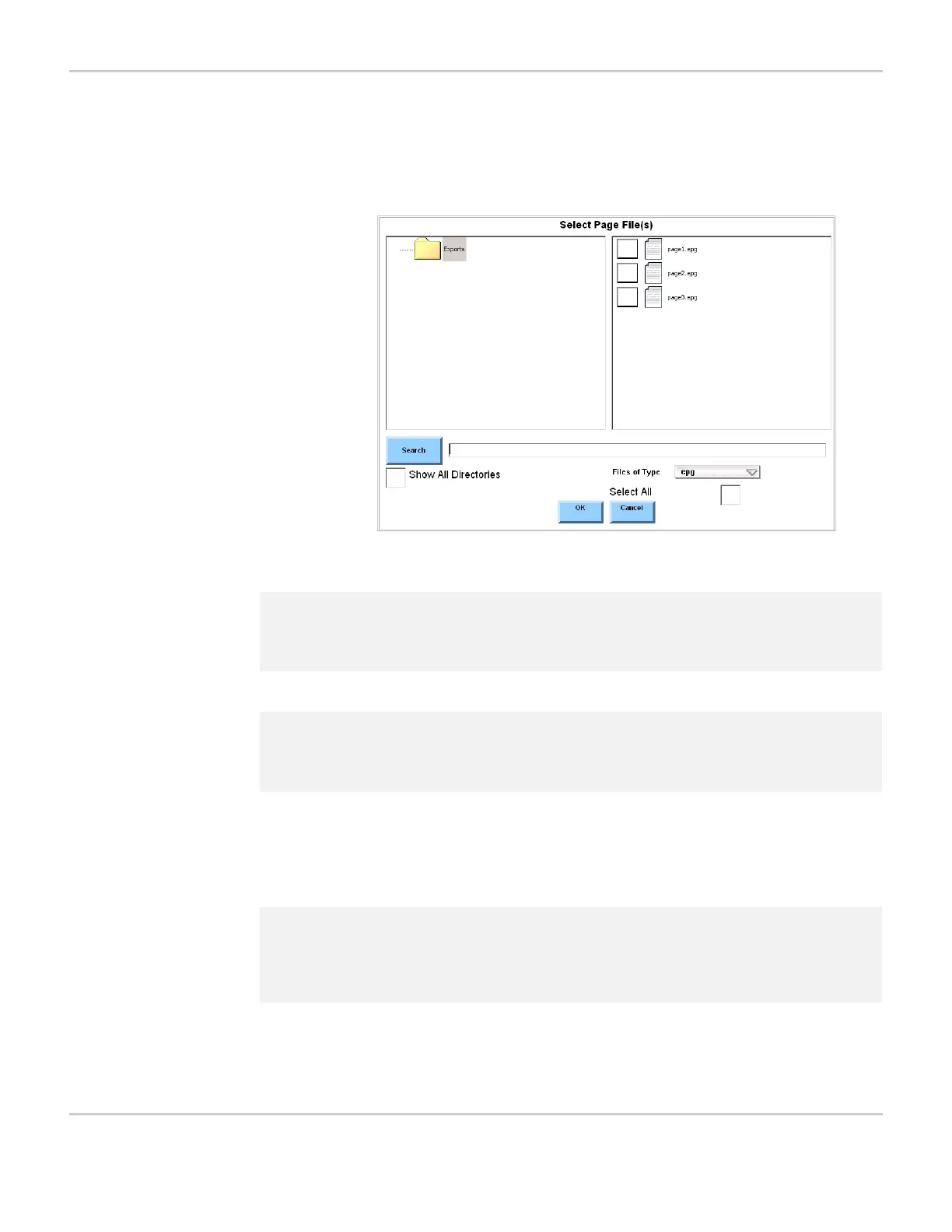
7. Select the Import Pages button. The Select Page File(s) menu will
open. The contents of the Exports directory on the USB storage
device will be displayed in the right viewport.
SELECT PAGE FILE(S) MENU
8. In the right viewport, select the check box next to each page that
you want to import.
9. Select the OK button to close the Select Page File(s) menu.
10. You may be asked if you want to overwrite all pages with
conflicting names. If you select Yes, any existing pages that have
the same name as pages being imported will be automatically
2 Note: The Exports folder was automatically created on your USB storage
device when the page(s) were exported. Refer to Exporting Pages
to a USB Storage Device on page 11-9.
2 Note: If the page is not stored in the Exports folder, select the Show All
Directories check box, then select the UMS_FOLDER icon in the
left viewport, and navigate to the folder where the page is stored.
2 Note: If there is not enough free space on your data storage card to
import the new file(s), an alert window will appear to inform you.
Select the OK button to close the window. In this case, you must
free space on your data storage card before importing the file(s).



 To Next Page