MightyMo/MiniMo User’s Guide 4-21
Part # 400030-C
About Pages Chapter 4: Working with Pages
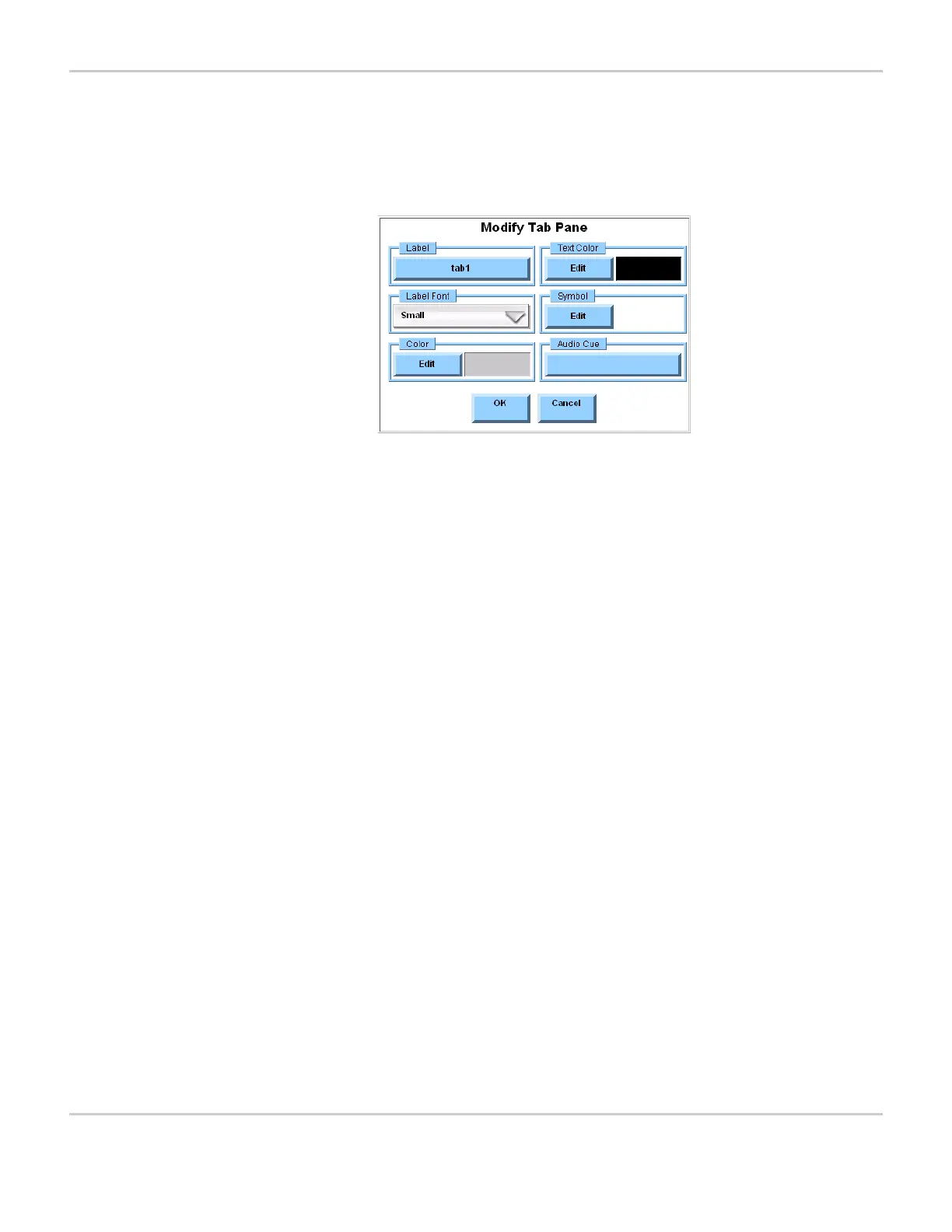
When you select the Modify button and then select a tab pane on the
active page, the Modify Tab Pane menu will appear. You can use the
controls in this menu to customize the selected tab pane.
MODIFY TAB PANE MENU
Label Select the Label button to enter or edit the
actual text of the label of the selected tab
pane. The button shows the current label
text.
Text Color Select the Edit button in the Text Color
group box to define the color of the text in
the selected tab pane. The display square
shows the current color selection.
Label Font Select the Label Font button to define the
font size of the text shown in the selected
tab pane. The button shows the current font
settings.
Symbol Select the Edit button in the Symbol group
box to open the Select a Symbol menu. This
menu enables you to add a new symbol to
the tab pane or change the symbol that is
already in place.
Color Select the Edit button in the Color group box
to define the color for the selected tab pane.
The display square shows the current color
selection.
Audio Cue This setting defines a word or phrase to be
spoken when the tab pane is highlighted
during scanning, if audio cues are enabled.



 To Next Page