Layout presets
NOTE: A user must be logged in as an administrator to see or change these settings.
Layout presets define where on the screen the video windows for each input channel
are located and how big each window is. Each channel (A and B) has a defined aspect
ratio, size, and position. Depending on the layout arrangement, a layout can also include
metatdata text and some areas that let a black background or background images be
a background.The Layout Presets panel also provides a way to set up some of the
metadata that can appear in streams.
Any of the default or user-created layout presets can be recalled and applied. Layouts apply
to all streams at once: a recording session, Web streams, and the preview stream within the
AV Controls panel (see AV Controls Panel on page54). Presets can also be recalled
using SIS commands.
The first 12 presets are factory default layouts. Presets 13 through 16 can be configured
through the controls in the Encoding & Layout page.
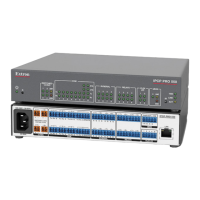
To open the Layout Presets pane:
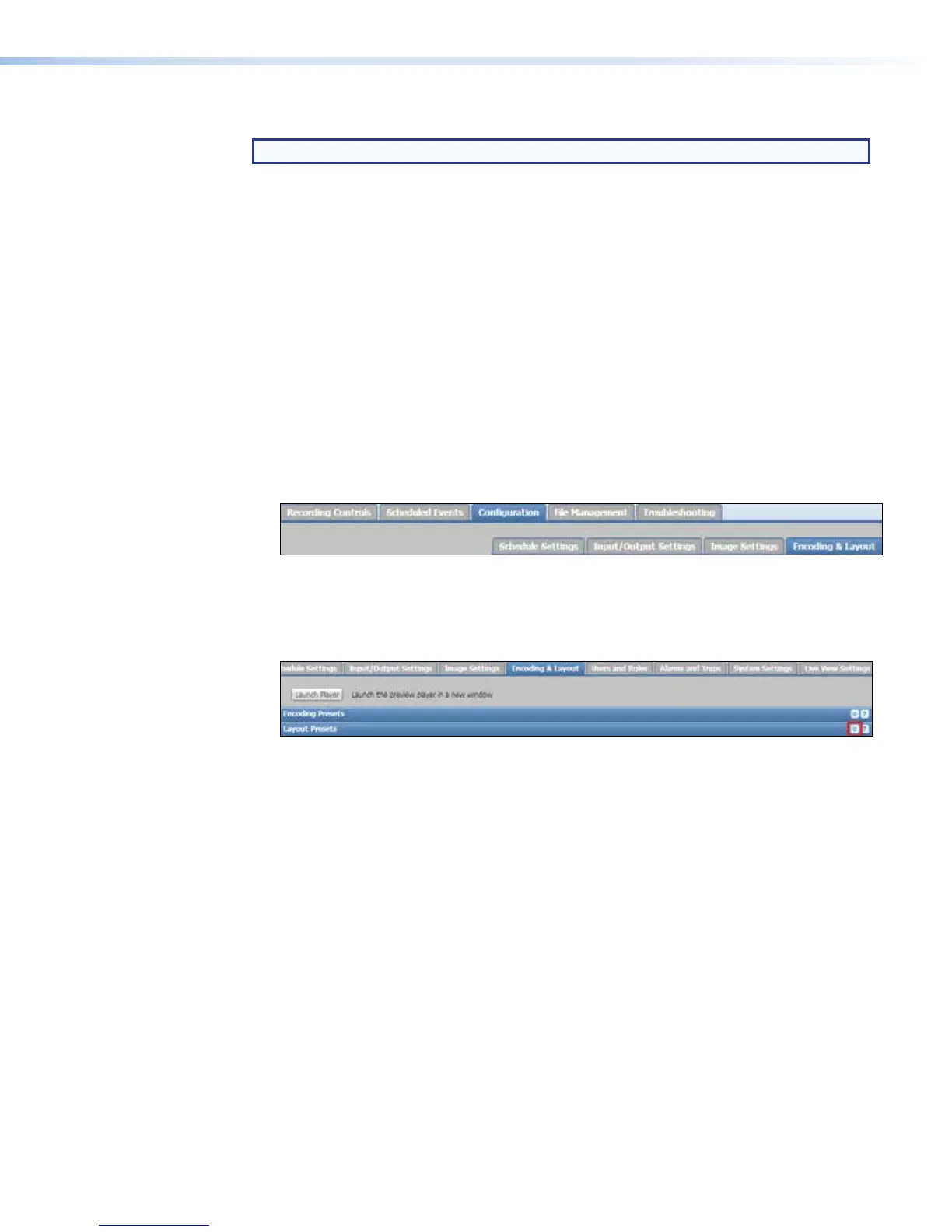
1. Click the Configuration tab at the top of the SMP351 embedded Web pages.
2. Click the Encoding & Layout tab on the second tier of tabs.
The Encoding & Layout page opens.
3. If needed, click the Collapse arrow button to collapse the Encoding Presets
pane.
4. Click the Expand arrow button to expand the Layout Presets pane.
Set the default layout
By default, the SMP351 uses layout preset 1 (PBP Upp LFT) as the layout automatically
applied for scheduled recordings. To choose a different layout preset for scheduled
recordings:
1. Open the Layout Presets panel.
2. Select one of the available presets from the Select a Default Layout drop-down
list.
SMP351 • Web-Based User Interface 99



 To Next Page