8 Computer Operations
262
Computer Operations
8
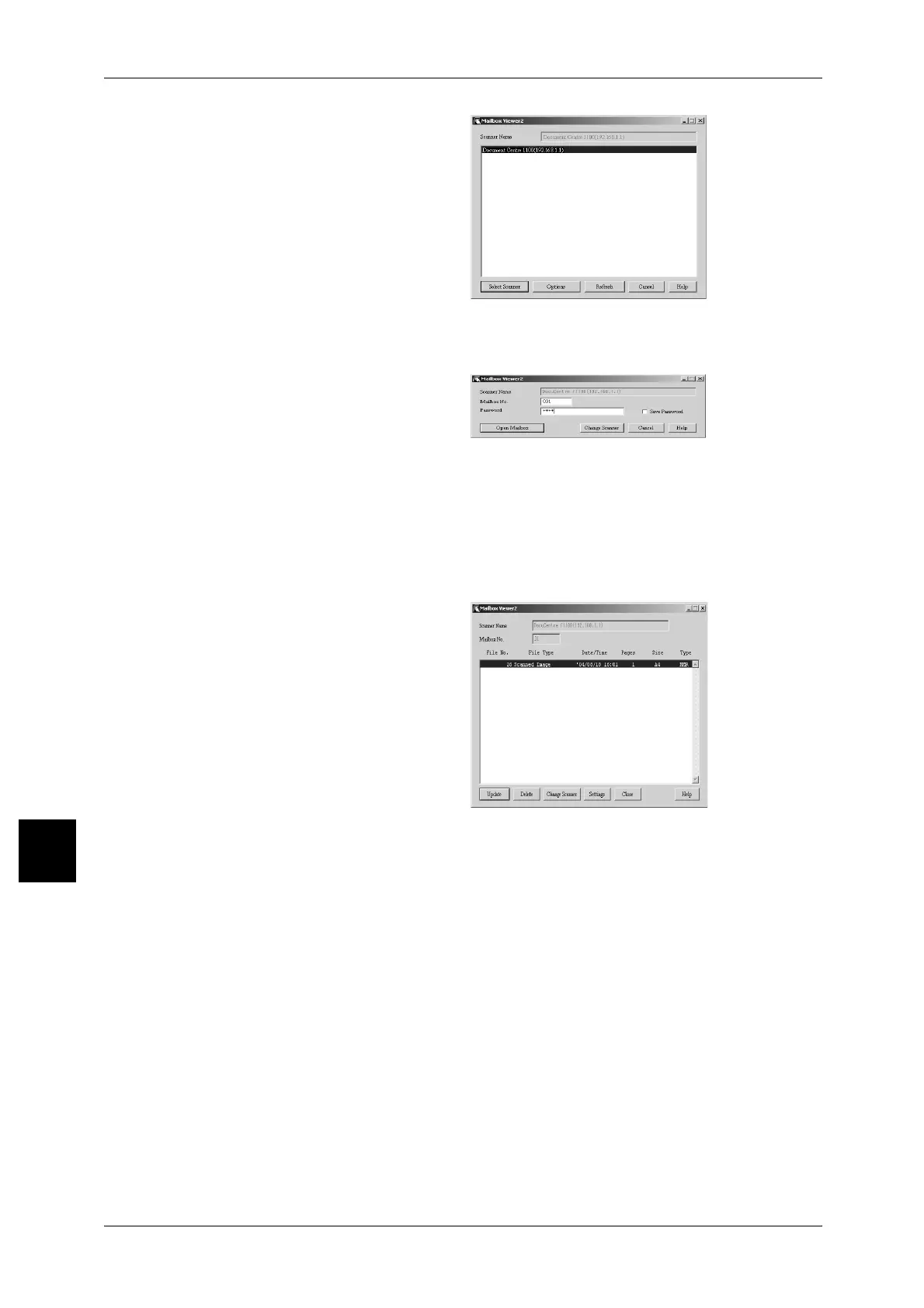
2 From the displayed list, click the
scanner name of the machine, and
click the [Select Scanner] button.
Note • If no items are shown in the
list, click [Refresh]. The
application searches for
scanners.
• Click on [Change View] to
change the way scanner
names are displayed.
• Only DocuCentre Color devices connected to a uniform network are automatically shown in
the list. To view DocuCentre Color devices from other networks, click on [Change View] and
register an IP address and scanner name.
3 In the [Mailbox Number] field, input
the mailbox number (001 - 500)
that contains the document you
wish to import, and input a
password (up to 20 digits) into the
[Password] field.
Note • When you check the [Save Password] check box, you can skip steps 2 to 4 the next time you
select the same mailbox.
• Clicking [Change Scanner] returns to step 2, where you can reselect a scanner.
4 Click [Open Mailbox].
5 Select a document, and click
[Import].
Note • To import documents, the
[Auto Import] check box must
be checked in the [Settings]
dialog box.
• Multiple documents can be
selected to import.
For information about Mailbox Viewer2
settings, refer to "Configure the Import
Method for Scanned Documents" (P.263).
6 Clicking [Import] removes all stored documents from the mailbox, and saves them in
the specified directory.
For information about the directories to which documents are saved, refer to"Scan Settings" (P.263).



 To Next Page
 Loading...