Step 7 Install the bae plate.
Step 8 Remove the ESD wrist strap or gloves and put all the tools away.
----End
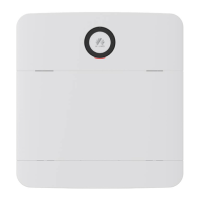
4.3.18 Replacing an ESM
Prerequisites
● The protective gloves, Phillips screwdriver and socket wrench are available.
● You have
conrmed the model of the ESM to be replaced and prepared a new
ESM.
● You are authorized to enter the site with the key.
● If a gyroscope is congured, disable the gyroscope function. For details, see
the Intelligent Displacement Lock and IoT Module Installation Guide (ESM).
The document download path is https://support.huawei.com/enterprise/.
Context
ESM replacement may cause a system power failure. To prevent power failures,
ensure that other power sources, such as the mains, diesel generator, or a third-
party DC power source, provide continuous power supply.
Replacement Requirements
Conditions for the ESM to enter and exit the maintenance mode:
1. If the intelligent displacement lock anti-theft function is disabled, hold down
the Manual ON/OFF button for at least 15s to enter the maintenance mode.
2. In the maintenance mode, hold down the Manual ON/OFF button for at least
15s to exit the maintenance mode.
Before replacing an ESM in an actual maintenance scenario, hold down the
Manual ON/OFF button for the ESM to power
o. After the ESM is replaced, hold
down the Manual ON/OFF button for at least 15s on the new ESM to exit the
maintenance mode.
Removing the Old ESM
Step 1 Wear the protective gloves.
Step 2 Use the Manual ON/OFF button on the ESM to turn o the battery output.
Step 3 Disconnect the cables from the old ESM. Insulate each cable and label it
immediately after disconnecting it.
When removing cables, use a professional insulated tool to remove the negative
cable from one end of the busbar, and then remove the positive and negative
cables from the ESM to prevent short circuits.
iSitePower Integrated Smart Site (ICC1000-A1-E1)
User Manual 4 Maintenance
Issue 04 (2022-10-15) Copyright © Huawei Technologies Co., Ltd. 139





 To Next Page