VIsualEyes 515/525 - Additional Information Page 116
By default the name of the template will be New Template 1. This name can be changed at the top of the
screen. The report template is then populated with text and can have both keywords and findings added to
the template. Select the position in the template report to add the keyword, then select the keyword on the
right side of the screen. Click on the add keyword button to add the keyword to the template text. The
keyword will be shown with double arrows around the keyword text, e.g. <<Client_FirstName>>. To add a
specific finding, click on the Show Findings option in the upper right, then select the appropriate finding from
the list and add it with the add finding button.
Figure 10.3.4 Add keyword or finding button
Once the template text has been written, tap the Save template button.
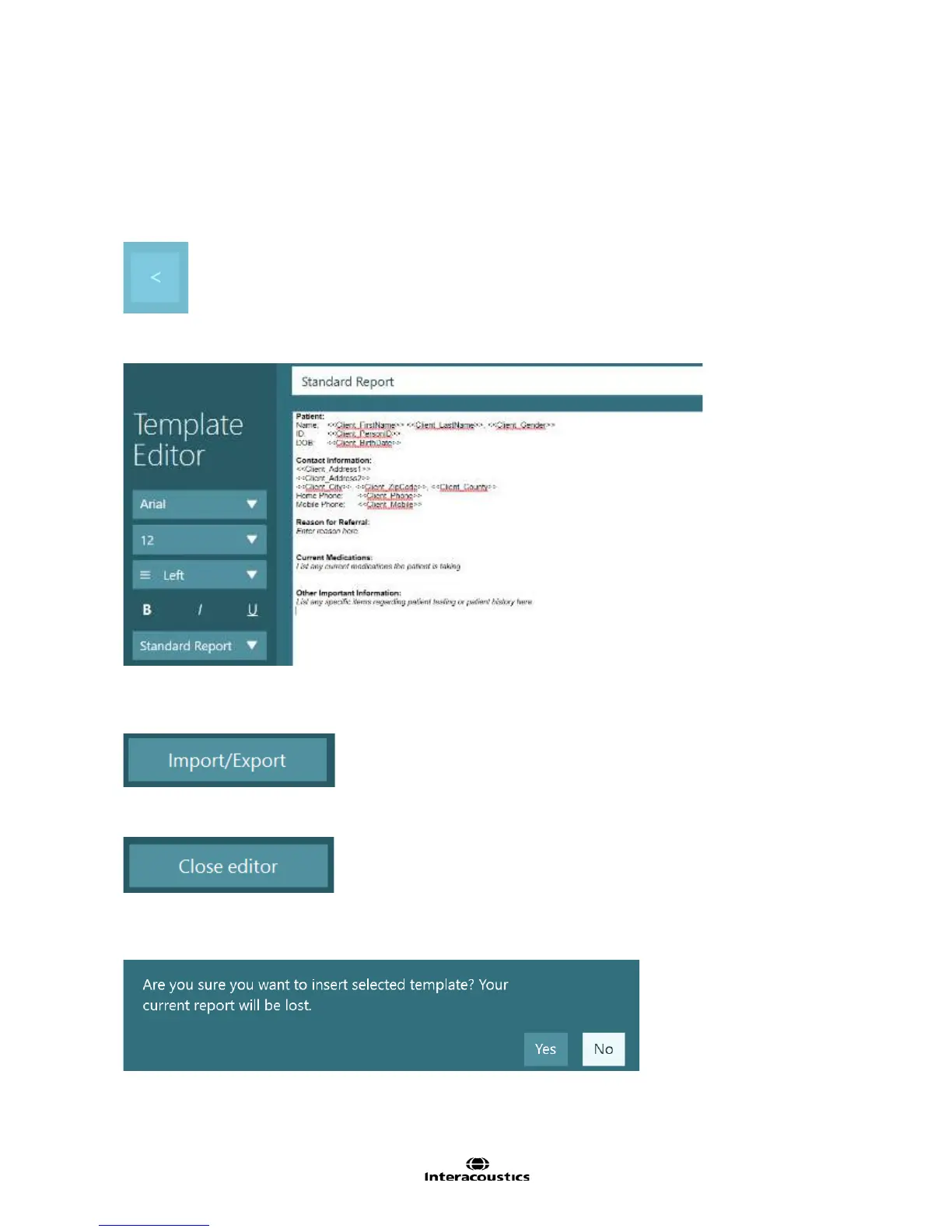
Figure 10.3.5 Template Editor displaying sample template
Report templates can be imported or exported to template files using the Import/Export button. A dialog will
be shown for selecting a report template to import or choose a location to export the current report template.
Figure 10.3.6 Import/Export templates button
Tap the Close editor button exit the Template Editor screen and return to the Report Editor screen.
Figure 10.3.7 Close editor button
Within the Report Editor screen, use the Templates selection box and select the template that was created.
VisualEyes™ 515/525 will ask to confirm replacing the report with selected report template.
Figure 10.3.8 Confirm insert selected template message














 To Next Page