VIsualEyes 515/525 - Additional Information Page 73
6.7 Editing rotary chair test results
6.7.1 Editing SHA Tests
This section pertains to all tests in which the rotary chair rotates in a sinusoidal harmonic acceleration pattern
(SHA, VOR Suppression, and Visual VOR). The following edit tools can be accessed by tapping the Edit
Tools button in the left side menu available within a specific test review screen, or from the summary test
results screen.
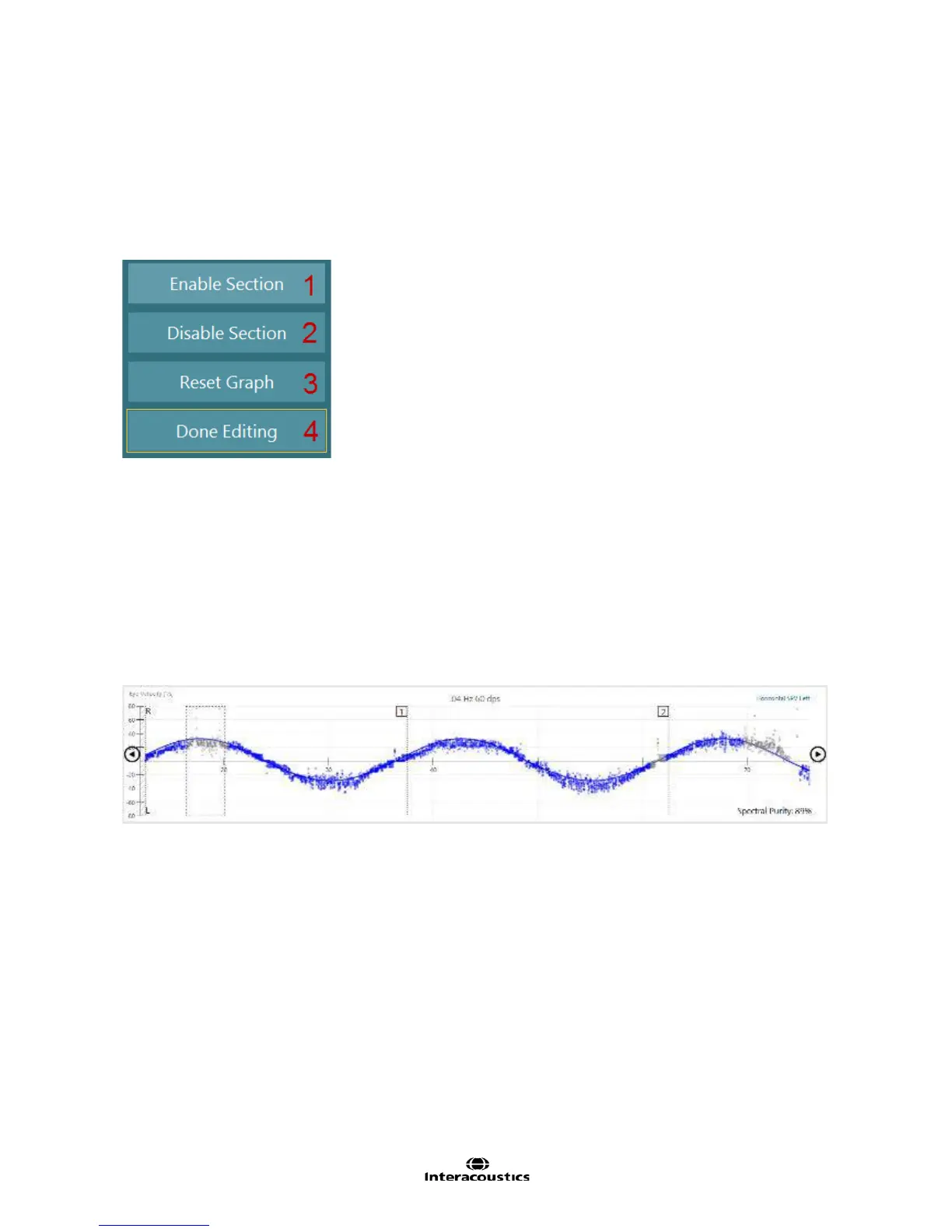
Figure 6.7.1 SHA tests editing tools
1. The Enable Section tool allows the user to include a section of the response in the analysis. Once
the Enable Section button has been activated, click and drag over the section of the eye velocity
trace that should be included in the analysis of the response.
2. The Disable Section tool allows the user to exclude a section of the response from the analysis.
With the Disable Section activated, click and drag over the section of the eye velocity trace that
should be excluded from the analysis (i.e. artifact). A dashed line box will appear around the section
being disabled. The disabled section will turn grey to indicate that it is no longer included in the
analysis (Figure 6.7.2). The section can again be re-enabled by using the enable section tool.
3. The Reset Graph button discards all user edits and returns the waveform to the original software
analysis.
4. Select the Done Editing button to exit the editing tools and keep the edits to the analysis.
Figure 6.7.2 Disable section edit tool in SHA tests














 To Next Page