VIsualEyes 515/525 - Additional Information Page 120
11.3 De-identify printout
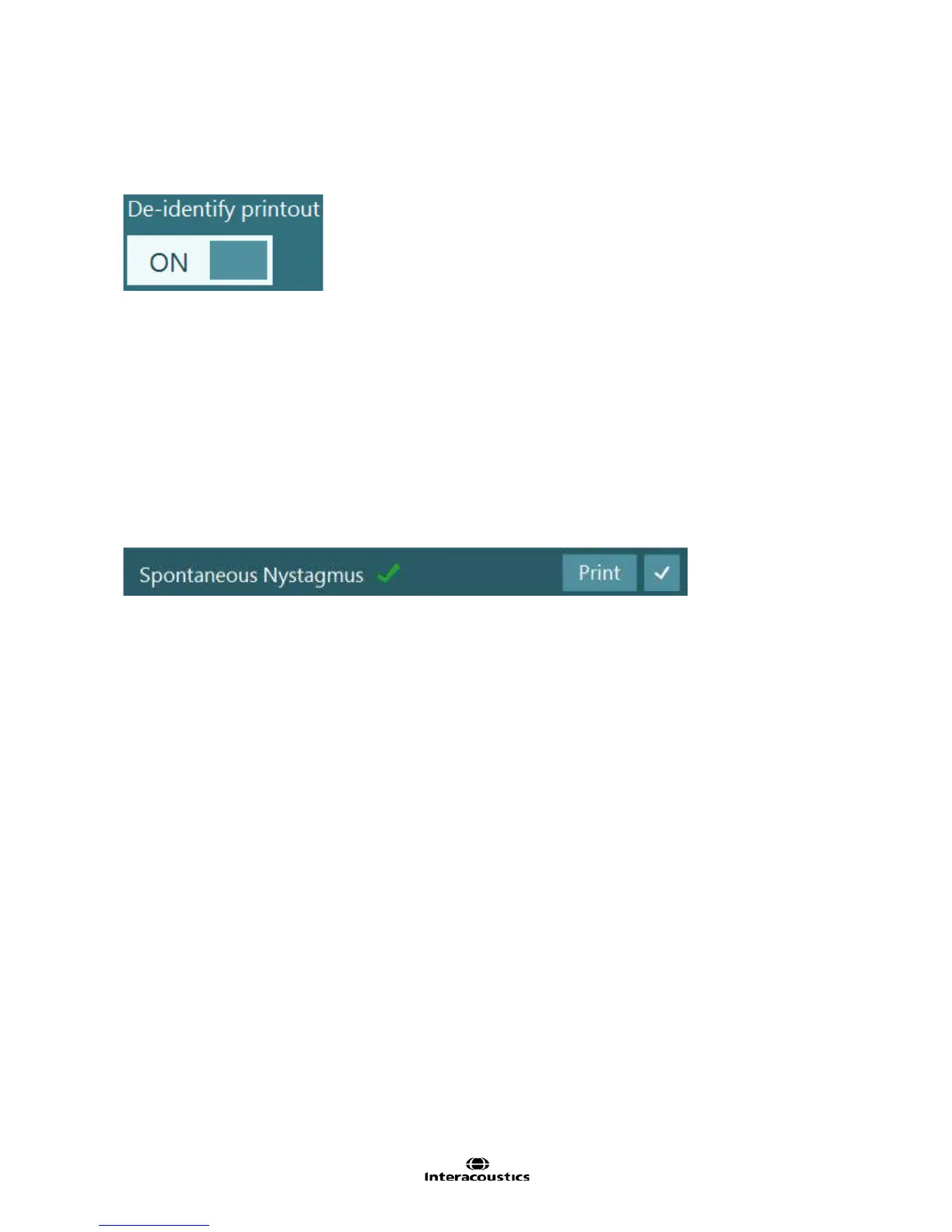
De-identify printout is available from the Session Review screen. Activating this feature will create the
results without displaying vital information about the patient. This allows for patient data to be printed without
disclosing any identifiers about the particular patient.
Figure 11.3.1 De-identify printout option
11.4 Printing calibration
Calibration waveforms can be printed for monocular and or binocular recordings and for both horizontal and
vertical eye movement calibrations. These wave forms can provide proof of acceptable calibrations vs
technical errors.
11.5 Printing a single test or clinical report
The clinical report can be printed individually using the Print button next to the Clinical Report.
A single test can be printed by clicking or touching the Print button beside the test name in the Session
Review screen. The printed document will contain the notes for the test only.
Figure 11.5.1 Example of test printed from Session Review screen
11.6 Printing a session
To print all the tests performed within a test session:
• Open the Session Review
• In the left panel menu, select Print Session:
• The test data (graphs and a trace segment) for each test performed, along with the clinical report,
will be printed
11.7 Printing traces
To print the entire trace for an individual test, open the desired test or subtest from the Session Review
screen. A Print Screen button will show up in the left menu panel. Click or touch this button to print the
entire trace and graphs for the specific test or subtest.
11.8 Condensed printing
By default, each test completed in VisualEyes™ will be printed on a separate page. However, in System
Default Settings this feature can be deselected to reduce the number of pages printed. Refer to 12.9 Print
PDF for further explanation.
11.9 Create PDF
By selecting Create PDF the file is saved in the defined data location. For further information see Section
12.9: Print PDF.














 To Next Page