VIsualEyes 515/525 - Additional Information Page 18
3.2 Nystagmus Marking and Peak Response
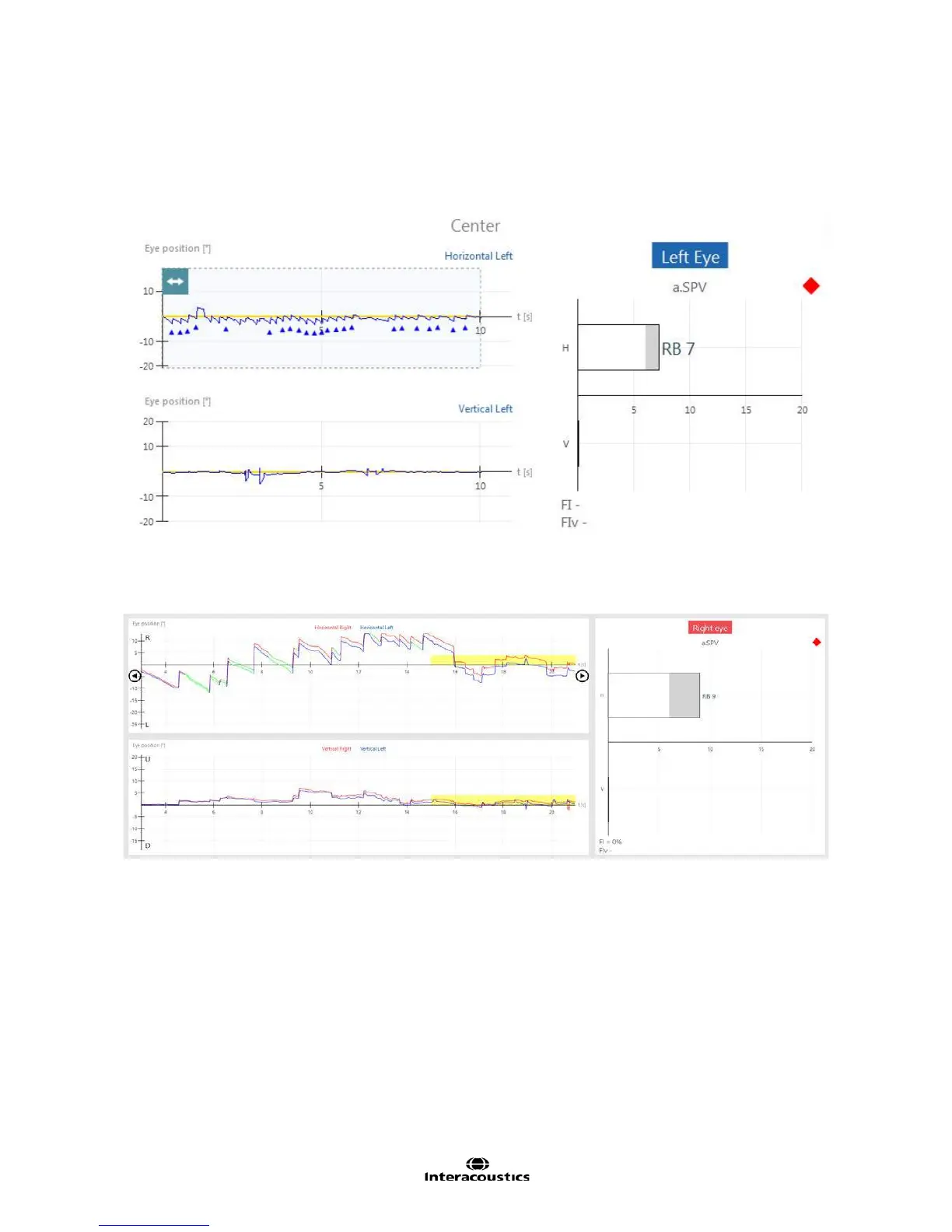
Nystagmus beats are marked by small triangles in the eye trace graphs. During data collection, the
nystagmus beats are marked by triangles showing the inflection point between the slow and fast phases of
the nystagmus beat.Triangles that point upwards (below the tracing) indicate right-beating
nystagmus.Triangles that point downwards (above the tracing) indicate left-beating nystagmus.
Figure 3.2.1 Nystagmus beats with triangles
After the test is complete, the software will color the nystagmus beats in green and remove the triangles if
desired. This option is set in System Default Settings under General settings. See 12.5 General. If the
option is not enabled, the waveform will display the triangle marks.
Figure 3.2.2 Nystagmus beats marked green
The a.SPV (average slow phase velocity) is determined by averaging the slow phase values of each
nystagmus beat in the selected peak response time. Three beats in the selected peak response time are
required to calculate a.SPV. The peak response time is specified in the test’s settings. The a.SPV is
measured in degrees/second and displayed in the result graph beside the waveform. In nystagmus tests the
a.SPV graph only displays the results of one eye at a time. Clicking or touching the label for the eye selected
will switch the a.SPV values for the other eye tested.
The peak response window is updated as the test progresses and is marked by a dashed window that is
shaded in a light blue color (Figure 3.2.3) for the area with the largest a.SPV. This window can be moved to
the desired area by using the scroll button in the upper left corner of the peak response window or reset to
the software selected location using the reset button in the upper right corner of the peak response window.
NOTE: The waveform window can be scrolled quickly using the mouse scroll wheel.














 To Next Page