VIsualEyes 515/525 - Additional Information Page 122
The Goggle Camera selection determines which goggle camera is to be used for testing.
• Simulated camera – demonstration option showing only an image of the eyes
• Top mount camera– two cameras
• Front mount camera –single camera
• Side mount camera –single or two cameras
The Room Camera selection will choose the camera for room recording. Choosing None will not initialize any
room camera and will prevent the recording of the patient interview.
The Microphone selection will choose the audio recording source combined with the room recording and
patient interview. If the Room Camera selection is set to None, the Microphone selection is not used.
The Fixation Light Position selects which fixation light to use in the top mount camera goggles and the side
mount camera goggles. The front mount camera goggles will light the fixation light regardless of this setting.
The Show Frame Rate option displays the frame rate of the cameras as they are capturing video. This is a
diagnostic tool used to check if the cameras are working correctly with the computer and normally is off.
The Has Goggles Switch option is available only with the top mount camera goggles (Micromedical
Binocular) and defines the goggle type as having the side switch. If the camera model does not have a side
switch, this option should be turned off. The default setting is on.
The Use Goggles Switch option is a user preference option available only with the top mount camera
goggles (Micromedical Binocular). If the camera model has a side switch, but the user does not wish to use
the side switch and wants to disable the side switch completely, then this option should be turned off. The
default setting is on.
The Video Storage Location sets the location where the videos are stored for the eye recording and the room
recording. By default this is set to a Micromedical VisualEyes™ subfolder under the public videos folder.
This can be changed to use a network location if desired.
12.3 Calibration
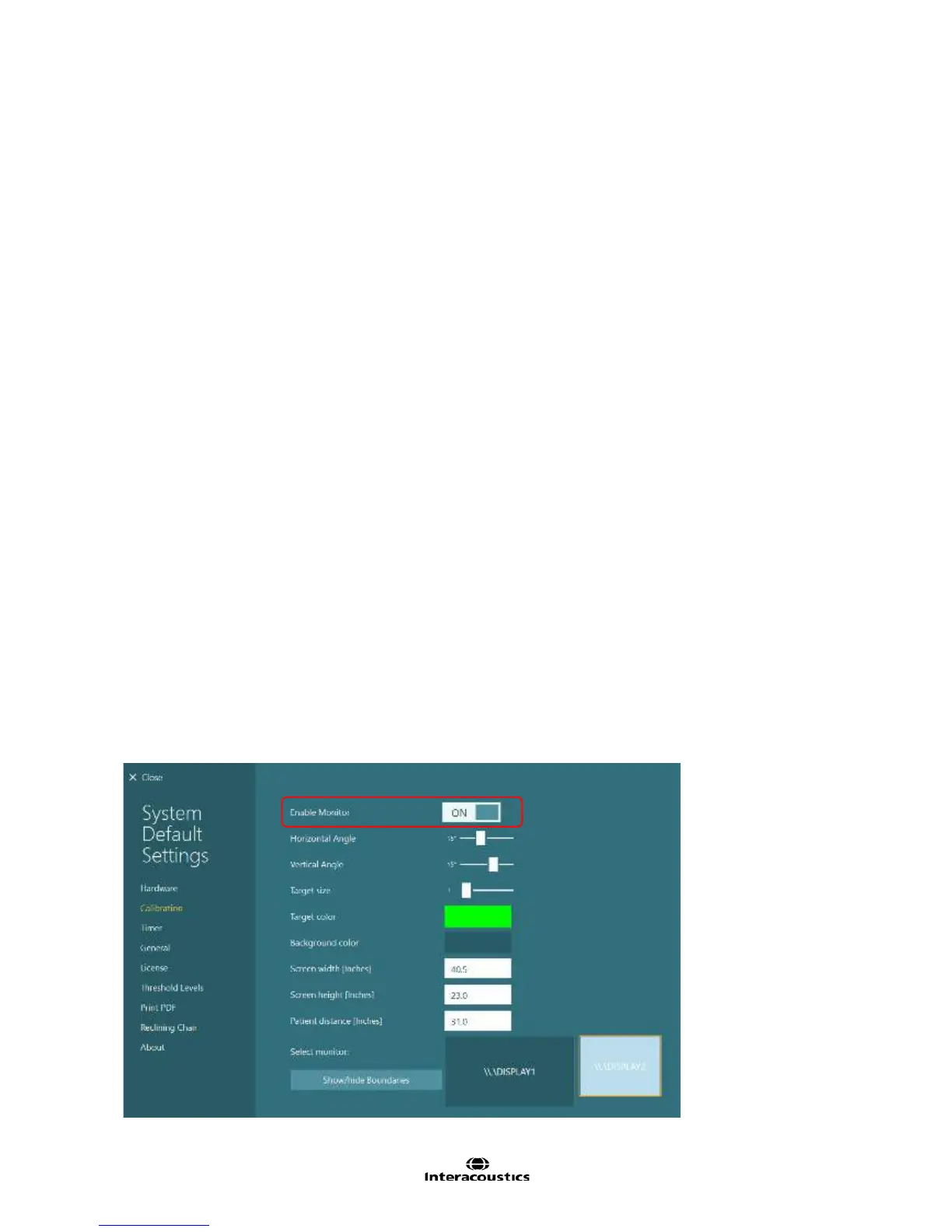
The Calibration settings for VisualEyes™ 81 systems require a TV or second monitor to be used in
conjunction with the VisualEyes™ 81 system. Turning on Enable Monitor allows the calibration stimulus to
appear on the TV or monitor, as well as for all oculomotor stimuli during those tests. In addition, the Enable
Monitor option showcases the eye recordings and room recording on a second screen during non-
oculomotor tests.
Figure 12.3.1 Calibration option to Enable Monitor














 To Next Page