VIsualEyes 515/525 - Additional Information Page 80
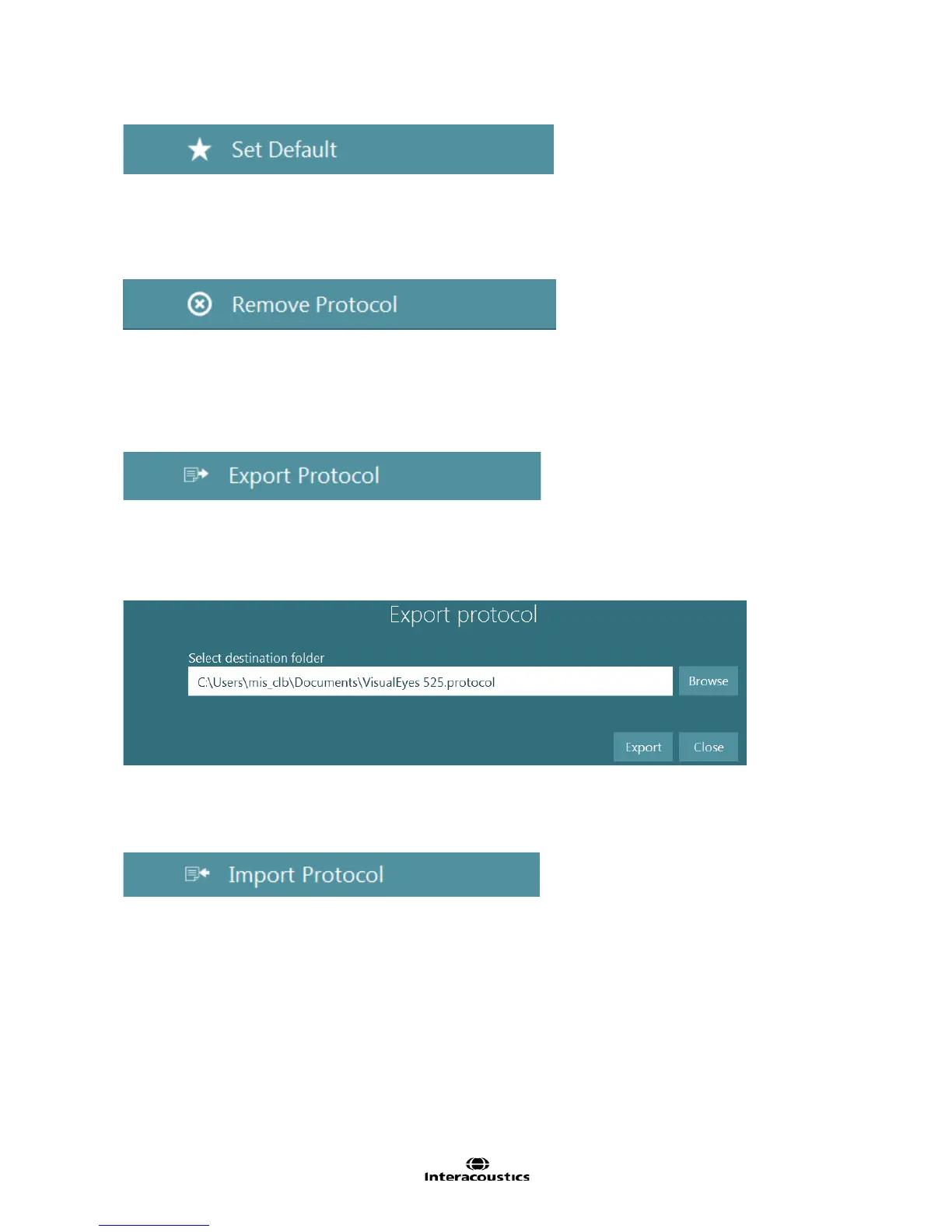
Figure 7.3.2 Set Default Protocol button
7.4 Remove protocol
To permanently remove a protocol and all tests in the selected protocol, select the Remove Protocol button.
The software will ask to confirm the protocol removal.
Figure 7.4.1 Remove Protocol button
7.5 Exporting protocols
Protocols can be exported for later use. Highlight the chosen protocol and select the Export Protocol
button from the left menu panel.
Figure 7.5.1 Export protocol button
An export dialog with a destination folder location will appear (Figure 7.1.10). Select the desired destination
folder for the exported protocol and select the Export button. This will save the protocol to the selected
location for later use (e.g. to import into another VisualEyes™ 515/525 system). Select Close to return to
the Protocol Management screen.
Figure 7.5.2 Export Protocol dialog
7.6 Importing protocols
Previously exported protocols can be imported into Protocol Manager using the Import Protocol button.
Figure 7.6.1 Import Protocol button
An import dialog with a source folder location will appear (Figure 7.1.10). Select the folder with the protocol
file and select the Import button. This will save the protocol to the selected location for later use (e.g. to
import into another VisualEyes™ 515/525 system). Once imported, the protocol can be edited or set as
default like other protocols. Select Close to return to the Protocol Management screen.














 To Next Page