VIsualEyes 515/525 - Additional Information Page 2
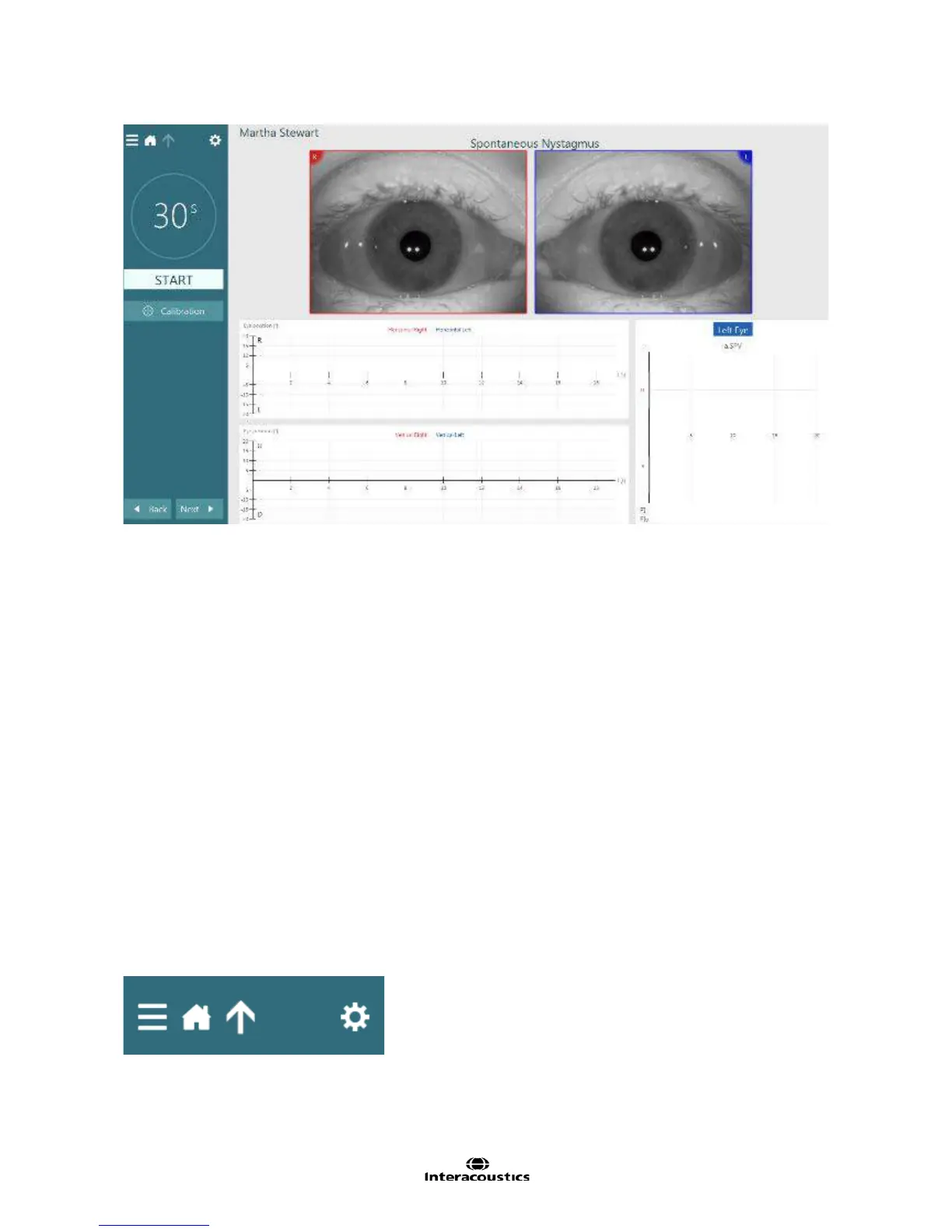
Figure 1.1.2 First test displayed
1.2 Moving through VisualEyes™
VisualEyes™ VNG software suite is compatible with both touch capable screens and standard (non-touch)
computer systems. Maneuvering through the software can be done by touch, mouse, keyboard, foot pedal
and remote control.
Tests can be started in multiple ways:
• Click the Start button on the Test Screen. This option is available for all tests.
• Press the Enter button on the RF Remote (if available). Ideal for starting the test when not at the
computer. This option is available for all VNG tests. Rotational chair tests do not respond to the RF
Remote’s Enter button as a patient safety measure.
• Press the Goggles Switch on the side of the goggles. The Top mount camera goggles switch is
ideal for starting the test when at the patient’s side such as in Dix-Hallpike and Positional tests.
• Press the irrigator handle button on the Air Fx or Aqua Stim to start the irrigation and test. This is
only available in caloric tests.
• Press the foot pedal (if available). Ideal for starting the test when not at the computer. This option is
available for all tests. Care should be taken if using the foot pedal with the reclining chair that the
foot pedal is far enough away from the reclining chair for the operator to not be injured from the chair
in rotation.
Moving through the screens
• Home button will return to the main screen
• The up arrow button will exit an individual subtest and go to the test summary screen
• Remote control will navigate the buttons in pop up message windows, allowing the user to respond
to pop up messages with the remote control
Figure 1.2.1 Test Navigation Bar














 To Next Page