VIsualEyes 515/525 - Additional Information Page 72
6.6 Editing smooth pursuit test results
Editing tools are available for viewing and editing the smooth pursuit tests. These tools are accessed after
the data collection is complete by selecting the Edit Tools button. These tools are also available from the
Smooth Pursuit summary view. If accessed from the Smooth Pursuit summary, select the tool then select the
test to edit.
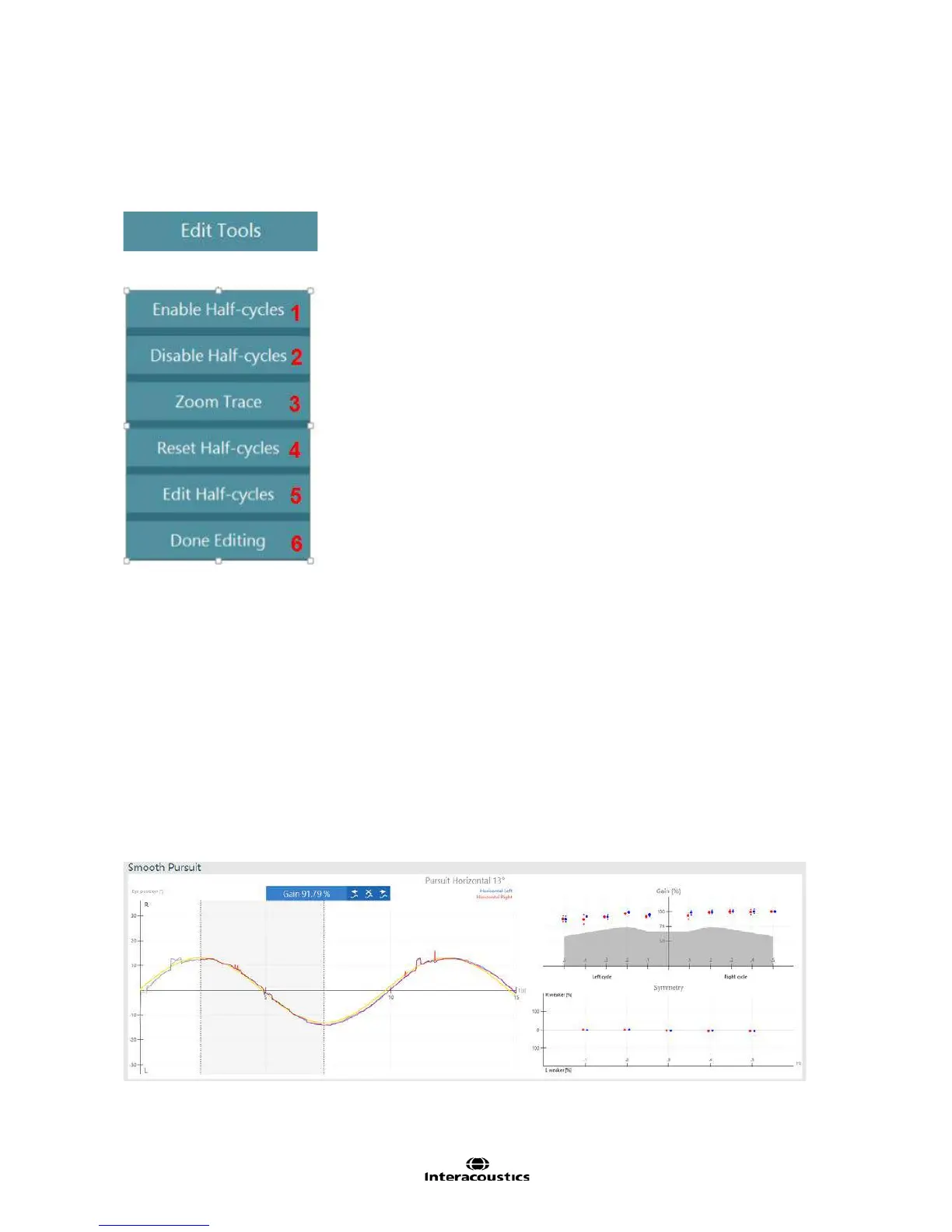
Figure 6.6.1 Edit Tools for Smooth Pursuit tests
Figure 6.6.2 Smooth Pursuit editing tools
1. Click or touch the Enable Half-cycles button. The selection box that the user creates on the
waveform will enable each half cycle that was disabled in the analysis.
2. Click or touch the Disable Half-cycles button. The selection box that the user creates on the
waveform will disable each half cycle and remove it from the analysis.
3. Click or touch the Zoom Trace button. Click or touch on a spot on the waveform to magnify that
area by 2X (in time and amplitude). Select another spot or select the Zoom Trace button again to
exit magnification.
4. The Reset Half-cycles button discards the user’s edits and returns the waveform to the original
software analysis.
5. The Edit Half-cycles button highlights the first visible half cycle in the waveform and displays the
individual half cycle gain results in the editing toolbar. Use the previous half cycle and next half cycle
buttons or the left and right arrows on the keyboard to move through the pursuit cycles. Use the
disable / enable half cycle button to toggle the half cycle from the analysis. To switch between the
left and right eye waveforms (if the pursuit waveforms are not split in separate graphs), select the
gain value in the editing toolbar. Select the Edit Half-cycles button again to exit editing.
Figure 6.6.3 Smooth Pursuit editing
6. Select the Done Editing button to exit the editing tools and keep the edits to the pursuit analysis.














 To Next Page