VIsualEyes 515/525 - Additional Information Page 69
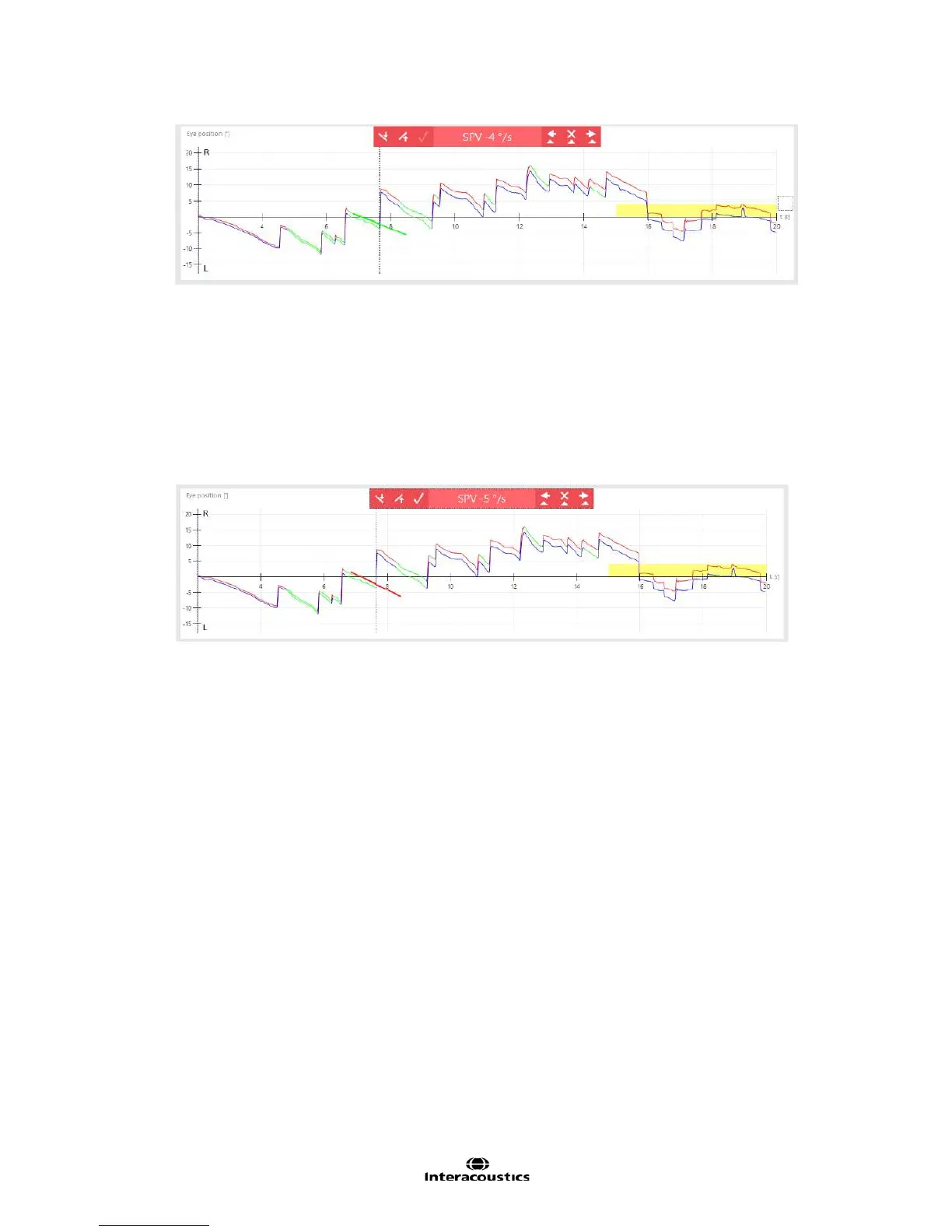
Figure 6.4.9 Selected nystagmus slope
• The operator can tab through individual beats using the left and right arrow keys on the keyboard or
by using touch screen
• For each beat the current SPV value will be displayed on the graph
• Use the up and down arrow or buttons in the tool bar to increase or decrease the slope respectively,
1 degree at a time
• During slope editing, the slope line color changes from green to red. Accepting the new value will
change the slope line color to green
Figure 6.4.10 Editing selected nystagmus slope
• One cannot reverse the phase of the slope, i.e. change a right beating slope into a left beating slope
• The slope value cannot be zero, instead reject the slope from the analysis using the exclude button
• The toolbar displays the current beat’s slow phase velocity in the center of the toolbar. To examine
the slope values for each nystagmus beat, use the right and left arrow keys to move through the
nystagmus beats and note the slow phase velocity value for each beat
Alternative display for viewing nystagmus
• VisualEyes can either display triangles to show the location and direction of nystagmus beats or
highlight the nystagmus slow phase in green. In addition to a system wide setting in System Default
Settings (see Section 12.5 General), the current test settings can be changed if desired
• Access the test settings from the gear button on the side panel. Select Nystagmus Parameters
• Display nystagmus markers will control whether the nystagmus triangle markers are displayed
• Highlight nystagmus slow phase will control whether the nystagmus slow phase is drawn in green
color. This setting is applied after the test collection is complete














 To Next Page