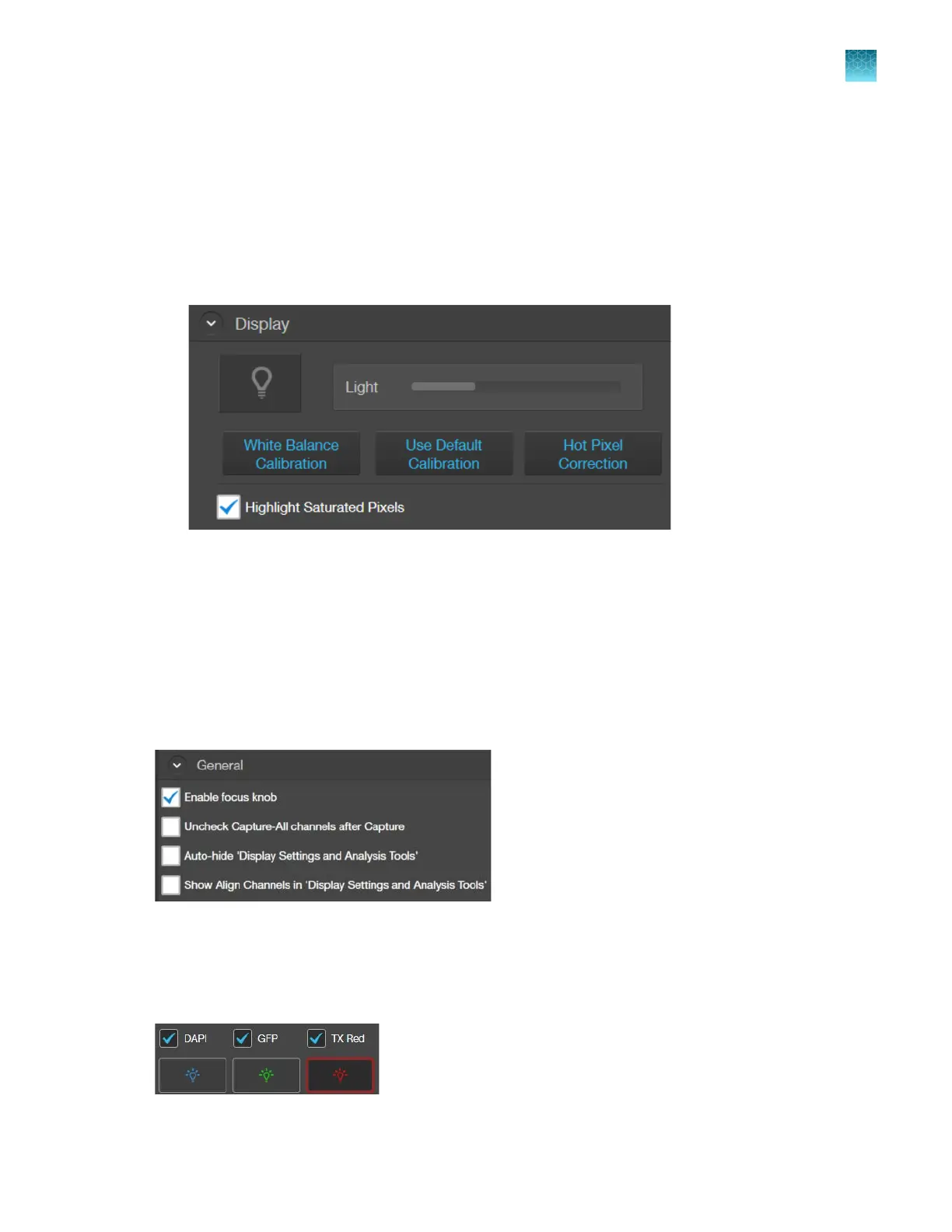
Set saturated pixel options
Highlight saturated pixels
Highlight saturated pixels function displays overexposed pixels on an image with the user-defined color,
which provides a visual aid for optimal illumination when adjusting the brightness settings.
1.
Go to Settings4Display, then click the Highlight Saturated Pixels checkbox.
2.
To assign a specific color to the saturated pixels in a channel, select the desired color from the
corr
esponding channel dropdown (Fluorescence, Transmitted, or RGB Transmitted).
Available colors for saturated pixels are Red, Green, Blue, and White.
General settings
General settings options
Define
Capture All checkbox behavior
By default, channel checkboxes stay checked after image capture when you select multiple channels
for simultaneous capture (see “Capture images in multiple channels” on page34).
Chapter11Configure instrument settings
Set saturated pixel options
11
EVOS
™
M5000 Imaging System User Guide
101



 To Next Page