1.
To automatically unselect channel checkboxes after multichannel image capture, click Uncheck
Capture-All channels after Capture in the (Settings)4General tab.
2.
Click
Done.
Define Display Settings toolbar behavior
By default, the Display Settings and Analysis Tools toolbar is displayed automatically after image
capture and remains visible. You can change this behavior in the General settings.
1.
To automatically hide the Display Settings and Analysis Tools toolbar, click Auto-hide ‘Display
Settings and Analysis Tools’.
2.
Click Done
. The toolbar will be displayed when you hover the cursor over the Viewing area after
image capture. The toolbar will automatically hide if no action is taken.
Show Align Channels tool
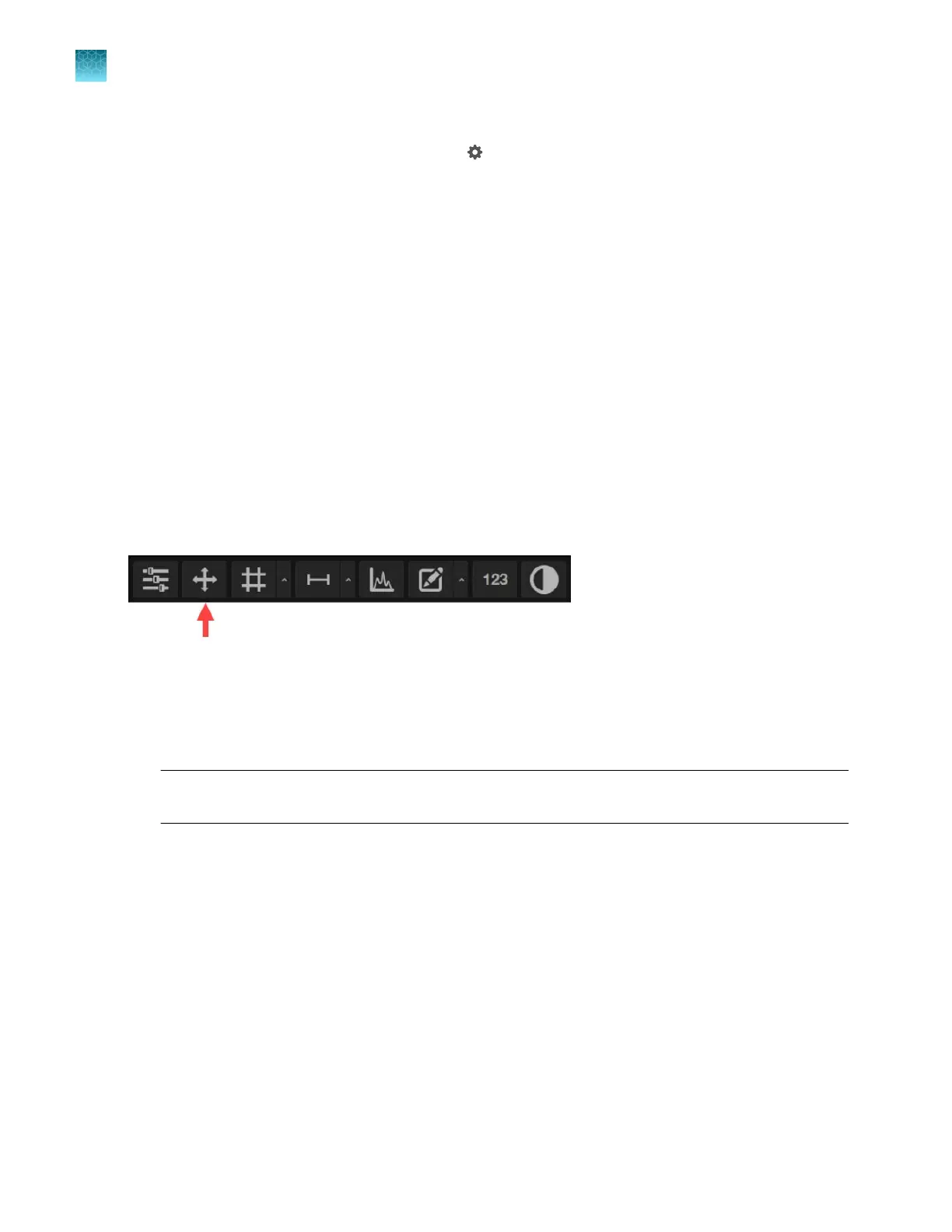
By default, the button to display the Align Channels tool (indicated by the red arrow) is not shown in
the Display Settings and Analysis Tools toolbar. You can add the Align Channels tool to the toolbar in
the General settings.
1.
Select
Show Align Channels in ‘Display Settings and Analysis Tools’ in the Settings4General
tab.
2.
Click
Done. The Display Settings and Analysis Tools toolbar will display the Align Channels
button.
Note:
The controls for the
Align Channels tool are contextual. The tool only displays the controls
for the channels in which the selected multichannel fluorescent image has been captured.
Configure
network settings
You can connect the EVOS
™
M5000 Imaging System to a network via an Ethernet cable or Wi-Fi
adapt
or and save captured images directly to shared folders on the network. You can also connect to
your Connect
account, Connect-based platform, to store your image files and analyze them with the
EV
OS
™
Image Analysis application.
Chapter11Configure instrument settings
Configure network settings
11
102
EVOS
™
M5000 Imaging System User Guide



 To Next Page