Capture time lapse images
Time lapse tool
With the Time Lapse tool, you can set up your cells and program the EVOS
™
M5000 Imaging System
to capture images (including Z-Stack images) at given intervals over a time period based on your
specifications. For repeat experiments, time lapse routines can be saved, recalled, and edited.
Run a time lapse routine
Run a new time lapse routine
1.
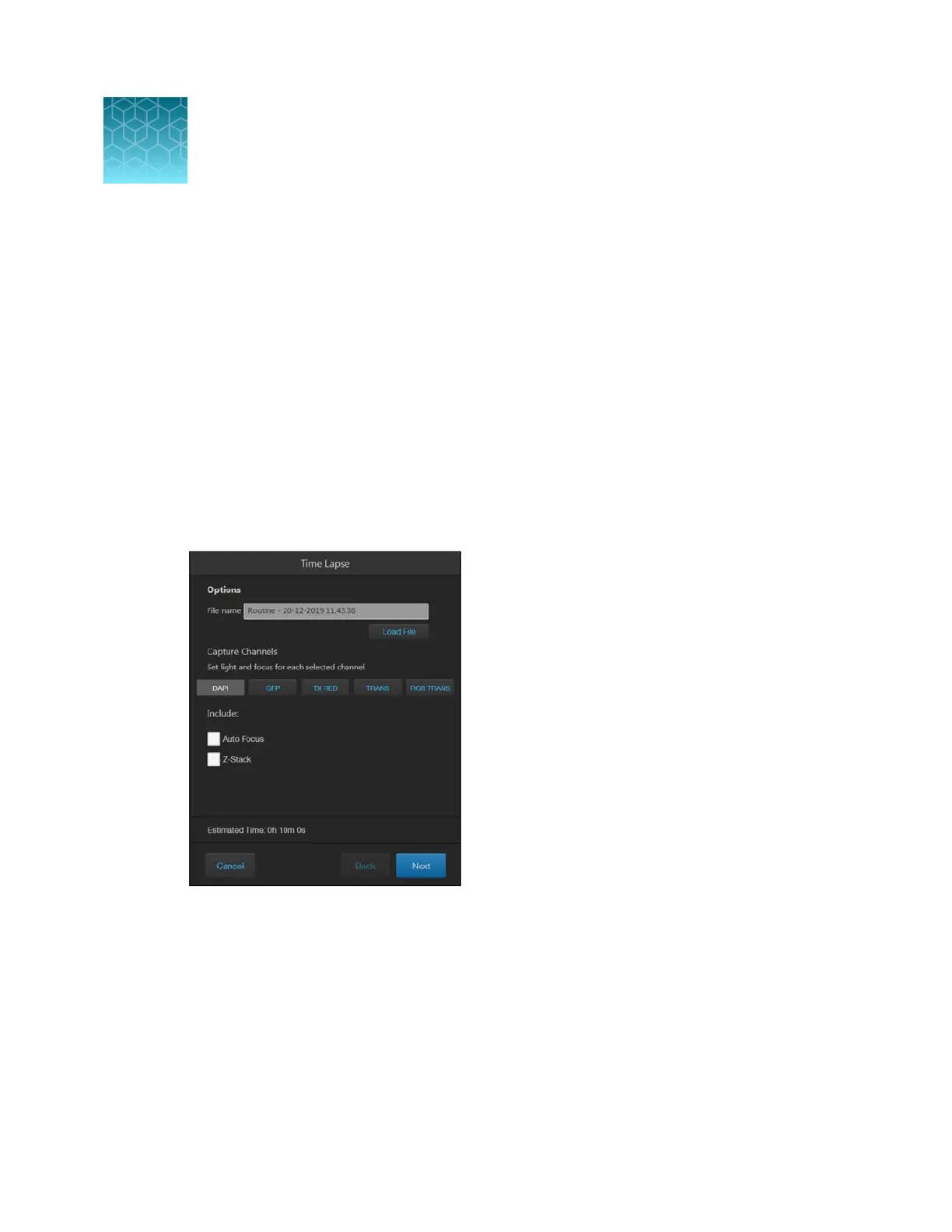
On the Capture tab, click Automate, then select Time Lapse to open the Time Lapse tool.
2.
Click on the desired capture channels (for example,
DAPI, GFP, etc.). Multiple channels can be
selected for capturing time-lapse images.
3.
Select
Auto Focus to run the autofocus algorithm during the time-lapse routine.
Unselect Auto Focus to capture time-lapse images using the initial focus positions set before
running the routine.
4.
Select Z-Stack to capture multiple images along the Z-axis based on your specifications.
Unselect Z-Stack to capture images only at the focus position set for each channel (either Auto
Focus as part of the routine or initial focus positions).
7
EVOS
™
M5000 Imaging System User Guide
65



 To Next Page