10.
Exit: Exits the Auto Count tool and displays the Review tab.
11.
Save: Saves the analysis results as an image in the selected file
format (see “Save analysis results”
on page92 for more information).
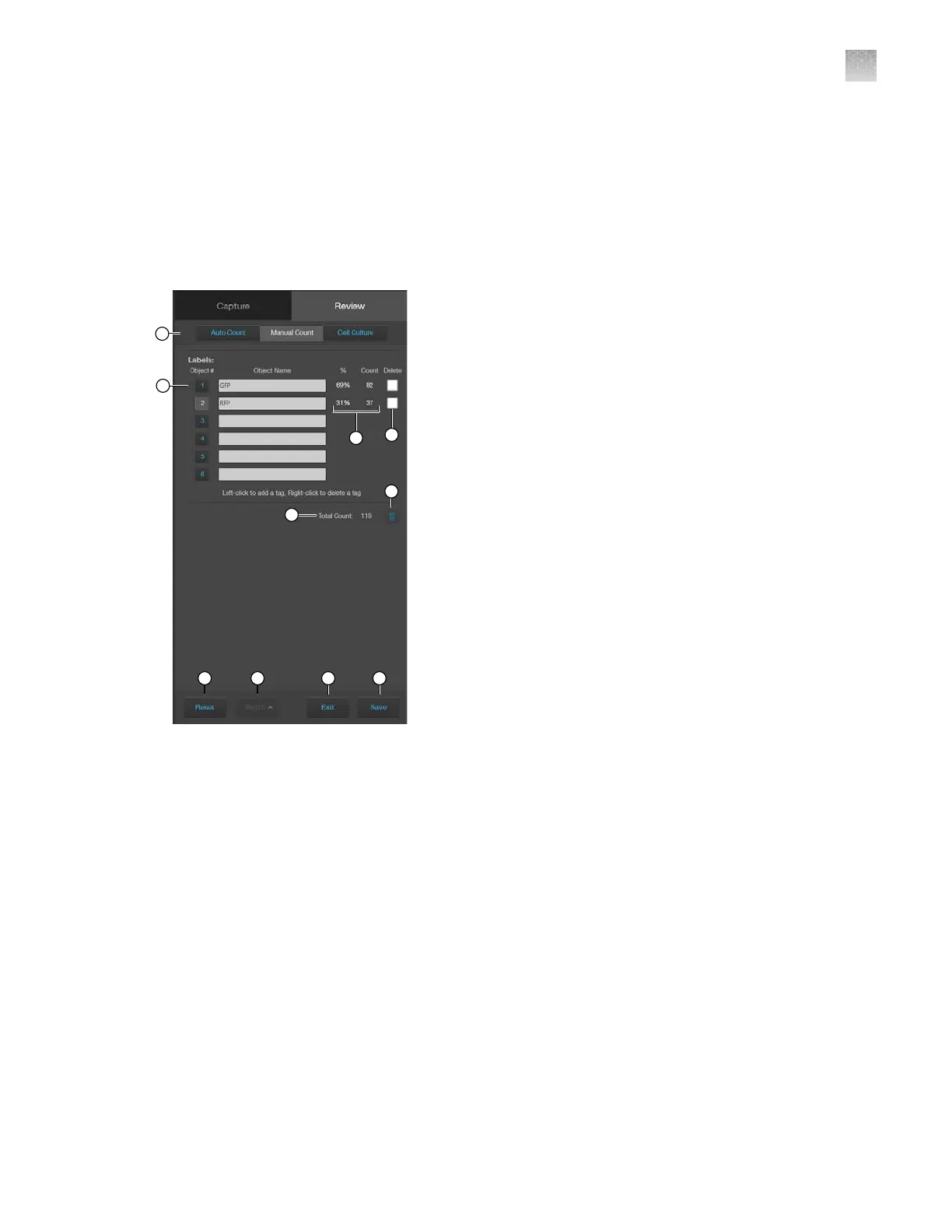
Manual count controls
1.
Analysis tools
: Allows you to toggle between Auto Count, Manual Count, or Cell Culture
(Confluence and Transfection Eciency) tools for image analysis.
2.
Object # and Object Name: Allows you to select the label (Object #) with which to tag objects in
the V
iewing area. Left-click on the objects in the Viewing area to tag them with the selected label;
right-click to delete a tag. In this example, Object #2 is selected. You can switch labels as desired.
See “Count cells – manual count” on page51 for more information. Object Name allows you to
assign a name for the Object #.
3.
% and Count: Displays the label count and its percentage of the total object count (total count of
all labels).
4.
Delete: Selects a label for deletion.
5.
Trash: Deletes the tags for the label and resets the label count to 0.
6.
Total Count: Displays the total count of objects tagged with all labels.
7.
Reset
: Resets all label counts and the total count to 0 and clears the Viewing area of all tags.
AppendixBGraphical user interface (GUI)
Manual count controls
B
EVOS
™
M5000 Imaging System User Guide
129



 To Next Page