•
Analyze cell culture (“Analyze cell culture” on page44):
–
Perform Auto Count (“Perform auto count” on page45)
–
Perform Manual Count (“Perform manual count” on page51)
–
Measure confluence (“Measure confluence” on page54)
–
Calculate transfection eciency (“Calculate transfection eciency” on page58)
•
Save analysis results (“Save analysis results” on page92)
IMPORTANT! Changes made to images in the Viewing area with the display settings and analysis
tools, including changes made to image parameters, display of the grid and the scale bar, as well
as any annotations and measurements, are part of any saved display image. In contrast, saved
analysis images (that is, 16-bit individual channel files) consist of the raw data and do not preserve
any edited changes.
To save raw image data for image analysis, select the Save individual channels for analysis
option when saving captured images (“Save” on page62).
Adjust image display settings
1.
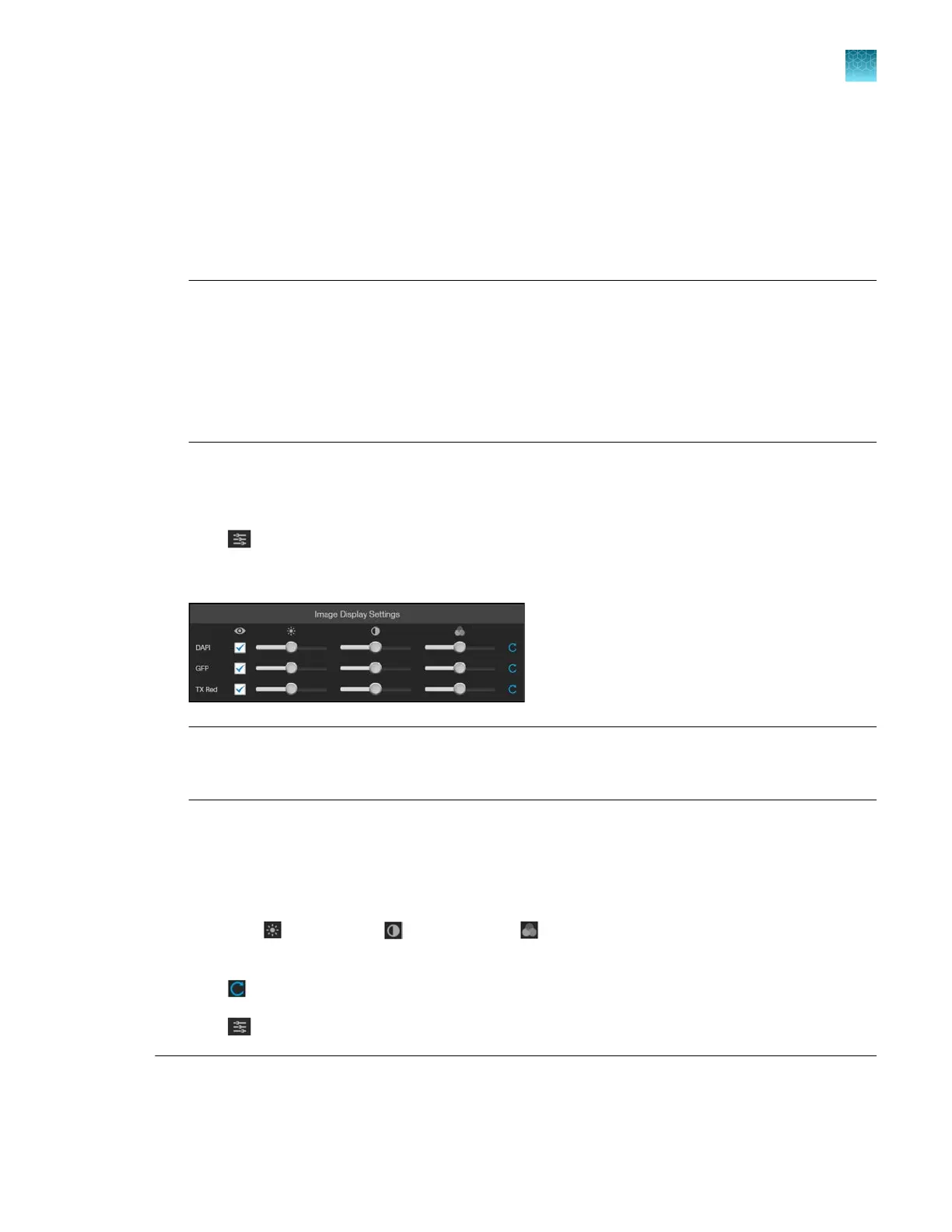
Click (Image Display Settings) to expand the controls for image display parameters
(Brightness, Contrast, Gamma) for captured images.
Note: The controls for Image Display Settings are contextual; they are available only for channels
with captur
ed images or for a single channel in the Live mode (with the illumination light turned
on). In the example above, only the controls for DAPI, GFP, and TX Red channels are displayed.
2.
(
Optional): To remove a channel from displaying in the Viewing Area, unselect the corresponding
checkbox.
To display a channel with a captured image that is not shown in the Viewing Area, reselect the
checkbox.
3.
Adjust the
(Brightness), (Contrast), and (Gamma) settings for each of the selected
channels using the corr
esponding sliders.
4.
Click
(Reset) to return the image display settings to their default values.
5.
Click
(Image Display Settings) again to collapse the controls.
Note: The Gamma slider allows non-linear contrast adjustments. Moving the slider to the left
suppresses low intensities. Moving the slider to the right boosts low intensities. For images with
nonspecific background fluorescence (also known as autofluorescence), moving the Gamma slider to
Chapter5Measure, annotate, and analyze captured images
Adjust image display settings
5
EVOS
™
M5000 Imaging System User Guide
37



 To Next Page