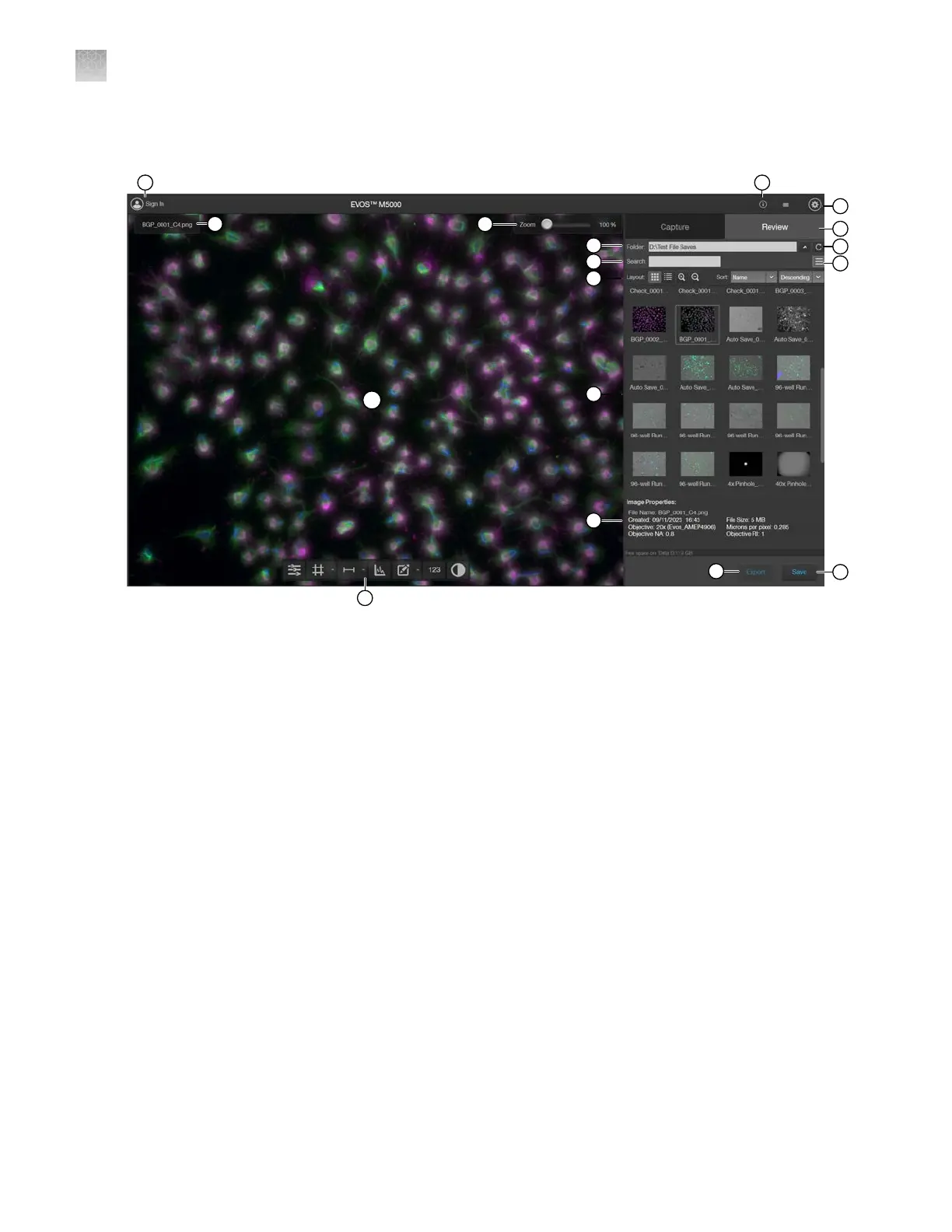
Review tab
5
6
7
8
15
2
16
1
4
17
14
13
12
9
10
11
3
1.
Sign In/User
: Allows you to sign in to and sign out of your Connect
account.
2.
Image file name
: File name of the image displayed in the Viewing area.
3.
Zoom slider: Zooms in and out of the image. The zoom range is 100% to 1000%.
4.
Keyboard Shortcuts: Instrument actions triggered by keyboard combinations instead of mouse
actions.
5.
Settings: Opens the Settings tab. See “Settings” on page132 for more information.
6.
Capture and Review tabs
: Allows you to toggle between the Capture and Review tabs.
7.
Up and Refresh
: Up button allows you go up one folder from the current folder. Refresh button
refreshes the list or grid of images in the current folder.
8.
Display Settings: Displays or hides the Layout controls.
9.
Folder: Displays the location of the current folder or image.
10.
Search
: Allows you to search images by file name in the selected folder.
11.
Layout: Allows you to toggle between grid or list view, increase or decrease the display size of the
folders or image files, and sort files by name, file type, or date created in ascending or descending
or
der.
AppendixBGraphical user interface (GUI)
Review tab
B
126
EVOS
™
M5000 Imaging System User Guide



 To Next Page