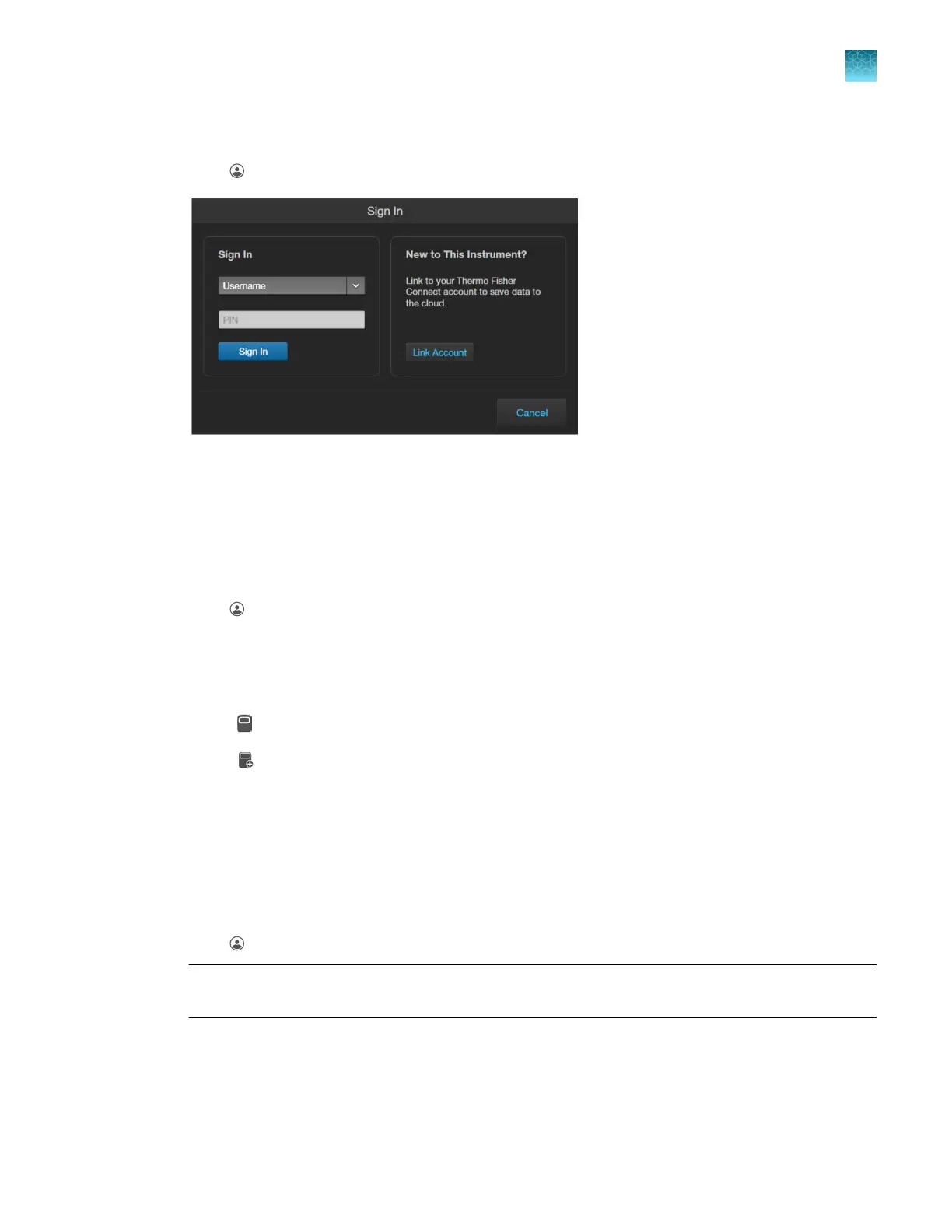
Add instrument to your Connect account with QR code (Mobile Device)
1.
Click (Sign In) on the top left corner of the screen to open the Sign In dialog.
2.
Click
Link Account, then select Mobile Device.
3.
Scan the QR code on your instrument using the Instrument Connect
application on your mobile
device.
Add instrument to Thermo Fisher
™
Connect Platform with linking code (PC)
1.
Click (Sign In)
on the top left corner of the screen to open the Sign In dialog.
2.
Click
Link Account, then select PC. Note the linking code provided by the instrument.
3.
Log in to your Connect
account using a web browser.
4.
Select
(InstrumentConnect
) from the left navigation strip.
5.
Select
(Add an Instrument) from the top navigation strip.
6.
Select
EVOS
™
M5000 from the Instrument type dropdown menu, then click Next
.
7.
Enter the linking code generated by the instrument in the text box, then click Send
.
Upon successful authentication, the instrument is linked to Connect
.
Sign in to your Connect account from the EVOS
™
M5000instrument
1.
Click
(Sign In)
on the top left corner of the screen to open the Sign In dialog.
Note:
If another user account is displayed, select the username to sign out and connect a dierent
user account.
2.
Select your user name from the list of linked accounts in the Username dropdown.
Chapter3Installation
Connect to the Thermo Fisher
™
Connect Platform
3
EVOS
™
M5000 Imaging System User Guide
25



 To Next Page