Display scale bar
1.
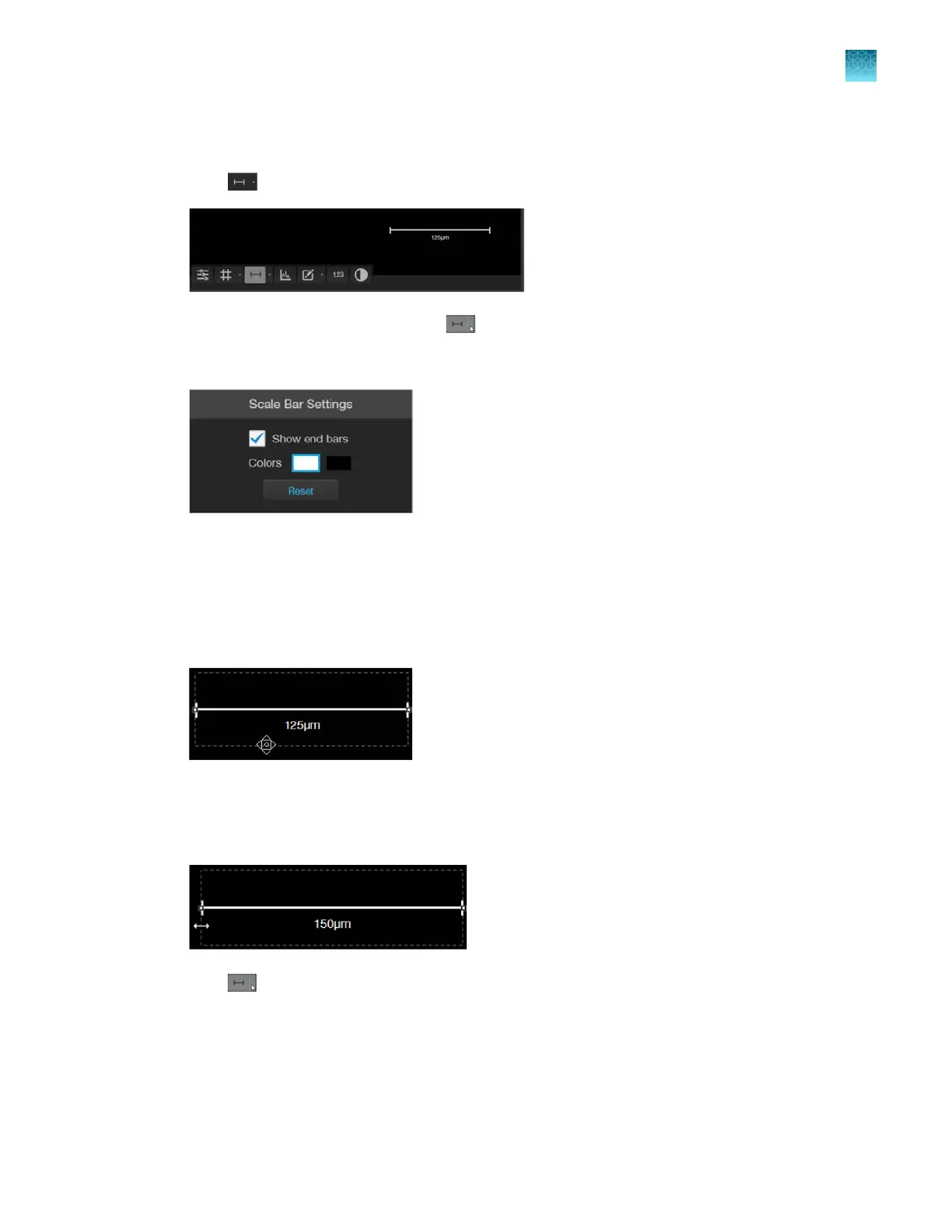
Click (Scale Bar) to superimpose a scale bar over the Viewing area.
2.
To change
Scale Bar Settings, click
(Scale Bar Settings) (arrow on the Scale Bar split
butt
on) to open the Grid Settings tool.
3.
Select
Show End Bars to display the scale bar with the end bars.
4.
Select the Color
for the scale bar.
5.
To move the scale bar, hover your pointer over the scale bar until a bounding box appears, then
click within the bo
x and drag the scale bar to the desired location within the Viewing area.
6.
To adjust the length of the scale bar, hover your pointer over the scale bar until a bounding box
appears, then the click left or right side of the bo
x and drag the box to the desired length.
You can adjust the length by pre-fixed increments based on the objective magnification.
7.
Click (Scale Bar Settings) again to save your settings and close the tool.
Chapter5Measure, annotate, and analyze captured images
Display scale bar
5
EVOS
™
M5000 Imaging System User Guide
39



 To Next Page