Align channels
Align channels
The Align Channels tool allows you to correct pixel shifts that can occasionally appear when
performing multichannel fluorescence imaging at higher magnifications. You can select individual
channels in a multichannel image, move them to the correct position relative to other channels, and
then save the corrected image.
Note: The button to display the Align Channels tool is visible only if the Show Align Channels in
Display Settings and Analysis Tools option is selected in the Settings4General tab (“Show Align
Channels tool” on page102).
1.
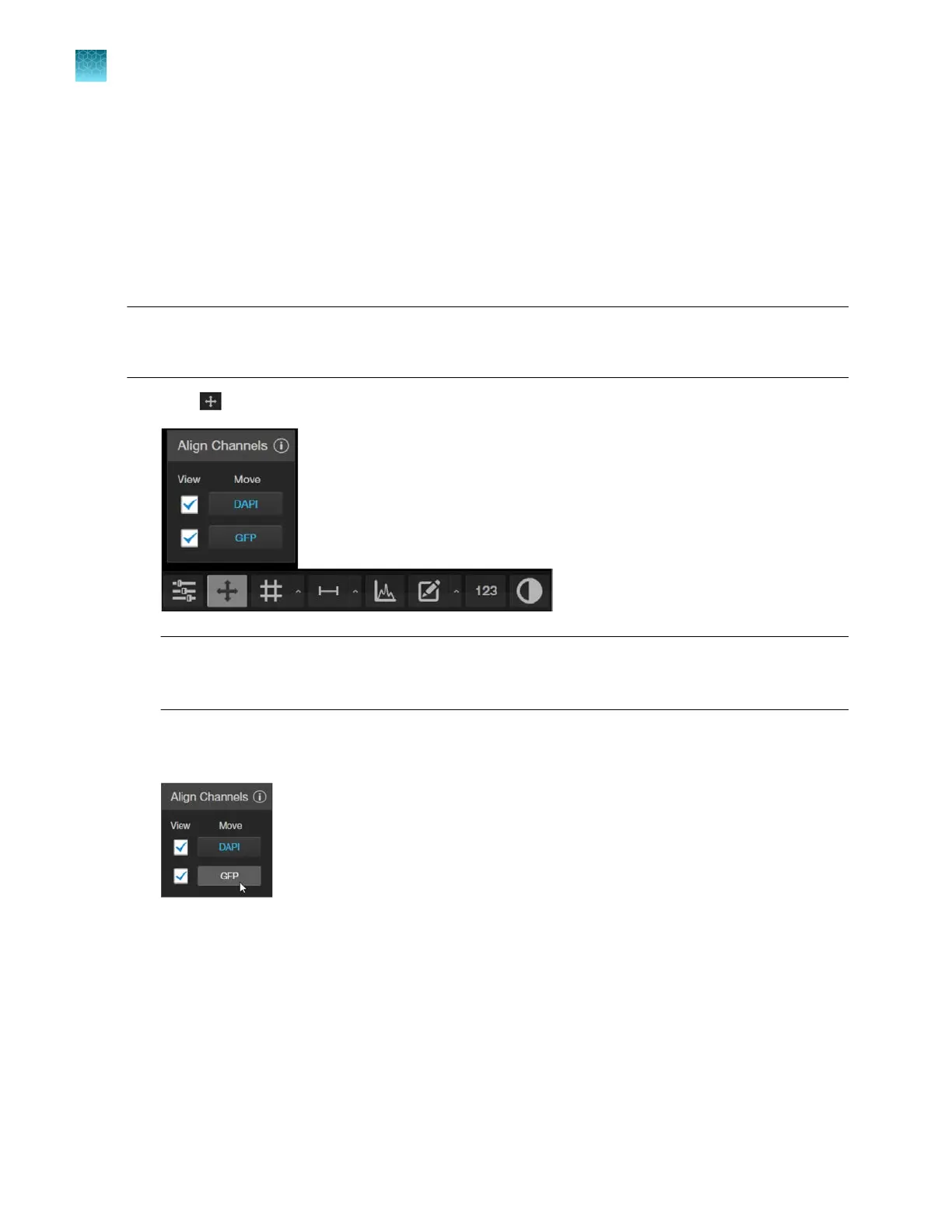
Click (Align Channels) to expand the controls for the Align Channels tool.
Note: The controls for the Align Channels tool are contextual. The tool only displays the controls
for the channels in which the select
ed multichannel fluorescent image has been captured. In this
example procedure, the multichannel image was captured in the DAPI and GFP channels.
2.
Select the channel for which you wish to correct pixel shifts. In the following example, the GFP
channel is select
ed.
3.
Optional
: To remove a channel from displaying in the Viewing Area, unselect the corresponding
View checkbox. To display a channel with a captured image that is not shown in the Viewing Area,
re-select the corresponding View checkbox.
4.
Use the keyboard arrow keys to move the image in the selected channel to the desired position to
corr
ect for the pixel shift.
Chapter5Measure, annotate, and analyze captured images
Align channels
5
40
EVOS
™
M5000 Imaging System User Guide



 To Next Page