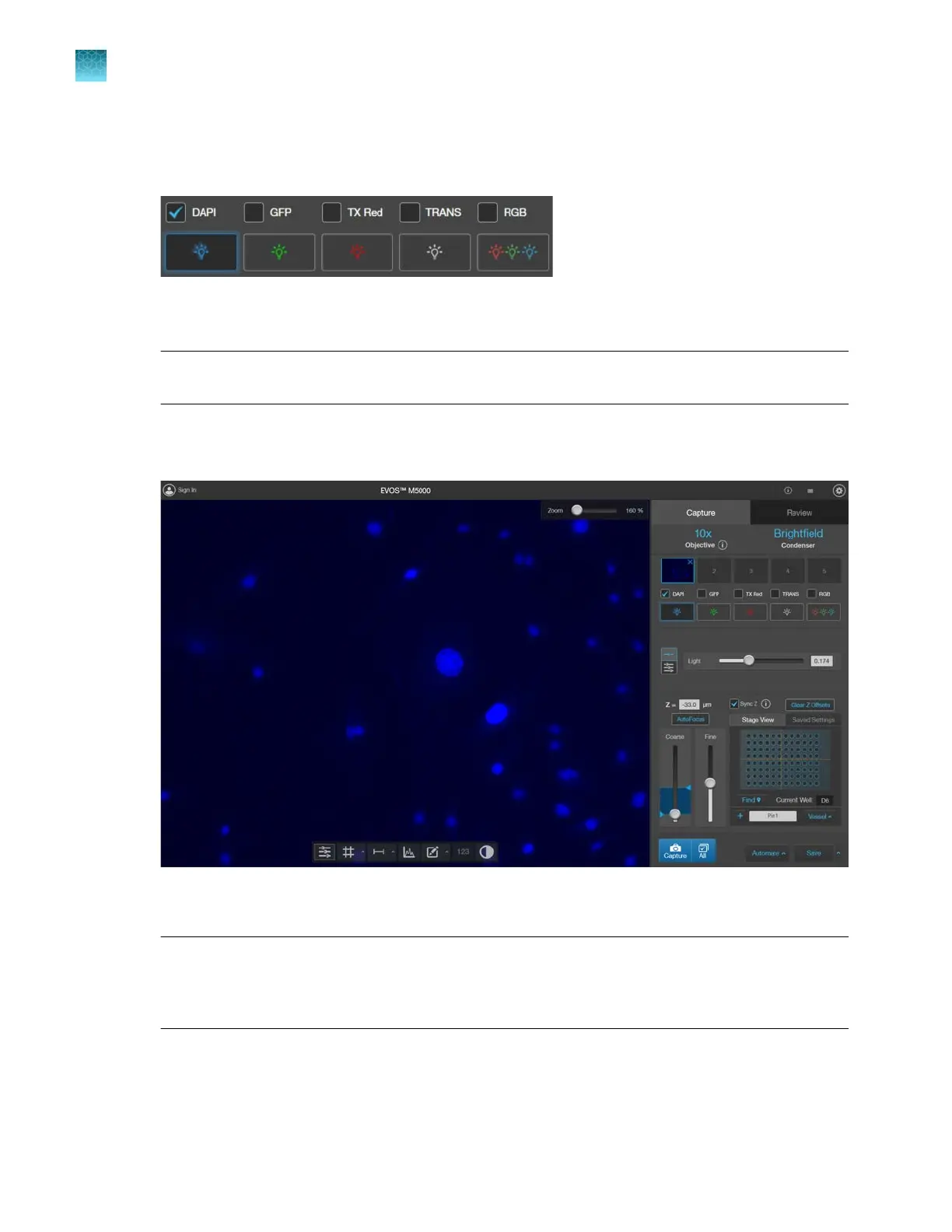
Capture images for each channel
1.
Ensure that the Channel you want to capture is selected.
When you select a Channel, the corresponding Capture channel checkbox above the button is
aut
omatically checked.
Note:
If you exit the Live mode, the current channel remains selected, as indicated by the
highlight
ed color surrounding the channel button.
2.
Click
Capture to acquire the image.
The viewing area shows the newly captured image.
A thumbnail of the captured image is displayed and highlighted for the selected channel (in this
e
xample, DAPI) beneath the Objective display.
IMPORTANT! Captured images are stored in individual memory buers with one for each
channel. Memory buers are for display and are not automatically saved. If unsaved, newly
captured images overwrite the previously captured image in the selected channel. Images
captured in other fields and channels are not aected.
3.
To capture the same field of view in another channel, select the desired Channel (for example,
GFP
, TX RED, etc.).
Chapter4Capture images
Capture images in a single channel
4
32
EVOS
™
M5000 Imaging System User Guide



 To Next Page