4.
Select Save individual channels to save images captured in dierent channels individually. Saving
as type TIFF or PNG are the recommended formats for image analysis.
Leave the Save individual channels option unselected to save only the captured image displayed
in the viewing area. The image is saved in display format, which is not useful for analysis.
IMPORTANT! Save individual channels as type TIFF or PNG as these are the recommended
formats for image analysis, because they allow you to save raw image data from each selected
channel.
5.
Select
Save screenshot to save an image of the entire instrument screen in addition to the
captured image.
Leave the Save screenshot option unselected to save only the captured image.
Note:
Save screenshot
allows you retain an image of the annotations and image display
selections as seen in the viewing area along with the instrument controls.
6.
Click
Save to save the image.
Quick Save images
(Optional)
Enable Quick Save
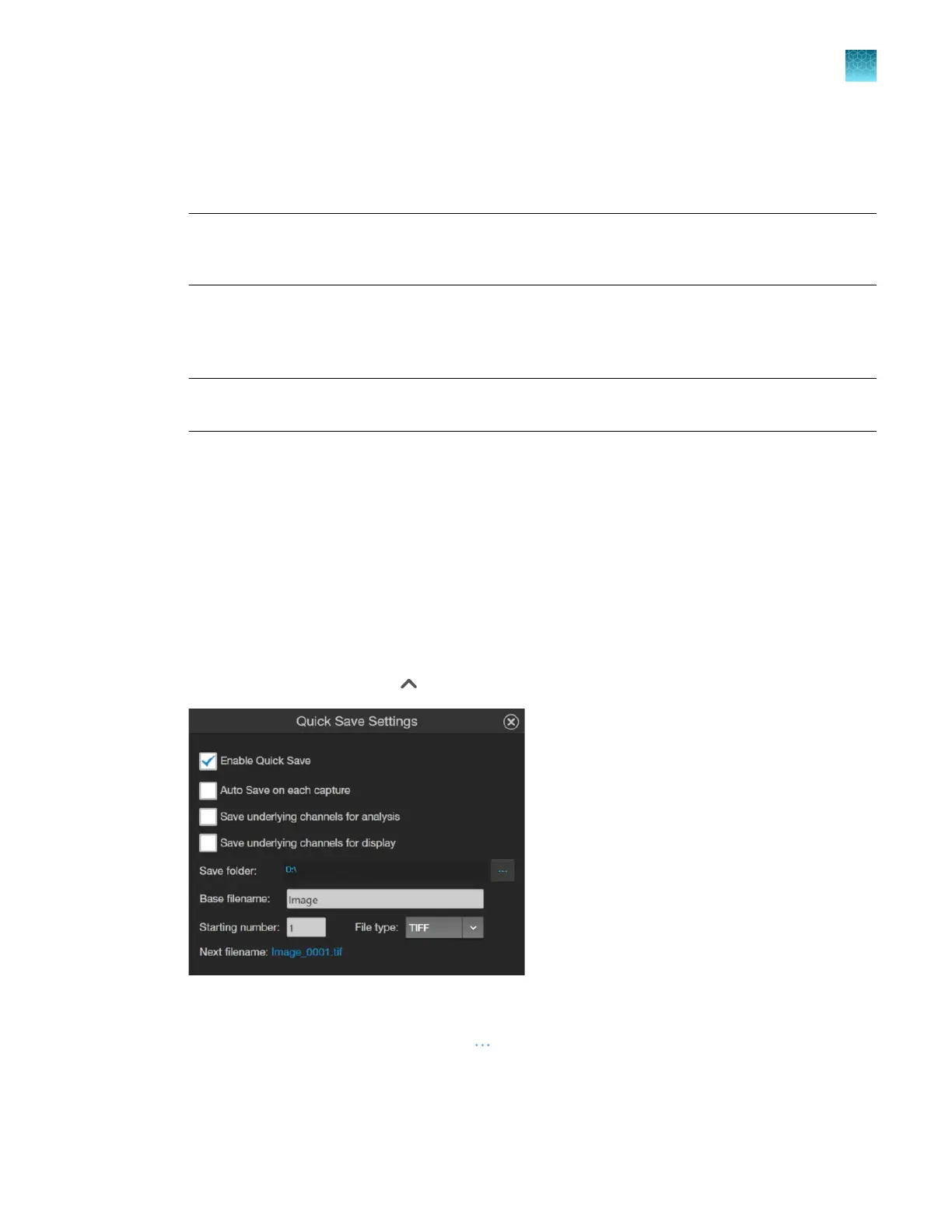
Quick Save function allows you to set the save options in advance and save your captured images
with a single click directly from the Capture tab or automatically without having to click Save after each
capture.
1.
Next to the Save button, click
(Up)
to open the Quick Save Settings dialog.
2.
Click
Enable Quick Save. The Save button on the Capture panel will change to Quick Save.
3.
Set the save to location drive by clicking
(Browse) to open the Select Folder dialog, navigate
t
o the folder for storing images, then click Select Folder.
Chapter6Save captured images
Quick Save images
6
EVOS
™
M5000 Imaging System User Guide
63



 To Next Page