2.
Select the drive you want to map from the Drive menu.
3.
Click
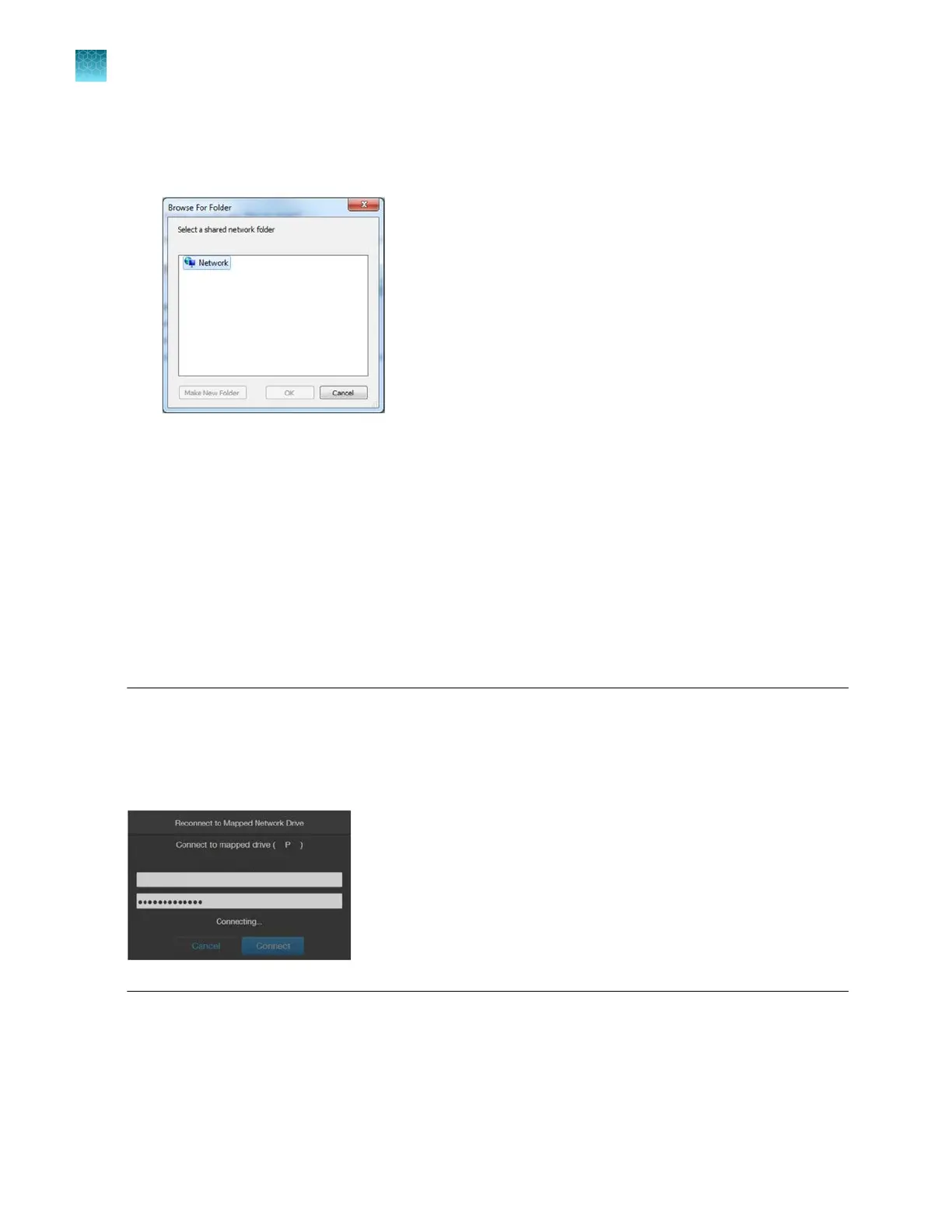
Browse to open the Browse for Folder dialog.
4.
Navigate to the folder you want to map, then OK.
5.
If you want to reconnect to the selected drive and folder when you turn on the instrument, click
Reconnect at logon.
6.
If you want to reconnect as a dierent user, click Connect
using dierent credentials.
7.
To connect to a website for storing your documents and pictures, click the hyperlink, then navigate
t
o the desired website.
8.
After you have mapped the desired network drive and folder or connected to the website, click
Finish
.
Note:
When
Reconnect at logon is checked and a successful connection is established, the system
will attempt a reconnection to any previously connected networks or mapped drives every time the
instrument is turned on until you manually disconnect from the connected networks or mapped drives.
If no connection can be succesfully established to the previously mapped drive during start up, the
instrument displays the Reconnect to Mapped Network Drive dialog.
Chapter11Configure instrument settings
Configure network settings
11
104
EVOS
™
M5000 Imaging System User Guide



 To Next Page