11 Settings application
Within the Settings application you can set user preferences, view or change device and network
settings, and run the Diagnostic Tool. The Diagnostic Tool is available only if the tool is enabled for you
by an administrator.
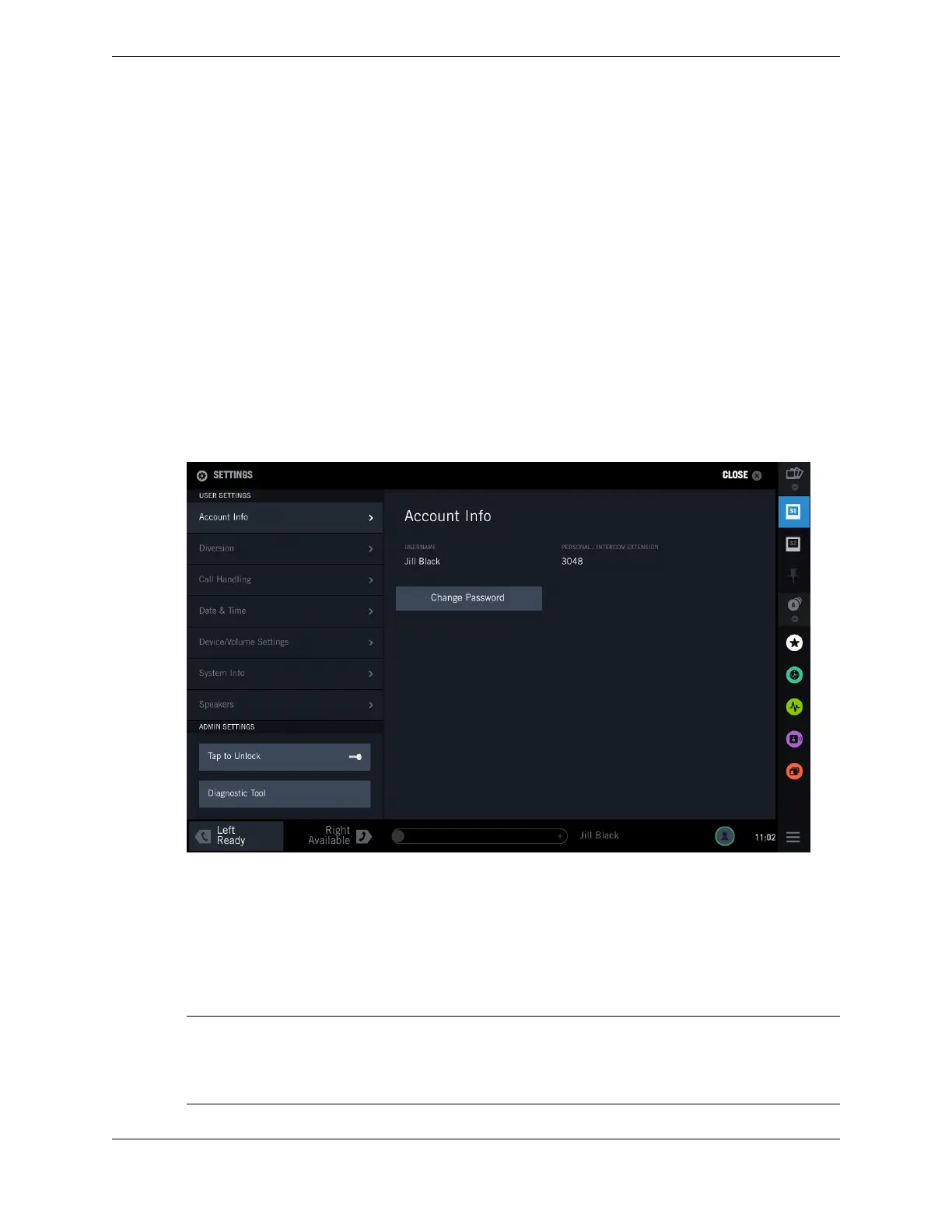
The Settings application is divided into two panels: a left panel that consists of the USER SETTINGS
options, ADMIN SETTINGS options, and the Diagnostic Tool, and a right panel that displays the content
of the selected option.
Access the Settings application from the User Badge. For an illustration, see User menu popover and
User badge on page 33. To exit the Settings application, tap the CLOSE button in the top right of the
screen.
Figure 70: Settings application
For information on the
USER SETTINGS options, refer to User Settings on page 156.
For information on ADMIN SETTINGS options, refer to the IQ/MAX TOUCH Turret Hardware
Installation Manual. These options are available only to administrative users.
For information on the Diagnostic Tool, refer to IQ/MAX TOUCH Turret Hardware Installation
Manual. The Diagnostic Tool generates diagnostic data that can be used for analysis and
troubleshooting.
Note
IQ/MAX TOUCH continues to be functional while you are using Settings. If you do not have the
Expansion Module and a call comes in, you can answer it if you have enabled call notification popups.
Otherwise, you need to close Settings to answer the call.
155
IPC Proprietary Unigy 4.3
IQ/MAX TOUCH Turret User Guide



 To Next Page