3. Tap Remove.
The button assignment is removed. The button is empty and available for assignment.
You can also remove a button in Edit mode. See Move or swap a button on page 54.
4.9 Function buttons
A function button performs a special action before a call or during a call, and is invoked by tapping a
single button.
Function buttons technically operate as a macro; that is, a sequence of multiple actions that are executed
as a single button operation. Function buttons are created by selecting individual functions from the
available set and assigning them as a custom function button within the Favorites application.
Function buttons can be configured by an administrator from the UMS or by you, if you have been
assigned sufficient privileges. Function buttons configured at the turret are saved to your Favorites app.
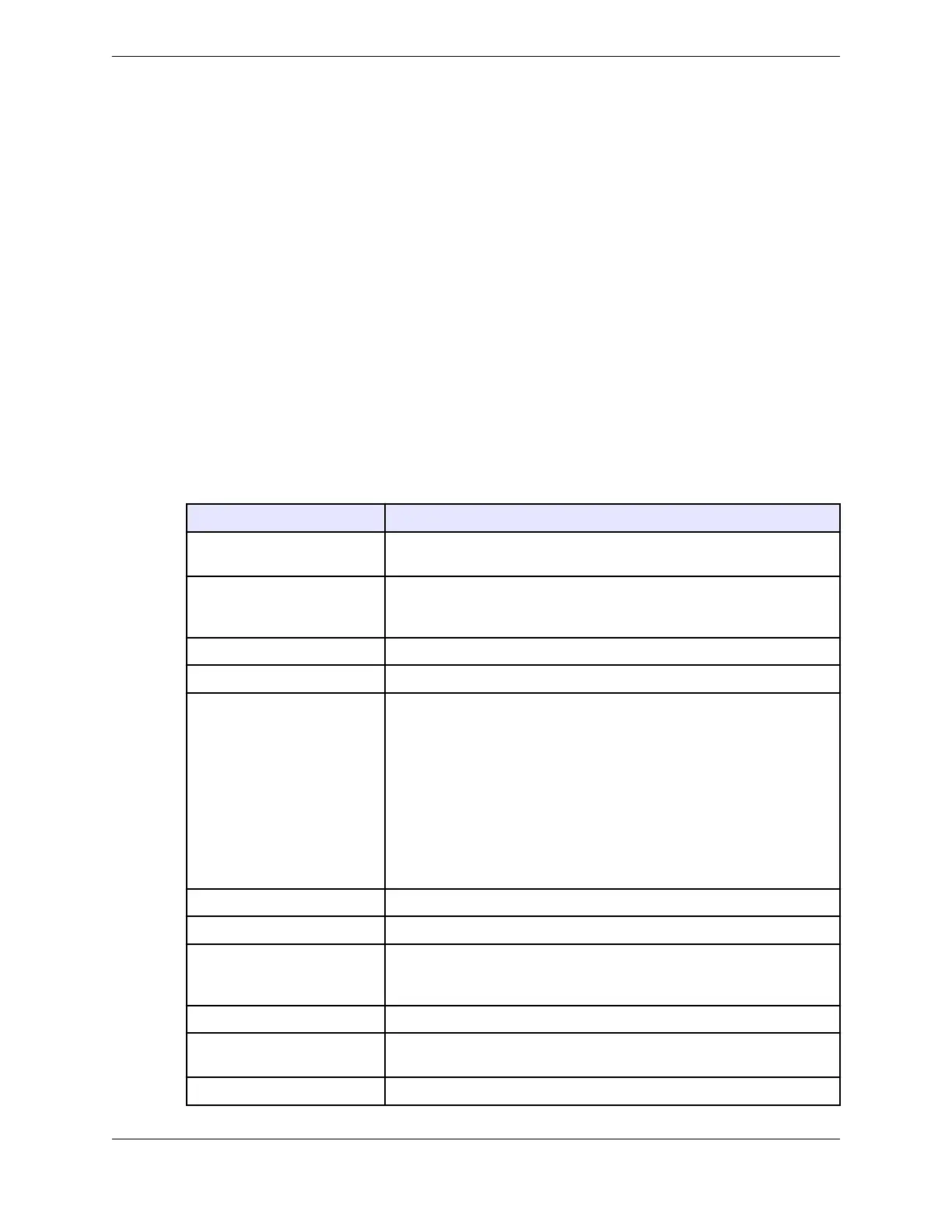
The following table lists commonly-used functions that can be assigned to a function button (in the order
that they appear in the Add Button: Function Button Options dialog).
Table 3: Assignable functions
Function Description
Macro Create a key sequence of function button actions. It is recommended
that an administrator configure macros from the UMS.
Direct Page Go directly to a page in the Button Sheet. Valid range is 0 - 50. Each
page counts as a 1/4 sheet, or 12 buttons. So if you set the page to 5, it
will bring you to the start of sheet 2.
Direct Intercom Directly dials a specified ICM number.
Hunt Start a hunt for an idle line.
Do Not Ring Mute the ringer on the turret. Does not stop intercom calls. Activating
the Do Not Ring function button does not change the Do Not Disturb
presence status of the turret user. The turret user continues to be in
Available mode.
Presence Do Not Disturb is a separate feature. For more information,
see Presence on page 40.
Beginning with Unigy v4.1, the button label for this function button was
changed from Do Not Disturb to Do Not Ring. If an IQ/MAX TOUCH that
was connected to a Unigy v4.1 or higher zone is redirected to a pre-
Unigy v4.1 zone, the button label does not change from Do Not Ring to
Do Not Disturb, it remains Do Not Ring.
Privacy Make the next call private.
Intercom Start an intercom call from Button Sheet.
Get CLI Show CLI for a button configured for No CLI or show the full CLI if it is
too long. You do not see the CLI if you are programming the turret.
Close the Function menu.
Suppress CLI Block your calling line identity at the far end.
Toggle CLI Change from your default CLI (name or number) to the other option.
Stops default toggle and changes it manually.
Page Up Scroll up the Button Sheet page.
4.9: Function buttons 55
IPC Proprietary Unigy 4.3
IQ/MAX TOUCH Turret User Guide



 To Next Page