6 Save Views option
7 Close option
Tap the Snapshot group icon to expand or collapse the list of snapshots. You can reorder the snapshot
icons in the Navbar by long pressing and dragging a snapshot icon up or down. You can edit the
applications in a snapshot after it has been created. You can also rename a snapshot and delete a
snapshot.
For information about free seating and snapshots, see Free seating on page 19.
For information about applications that can be cloned or copied, see Multiple copies of applications
(clones) on page 39.
3.10.1 Create a snapshot
You can create a new snapshot by dragging the applications from the Navbar and dropping them in the
main application area.
For an overview of snapshots, see Snapshots on page 42.
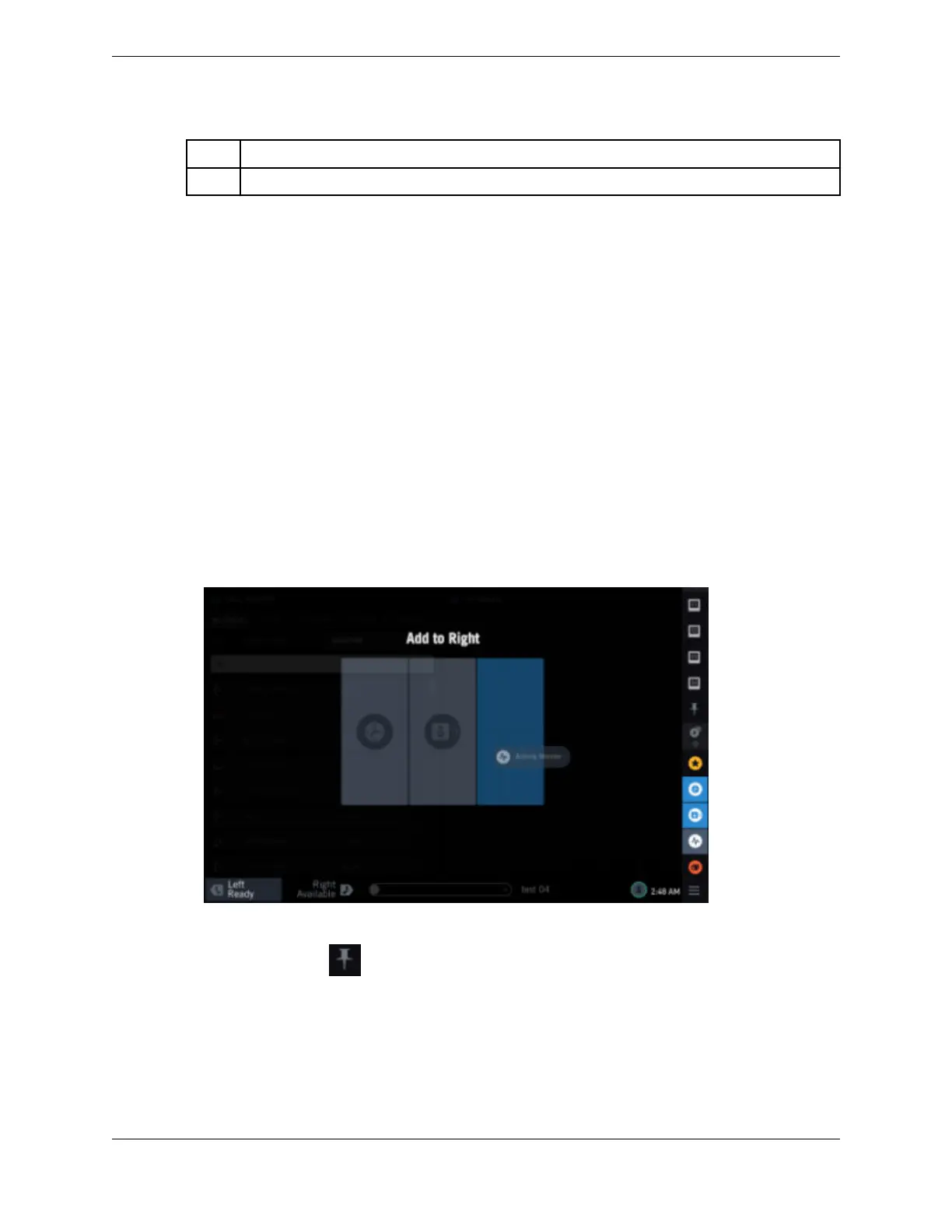
1. Touch and drag an application from the Navbar and drop it in the main application area using the
positioning guide.
The application can be dropped in any available slot.
Figure 27: Create a snapshot
2. Tap the SAVE VIEWS icon to save the snapshot.
SAVE VIEWS icon:
The newly created snapshot is saved in the Navbar.
3.10.2 Open a snapshot
You can open a saved snapshot by tapping the snapshot icon or snapshot name in the Navbar.
3.10: Snapshots 43
IPC Proprietary Unigy 4.3
IQ/MAX TOUCH Turret User Guide



 To Next Page