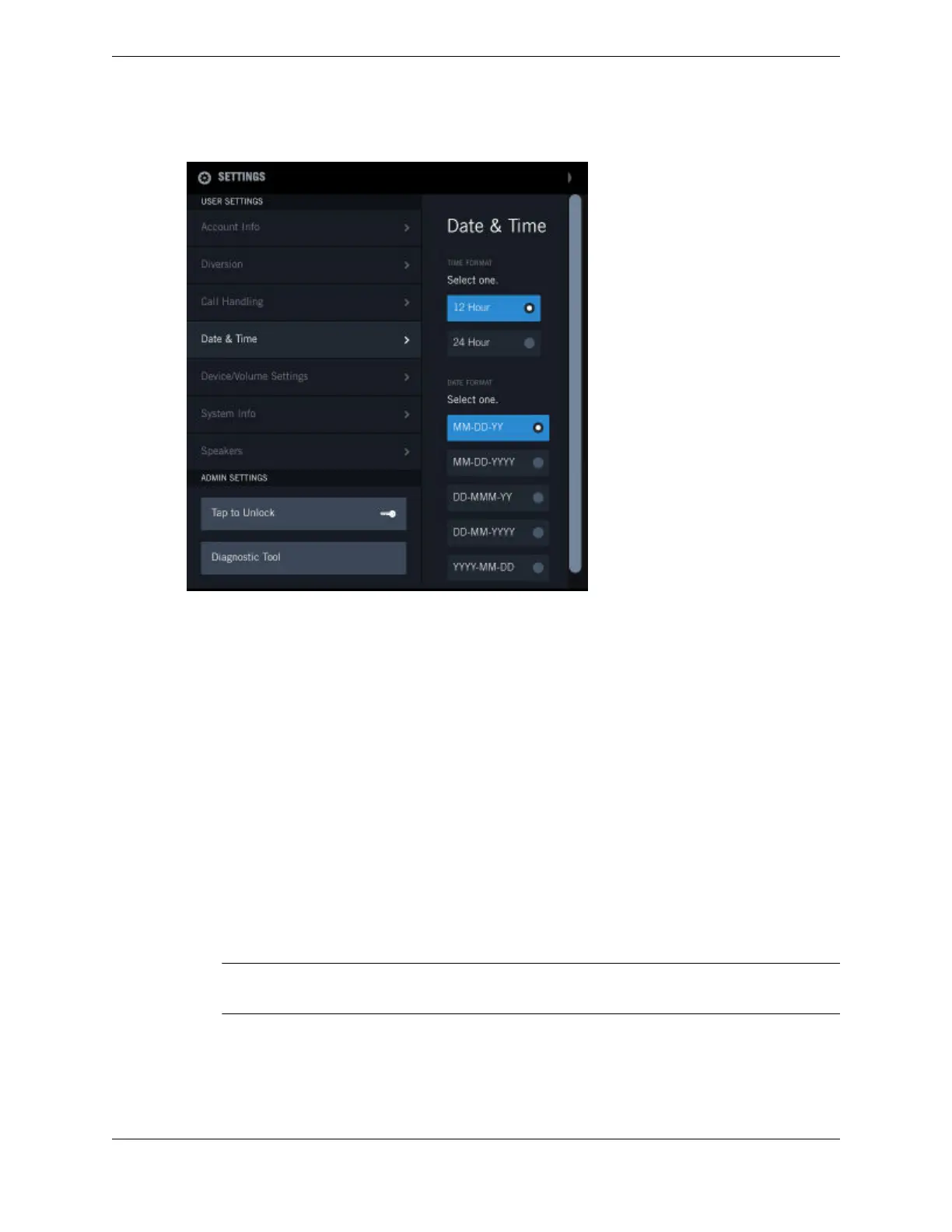
Figure 78: Date & Time
To set the Date & Time format:
1. Tap the User Badge in the footer (located on right side of the lower panel) of the main screen.
The list of options is displayed.
2. Tap Settings.
The device displays the SETTINGS screen.
3. Tap the Date & Time option from the left panel to access the screen.
4. TIME FORMAT - Sets the TIME FORMAT display. Tap the appropriate option, either 12 Hour or 24
Hour time display.
5. DATE FORMAT - Sets the DATE FORMAT display. Tap one of the options for date display:
•
MM-DD-YY
•
MM-DD-YYYY
•
DD-MMM-YY
•
DD-MM-YYYY
•
YYYY-MM-DD
Note
The DD-MMM-YY option can only be set on the turret; it is not an option in the UMS.
11.6 Device/Volume settings
You can set the display language, font magnification, brightness, sleep mode time, default receive
volume and ringer volume settings for an IQ/MAX TOUCH.
168 11.6: Device/Volume settings
August 26, 2019 IPC Proprietary



 To Next Page